Showing posts with label 5. Show all posts
Showing posts with label 5. Show all posts
Sunday, October 13, 2013
Unlock iPhone 3GS On iOS 5 0 1 By Patching Ultrasn0w 1 2 4
iOS 5.0.1 is out from past couple of weeks but still an Ultrasn0w update has not been released in order to unlock iPhone 3GS with BB 6.15.00 on it. A lot of users who restored iOS 5.0.1 on their iPhone 3GS but rely on unlock were stuck with a “No Service” error on their Home Screen. Yesterday we posted about Ultrasn0w fixer which is a third party solution to unlock your iPhone 4 and iPhone 3GS on iOS 5.0.1 but that solution is having some problem. Some people were getting dependency issues and even developers of that tweak refused release a fix for it.

Anyhow, folks over BiPR came up with a brilliant manual Ultrasn0w patch which will fix ultrasn0w 1.2.4 and make it work on iPhone 3GS running iOS 5.0.1. Don’t panic it’s an easy process and we tried it personally and we can confirm that it works for iPhone 3GS iOS 5.0.1.
Important: By following this method you can ONLY unlock iPhone 3GS running iOS 5.0.1 with iPad’s baseband 6.15.00 (which most of iPhone 3GS users are running now). DO NOT try it on iPhone 4.
Important: By following this method you can ONLY unlock iPhone 3GS running iOS 5.0.1 with iPad’s baseband 6.15.00 (which most of iPhone 3GS users are running now). DO NOT try it on iPhone 4.
How To Unlock iPhone 3GS On iOS 5.0.1 BB 6.15.00 By Patching Ultrasn0w 1.2.4:
Things you will need during this process:
- Jailbroken iPhone 3GS running iOS 5.0.1 with baseband 6.15.00 (If you’re not jailbroken on iOS 5.0.1 you can follow our complete step by step guide to jailbreak it using Sn0wbreeze )
- Ultrasn0w 1.2.4 patch file (Download)
- iFile (if you don’t have it in your iPhone you can get it by adding xSellize Repo repo )
Before you begin: Take out SIM card from your iPhone
Step 1: Download Ultrasn0w 1.2.4 patch file from the link above and extract it on your desktop.
Step 2: Connect your iPhone 3GS to computer via USB cable.
Step 3: Run iExplorer which you downloaded from the link above, it will automatically detect your iPhone 3GS and display your iPhone 3GS’s files in Windows Explorer like view.
Step 4: Navigate to
raw file system/System/Library/Frameworks/CoreTelephony.framework/Support/
Step 5: Before making further changes, back-up CommCentreClassic file by renaming it to CommCentreClassicOld and to be on the safe side save a copy of it locally on your computer as well.
Step 6: Copy and Paste CommCentreClassic file which you downloaded and extracted on desktop in Step 1
Step 7: Now let’s get back on your iPhone 3GS, launch iFile on your iPhone 3GS and navigate to :
System/Library/Frameworks/CoreTelephony.framework/Support/
Step 8: Tap on commcenterclassic, click the Blue arrow next to the file name, go to Access Permissions and set the following permissions:
Step 1: Download Ultrasn0w 1.2.4 patch file from the link above and extract it on your desktop.
Step 2: Connect your iPhone 3GS to computer via USB cable.
Step 3: Run iExplorer which you downloaded from the link above, it will automatically detect your iPhone 3GS and display your iPhone 3GS’s files in Windows Explorer like view.
Step 4: Navigate to
raw file system/System/Library/Frameworks/CoreTelephony.framework/Support/
Step 5: Before making further changes, back-up CommCentreClassic file by renaming it to CommCentreClassicOld and to be on the safe side save a copy of it locally on your computer as well.
Step 6: Copy and Paste CommCentreClassic file which you downloaded and extracted on desktop in Step 1
Step 7: Now let’s get back on your iPhone 3GS, launch iFile on your iPhone 3GS and navigate to :
System/Library/Frameworks/CoreTelephony.framework/Support/
Step 8: Tap on commcenterclassic, click the Blue arrow next to the file name, go to Access Permissions and set the following permissions:
- User: Read, Write, Execute
- Group: Read, Execute
- Global: Read, Execute
Step 9: Launch Cydia from your iPhone 3GS’s homescreen and install ultrasn0w 1.2.4 from there.
Step 10: Disable 3G option and Cell Data Network under Settings > General >Network. Now you can insert your SIM card
BOOM! You iPhone 3GS with baseband 6.15.00 should be unlocked on iOS 5.0.1 now.
If you face any problems during this process feel free to contact us, we’ve tested this process and we can confirm that it works perfectly fine.
Step 10: Disable 3G option and Cell Data Network under Settings > General >Network. Now you can insert your SIM card
BOOM! You iPhone 3GS with baseband 6.15.00 should be unlocked on iOS 5.0.1 now.
If you face any problems during this process feel free to contact us, we’ve tested this process and we can confirm that it works perfectly fine.
If an Ultrasn0w update comes for iOS 5.0.1 which is expected very soon all you have to do is replace the patched file with your back-up file and re-run ultrasn0w

TinyUmbrella Updated To Support iPhone 4S’ iOS 5 0 1 Build 9A406

Download TinyUmbrella for Mac and Windows here…
Friday, October 11, 2013
To Downgrade 6 15 00 Baseband 3Gs 3G to 5 13 04 Unlock
Finally you are able to downgrade your 3Gs & 3G Baseband from 6.15.00 to 5.13.04 in order to fix the GPS not working. This will work on any 3Gs or 3G that is currently running the 6.15.00 Baseband. Get your downloads below and follow the video above for the tutorial!
Redsn0w has now been Updated to 0.9.14b2 to fix any issues users were having with downgrading!
You will need to download Redsn0w 0.9.14b2, Your 5.1.1 Official Firmware for 3Gs Only and iDetector is Optional.
Redsn0w 0.9.14b2 for Windows: Windows Redsn0w 0.9.14b2
Redsn0w 0.9.14b2 for Mac: Windows Redsn0w 0.9.14b2
iPhone 3Gs 5.1.1 Official IPSW Firmware: iPhone 3Gs 5.1.1
iDetector : NEW/OLD Bootrom Detector NOTE: To check your 3Gs Bootrom on a Mac, Click Here: Mac Bootrom Guide
Thursday, October 10, 2013
It is here Official by Apple iPHONE 5
iPhone 5. The biggest thing to happen to iPhone since iPhone.
Thinner, lighter design. So much more than before. And so much less, too.
4-inch Retina display. It’s not just bigger. It’s just right.
Ultrafast wireless. Browse, download, and stream content at blazing-fast speeds.
A6 chip. Performance and graphics up to twice as fast.
iSight camera. The camera you love now shoots in panorama.
iOS 6. The world’s most advanced mobile operating system.
- Gallery: iPhone 5
- Gallery: iPhone 5
- Gallery: iPhone 5
- Gallery: iPhone 5
- Gallery: iPhone 5
- Gallery: iPhone 5
- Gallery: iPhone 5
It doesn’t seem possible. That an iPhone with so much — a larger display, a faster chip, ultrafast wireless technology, an 8MP iSight camera — could be so thin and so light. But it is. In fact, iPhone 5 is the thinnest and lightest iPhone ever.
Learn more about the design of iPhone 5
The 4-inch Retina display lets you see more of everything. And everything you see is vivid and lifelike. It’s a larger, more beautiful canvas made the right way. Because even though the display is bigger, iPhone 5 is the same width as iPhone 4S. So it’s just as easy to use with one hand.
Learn more about the features of iPhone 5
With support for the latest wireless technologies, iPhone 5 connects to more networks all over the world.* And Wi-Fi is faster, too. So you can browse, download, and stream content at remarkable speeds, wherever you happen to be.
Learn more about the features of iPhone 5
The all-new Apple-designed A6 chip in iPhone 5 is powerful but not power hungry. CPU performance and graphics performance are up to twice as fast as on the A5 chip. But even with all that speed, iPhone 5 gives you outstanding battery life.
Learn more about the features of iPhone 5

Compare iPhone models *Qualified customers only.
Order your iPhone online and get it delivered to your door. It ships free and ready to use.
Buy iPhone
Buy iPhone at the Apple Retail Store and we’ll activate it and set it up just the way you want.
Find a store
Get answers about iPhone and rate plans before you buy. Talk with a knowledgeable Specialist.
1-800-MY-APPLE
Use the Apple Store app to shop, make appointments, and more. Download now
- *Compared with iPhone 4S.
- Some features may not be available for all countries or all areas. Click here to see complete list.
- Some features, applications, and services are not available in all areas. See your carrier for details. Application availability and pricing are subject to change.
- LTE is available in select markets and through select carriers. Check with your carrier for details.
- The Transamerica Pyramid Building is a registered service mark of Transamerica Corporation.
- Home
- iPhone
About iPhone 5
More iPhone
- iPhone 4S Tech Specs
- iPhone 4 Tech Specs
- Compare iPhone models
- Tips and Tricks
- iPhone in Education
- iPhone for Students
- iOS for Developers
- Accessibility
- (PRODUCT) RED
iPhone in Business
Support
Shop the Apple Online Store (1-800-MY-APPLE), visit an Apple Retail Store, or find a reseller.
Copyright © 2012 Apple Inc. All rights reserved.
http://www.apple.com/iphone/

 Watch the keynote
  Watch the iPhone 5 video


Tuesday, October 8, 2013
Redsn0w 0 9 9b5 Will Preserve Baseband iOS 5 Official can be jailbroken tethered
MuscleNerd of iPhone Dev-team has just announced some important news on his Twitter account. MuscleNerd has post a screen-shot of the upcoming version of Redns0w 0.9.9 b5 which will have major update, the Dev-team will merge PwnageTool into Redsn0w.
===========================================================
What that means, you will be able to cook your custom firmware from Redsn0w directly which was the major advantage of PwnageTool and Sn0wbreeze. Both PwnageTool (for Mac) and Sn0wbreeze (for Windows) are being used mainly by who rely on unlock for their iPhones as they can preserve the unlockable baseband so they can unlock their iPhones with ultrasn0w. Now Redsn0w new feature will kill the both PwnageTool and Sn0wbreeze for ever, as Redsn0w is always available for both Mac and Windows. The only case that the Dev-team will upgrade PwnageTool is only in case of untethered jailbreaks.
Thanks Dev-team about your continuous hard work and improvements. This is really awesome.

iOS 5 (Official) can be jailbroken (tethered)
Due to the extensive work put in by the jailbreak community, we’ve the luxury nowadays of a tether-jailbreak being released simultaneously to the update, and Apple’s latest and greatest version of iOS is no exception.
Those of you who have – or are planning to – upgrade to iOS 5 might be pleased to learn that it can be jailbroken (tethered for now), allowing you to add all of those hacks and tweaks you know and love.

iPod touch 4th-gen, running jailbroken iOS 5 | image credit: MuscleNerd
It has been queried on numerous occasions, with Apple going the whole nine yards in terms of updates, as to whether there would even be any need to jailbreak anymore. After all, unless you’re simply stealing apps and games, most of the Cydia tweaks regarding Safari, notifications, SMS etc have all been improved upon, right?Well, while the improvements may appease many into sticking with stock, it’s important to remember that there are some jailbreakthat just won’t make it to the Cupertino company’s default software bundle. SBSettings is a prime example, bringing control of your iDevice’s vital features using a simple activation method.
Thanks to the work of the iPhone Dev-Team, you can tether-jailbreak your iOS 5 device using Redsn0w 0.9.9b5 by following this simple tutorial
Things to remember:
- This will not work with iPad 2, nor the iPhone 4S.
- This is a tethered jailbreak, meaning that it will require you to connect the phone to a computer running Redsn0w whenever you power up the phone.
- As has been the case before, by pursuing the tethered route, if and when an untethered jailbreak does surface, the chances are you’ll have to restore in order to utilize it.
Step 1: Download and install the new iTunes 10.5 on your Windows PC or Mac. Connect your iOS device with your computer and make sure you make a backup of everything.
NOTE: Those of you who rely on Gevey SIM or Ultrasn0w unlock should skip to “For Unlockers Only” section found at the bottom.
Step 2: Now upgrade your iOS device to the final version of iOS 5 using iTunes 10.5 on your Windows PC or Mac. Download links for final version of iOS 5 can be found here.
Step 3: Download the new Redsn0w 0.9.9b5 for Windows or Mac.

Step 4: Click on the “Jailbreak” option, select “Install Cydia” and follow the onscreen instructions to enter DFU mode. Once you’re in DFU mode, Redsn0w will perform the jailbreak (without having to have you select the IPSW manually! YES, the new Redsn0w can fetch all the required files automatically from Apple’s servers).

Booting into Tethered-Jailbreak Mode:
Step 4: Once you’ve installed Cydia, you will need to boot the device into a tethered jailbroken state. Go into DFU mode, and then in “Extras”, opt for “Just Boot”. Redsn0w will subsequently boot your device as tethered. Note: Due to the nature of this jailbreak, you will have to repeat this booting sequence every time you wish to reboot your device.

For Unlockers Only:
If you rely on a Gevey SIM or Ultrasn0w (for old basebands only) unlock, DO NOT update to the stock firmware update offered by iTunes. Instead, use this latest version of Redsn0w to cook a custom firmware file without the upgraded baseband so that you can unlock it with Ultrasn0w or Gevey SIM. To do this, click on “Extras” option and then select “Custom IPSW” option. Select the required iOS 5 IPSW firmware file, and let Redsn0w make the custom firmware for you. Once done, enter Pwned DFU mode by selecting “Pwned DFU” from Redsn0w’s Extras option, and then restore to this custom firmware using iTunes. Once done, unlock your iPhone using Gevey SIM, or the updated Ultrasn0w.
Alternatively, unlockers can also use Sn0wbreeze for jailbreaking iPhone on iOS 5 with preserved baseband.
This video was shot when iOS 5 GM was released.
Today’s public iOS 5 release is exactly same as last week’s GM release.
If p0sixninja’s revelation at MyGreatFest, backed up by i0n1c’s recent tweets are anything to go by, we could have a very swiftly released untethered jailbreak. Without giving too much away, i0n1c told us that an untethered solution was "covered", so we now await news from the Chronic Dev Team – the group behind the Greenpois0n 4.2.1 – with great excitement and anticipation. Today’s public iOS 5 release is exactly same as last week’s GM release.
Monday, October 7, 2013
Sn0wbreeze 2 8b1 Released To Jailbreak iOS 5 Beta 1 Tethered On Windows
iH8sn0w has finally updated sn0wbreeze. Sn0wbreeze 2.8b1 is now available for download and will jailbreak iOS 5 beta 1 tethered on iPhone, iPad and iPod touch.

sn0wbreeze v2.8 BETA 1 Release Notes:Please keep in mind that iOS 5 beta 1 jailbreak is tethered as of now and will require you to connect your jailbroken device to the computer every time you boot it up
————————————–
* Supports iOS 5.0 BETA 1 (9A5220p)
* Supports the following Devices:
- iPhone 3GS
- iPhone 4 [GSM]
- iPhone 4 [CDMA]
- iPod Touch 3G
- iPod Touch 4
- iPad 1G
————————————–
* Props to @MuscleNerd for the kernel patches. :)
————————————–
* THIS IS INTENDED FOR DEVELOPERS ONLY!!!
* This sn0wbreeze does NOT add afc2 or Hacktivate to prevent users from removing the UDID check after jailbreak.
* UNLOCKERS SHOULD STAY AWAY!!!
* This is a /TETHERED/ jailbreak via iBooty.
————————————–
Now available at: http://ih8sn0w.com/sb28b1
————————————–
// iH8sn0w
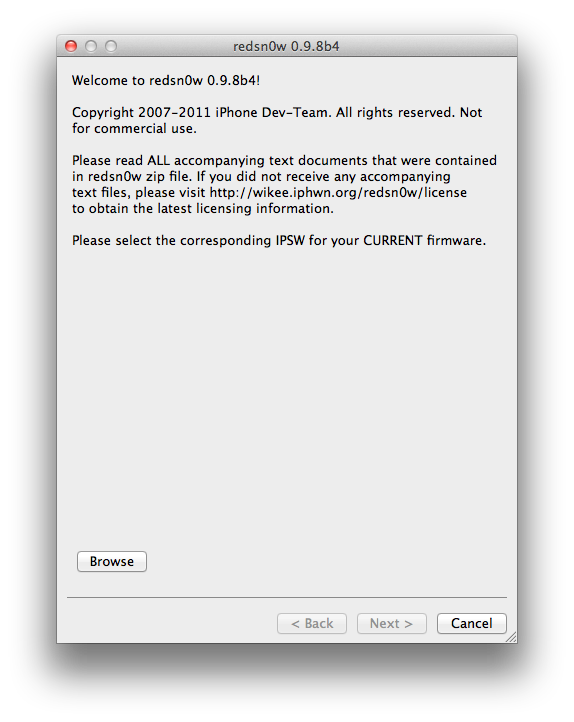
iPhone Dev Team Releases RedSn0w 0 9 8b4 to Jailbreak iOS 5 Beta 4
The iPhone Dev-Team has released RedSn0w 0.9.8b4 for developers to jailbreak iOS 5 Beta 4. Remember this is a tethered jailbreak.
In conjunction with iOS5 beta4 being released to iOS developers, redsn0w 0.9.8b4 is now available for jailbreak app developers. Remember, its a tethered jailbreak right now so youll need to use redsn0w to boot into a jailbroken state at each power cycle.
NOTE: It appears that by design, the OTA update that became available starting with iOS 5 beta4 will *not* be automatically applied to jailbroken devices. Thats a relief to those who dont want to lose their jailbreak via OTA pushes. If youre jailbroken, youll need to use the standard iTunes method to get to iOS 5 beta4.
You can download the new version of RedSn0w from here: Windows, Mac.
Friday, October 4, 2013
Downgrade iOS 5 GM To iOS 4 3 5 On iPhone iPad iPod Touch
Yesterday was a big day starting from the iPhone 4S to the recently released iOS 5 GM for developers. Since iOS 5 GM is installable by everyone, you may have updated to iOS 5 by now. In case you didn’t like the tethered jailbreak, found a few problems on your iOS device or discovered some apps that were not supported, that you desperately needed… you’re in luck: you can downgrade iOS 5 to iOS 4.3.3, iOS 4.3.5 or older.
Apple has just released iOS 4.3.5 ipsw firmware for iPhone 4, 3GS, iPod touch 4G, 3G, iPad 2, 1 and Apple TV 2G. As most of you know that iOS 4.3.4 was released on July 15. iOS 4.3.5 firmware come to fix a security vulnerability with certificate validation.
Before you downgrade, please remember you can only downgrade your iDevice firmware if, and only if, you have saved your SHSH blobs somewhere safely, hopefully with Saurik’s Cydia server, or locally on your machine.
From now on, I will assume you have saved your blobs on Saurik’s Cydia server.
STEP 1: To start with, you need to make sure you have a copy of iOS 4.3.5 or whatever firmware you need to downgrade for your device which you can find and download from here.
STEP 2: Next, you need to make sure your hosts file is pointing to Saurik’s server, and not Apple’s. If you haven’t done this then please check this guide.
Alternatively, use TinyUmbrella to make iTunes look at Cydia’s Server in the Advanced options.
STEP 3: Now plug in your iOS device, and switch it off, but leave it plugged in.
STEP 4: Put your device into DFU mode, our guide here.
STEP 5: Select your firmware manually to restore to. (Shift on Windows, and option on a Mac)
It says that it will talk to Apple when really, it is talking to the Cydia servers.But, should your phone should now have an error, such as error 1015, DO NOT PANIC! This is normal and has a quick fix. Just download anduse Recboot to kick it out of recovery mode –Hey presto! Your device should now have downgraded without a hitch…


How To Use Gevey SIM Ultrasnow 1 2 4 on IOS 5 And What’s the Diffrence
If you decided to unlock your iPhone 4, 3GS on iOS 5 so you have two ways the
- First way: is to use Ultrasnow 1.2.4 which has released by the Dev- team to unlock iPhone 4, 3GS on iOS 5 which supported these baseband 01.59.00 / 04.26.08 / 05.11.07 / 05.12.01 / 05.13.04 / 06.15.00.
- Second way: is to use Gevey SIM in order to unlock iPhone 4 on iOS 5 Gevey Sim supported baseband 01.59.00 / 02.10.00 / 03.10.1 / 04.10.1 but notes if you have an iPhone 4 that is currently unlocked with a Gevey SIM card, you can unlock your iPhone on the iOS 5 firmware with the same Gevey SIM card as long as you preserve your baseband while updating to the iOS 5 firmware. So the difference between UltraSn0w and the Gevey SIM card, is that UltraSn0w only supports a limited number of older basebands while the Gevey SIM card supports a limited number of newer basebands.
Download Required:
- Download iOS 5 firmware
- Download iTunes 10.5
- Download Redsn0w 0.9.9b5
How to preserve iPhone 4 baseband guide
STEP 1: Connect your iPhone 4 into you computer then open Redsn0w 0.9.9b5.
STEP 2: Now select Extras then “Custom IPSW” option so that you can create your pre-jailbroken custom firmware.
STEP 3: Redsn0w will start cooking your custom IPSW and you’ll get it in few minutes.
STEP 4: Once you get your firmware, select ‘Pwned DFU’ from RedSn0w.
STEP 5: Follow the on-screen instructions to get your iPhone in DFU mode.
STEP 6: Once it’s in DFU mode, close Redsn0w then open iTunes 10.5 downloaded above and you should get your iPhone in Recovery Mode message.
STEP 7: Now hold the Option key on Mac and hit Restore. Point iTunes to your iPhone 4 Custom iOS 5 IPSW which begins with NO_BB. (WARNING: Don’t select the stock one or you’ll lose your unlock)
Wednesday, October 2, 2013
HOW TO The Complete Idiots Guide To Downgrading From iOS 5 To 4 X
Well you had to do it didn’t you. You just had to taste that forbidden fruit… and now you have been cast from the garden, and are sitting in the dark… alone… with a pretty black brick that used to be your beloved iPhone. Attempts to roll back have left you frustrated and your soul seeks guidance… Not to fret! We are here to help bring you back from the abyss!
Before we get started, here is a few items you will need to acquire…Now that we are all Squared away there, you will need to download the following items before you can proceed.
- Some ice for your head, to sooth it from all the pounding against the desk
- A cold drink (this may take a min)
Ok that was fun. Now what? The rest of this walk threw assumes you have at least a somewhat higher IQ then that bricked iPhone your holding. If not, stop here and check craig’s list, perhaps someone there can help you.
- The IPSW of choice (I would recommend 4.3.3 as it is jailbreakable and still being signed by apple. I can’t think of any logical reason why you would want to roll back further… But, your are not the logical type now are you (as proved by your updating to a buggy beta without any means of correcting your own mistake! What were you thinking!). Just make sure you have your SHSH stored with Cydia if you choose to go older then 4.3.3) this can be found up there in the corner under the downloads link. Just find your device and go.
- TinyUmbrella. This can be found at http://thefirmwareumbrella.blogspot.com/ . Just download the version that will work for your system. I’m assuming your on a Mac, so this guide will be based on that system. Otherwise it’s similar, so follow along anyway.
- iTunes 10.5 beta. You should have this already as you needed it to install 5.0beta, but just google it, if for some reason you don’t already have it. (I can’t link that here, sorry folks)
If you are wanting to roll back to 4.3.3 (which should be most of you who are not drooling on themselves), follow these easy steps
- Open iTunes
- Plug in your device
- Enter DFU mode
Steps to enter DFU mode:
- Turn device off
- Hold power button for 3 seconds
- Without releasing power button, hold down home button for 10 seconds
- Release power button, but continue to hold the home button until iTunes recognizes your iPhone in recovery mode. If you did it right, it should just have a black screen with no connect to iTunes logo.
5. Hold down the option key and click the restore button in iTunes6. ```wse to wherever you have your IPSW saved and select it.
7. iTunes will give you some gibberish about wiping out all your data… I know you might not be able to read it, just click the flashing ok button.
8. Sit back and do whatever it is you do while your computer is working (just try not to drool on the keyboard.)
9. If you are using an iPhone 4, you should be done. If not, you have received some sort of error more then likely. This is normal. Open TinyUmbrella and click the exit from restore button.10. YOUR DONE!!! Be sure to put your helmet back on before you go outside
NOTE: if you have changed your host file for cydia, you have to change it back to use this guide. TinyUmbrella will do this for you in the advanced tab.


Tuesday, October 1, 2013
Jailbreak iOS 5 Untethered Hole Discovered By Pod2G
It has been a while since weve heard any update about jailbreak iOS 5 untethered. However, today weve got some great news about the iOS 5 untethered jailbreak from the Chronic Dev Team. Pod2g, a member of the team, has discovered a bug in iOS 5 which will lead to untethered jailbreak on iOS 5.

Theres still no ETA about the released. Pod2g said that the team will be working on releasing the jailbreak as soon as possible. The untethered jailbreak on iOS 5 will be possible for all devices except the iPhone 4S and iPad 2.
iPad 2 and iPhone 4S jailbreak is currently under work by P0sixninja of Chornic Dev Team and MuscleNerd of the iPhone Dev Team.
Theres still no ETA about the released. Pod2g said that the team will be working on releasing the jailbreak as soon as possible. The untethered jailbreak on iOS 5 will be possible for all devices except the iPhone 4S and iPad 2.
iPad 2 and iPhone 4S jailbreak is currently under work by P0sixninja of Chornic Dev Team and MuscleNerd of the iPhone Dev Team.
Monday, September 30, 2013
Fix 1604 1603 1602 1601 1600 Error While Restoring Custom iOS 5 0 1 IPSW Using Updated iREB
If you hit a 1604, 1603, 1602, 1601, 1600 error while trying to restore your iPhone with a custom iOS 5.0.1 firmware file created using Redsn0w then there is now a way to bypass the error.iH8sn0w, developer of Sn0wbreeze has released a new version of iREB tool after almost 10 months, which is compatible with iOS 5.0.1.
iREB is a tool that will put your iOS device into a pwned state so that you can upload custom firmware to it.In addition to the iOS 5.0.1 support, iREB r5 includes a number of fixes and improvements:
- Much smaller file size (390kb).
- Fixed USB 3.0 issues.
- iREBs speed for the iPhone 2G/iPhone 3G/iPod Touch 1G has
- increased significantly!
- Fixed rare DFU detection issues.
- Updated limera1n/steaks4uce payload to not hook "cmd_go"
- on 4.x images (nothing severe, but useless here).

iREB is currently available for only Windows. You can download iREB r5 using this link.
We havent tried it out yet, but if youre looking for a step-by-step guide, you can checkout below to get an idea on how to use it.
====How To Fix 1604, 1603, 1602, 1601, 1600 Error While Restoring Custom iOS 4.2.1 IPSW Firmware File Using iREBIf you hit a 1604, 1603, 1602, 1601, 1600 error while trying to restore your iPhone with a custom iOS 4.2.1 firmware file created using Sn0wbreeze 2.2 for Windows or PwnageTool 4.2 for Mac then there is a way to bypass the error.iH8sn0w, developer of Sn0wbreeze has released a new version of iREB tool, which is compatible with iOS 4.2.1.
iREB is a tool that will put your device into a pwned state so that you can upload custom firmware to it.iREB RC3 supports the following iOS devices:iREB is currently available only for Windows users.Before we start please note that that jailbreaking your iOS device may void its warranty and hence proceed with caution and at your own risk.You can follow these simple step-by-step guide to bypass the 1604, 1603, 1602, 1601, 1600 errors:
- iPhone 2G, iPhone 3G, iPhone 3G[S] (old & new bootrom), iPhone 4
- iPod Touch 2G (MB & MC), iPod Touch 3G, iPod Touch 4G
- iPad
- Apple TV 2
You should now be able to successfully restore your iOS device with the pre-jailbroken iOS 4.2.1 firmware file without hitting the 1604, 1603, 1602, 1601, 1600 error.
- Download the latest version of iREB from iH8sn0w
- Start iTunes (iREB needs iTunes 10 or above, it’s a good idea to use the latest version of iTunes – iTunes 10.1.2 as of now)
- Put your iOS device in DFU mode by following these steps:
- iPhone/iPad/iPod Touch
- Connect your iPhone/iPad/iPod Touch to your computer
- Turn it off
- Hold power and home together for 10 seconds (exactly).
- Release power but keep holding home until the computers beeps as a USB device is recognized
- A few seconds later iTunes should detect your iOS device
- Apple TV 2
- Connect your Apple TV 2 with your Computer via microUSB
- Now reboot your Apple TV by holding down Menu + Down buttons together for around 6 seconds
- After reboot, immediately hold Menu + Play until you see the message in iTunes saying that Apple TV in recovery mode is detected
- Now close iTunes and launch the iREB tool that you had downloaded earlier
- Click on the relevant device from the iREB screen and wait for few seconds until you get a white or red screen on your iOS device
- Now start iTunes again and select your iOS device from the left hand side side bar
- While on the iTunes window, hold the Shift key and click on the Restore button. (This is a VERY IMPORTANT STEP as just clicking the ‘Restore’ button without the ‘Shift’ button will result in restoring your iPhone with the latest firmware, by holding down the ‘Shift’ button, allows you choose the custom iOS 4.2.1 firmware file created using PwnageTool or Sn0wbreeze)
- Navigate and select the custom iOS 4.2.1 IPSW file to restore your iOS device with it


Sunday, September 29, 2013
Download iOS 5 0 1 beta Links
Download iOS 5.0.1 IPSW firmware files direct download links below. The update fixes bugs affecting battery life and brings back multitasking gestures to the original iPad.

iOS 5.0.1 beta contains improvements and other bug fixes including:
– Fixes bugs affecting battery life
– Adds Multitasking Gestures for original iPad
– Resolves bugs with Documents in the Cloud
– Improves voice recognition for Australian users using dictation
– Contains security improvements
iOS 5.0.1 beta introduces a new way for developers to specify files that should remain on device, even in low storage situations.
Downgrade Blocked Starting From iOS 5
In earlier June, precisley after Apple released iOS 5 beta 2, MuscleNerd of iPhone Dev-team announced for the first time that restoring with saved SHSH blobs are nearing the end. He said "the days of restoring with saved SHSH blobs are nearing an end :( Apple is getting much smarter with the APTicket".

Today MusclNerd is confirming what he said earlier, he announced that saving iOS 5 SHSH blobs is not available anymore. To make it clear, MusclNerd words mean that you wont be able to downgrade from future versions of iOS 5 to pervious versions of iOS 5. But you still able to downgrade from iOS 5 to any lower iOS version that you have its SHSH blobs.
But we still have some hopes, as MuscleNerd has mentioned that Dev-team will be able to defeat this issue with more cat & mouse. So, we highly recommend to stay away from any upcoming update of iOS 5.x.x until hackers confirm that its jailbreakable firmware.
Today MusclNerd is confirming what he said earlier, he announced that saving iOS 5 SHSH blobs is not available anymore. To make it clear, MusclNerd words mean that you wont be able to downgrade from future versions of iOS 5 to pervious versions of iOS 5. But you still able to downgrade from iOS 5 to any lower iOS version that you have its SHSH blobs.
But we still have some hopes, as MuscleNerd has mentioned that Dev-team will be able to defeat this issue with more cat & mouse. So, we highly recommend to stay away from any upcoming update of iOS 5.x.x until hackers confirm that its jailbreakable firmware.
Saturday, September 28, 2013
Confirmed iPhone 5 Will Come In Black White And Just In 16 or 32GB
Recently there was a posted screen shot shows a 64GB iPhone 5, Well It’s a fake. Now UKs Vodafone Sure Signal is listing the iPhone 5 in 16 and 32 GB.

The Screen shot above Shows Vodafone Sure Signal product page listing the compatible devices, And shows the models of the iPhone 5 [32GB White, 16GB White, 32GB Black, 16GB Black].
Are you disappointed of the lack of the 64GB capacity? or Do you think that it will be released later
Friday, September 27, 2013
Fix Error 3200 iOS 5 Updating In iTunes
Getting Error 3200 while upgrading to iOS 5? Need a fix for that? Well, Error 3200 is “an internal error occurred” that happens while upgrading to the newest software iOS 5. The error is as a result of the huge traffic on Apple’s servers. We have got a method sent to use in the tips box and we would like to share it.

Fix Error 3200 While Updating To iOS 5
STEP 1: After downloading and installing iTunes 10.5. Run iTunes for 10 minutes then close it.
STEP 2: Navigate to the following folder:
Fix Error 3200 While Updating To iOS 5
STEP 1: After downloading and installing iTunes 10.5. Run iTunes for 10 minutes then close it.
STEP 2: Navigate to the following folder:
- Windows: C:Documents and Settings”UserName”Apple ComputeriTunesiPhone Software Updates
- Mac OS X: ~/Library/iTunes/iPhone Software Updates
STEP 4: Put your iPhone into DFU Mode by following our guide posted here.
STEP 5: Finally, open iTunes and go with iOS 5 restore procedure.
Let us know in case you got better solution.
Let us know in case you got better solution.
UPDATE: We’ve heard that putting the device in DFU mode only is enough to fix the error.
Wondering how to put iPhone in DFU mode? Wondering what’s DFU mode for iPhone 4? Well, we’ve some things to show you. DFU mode points to Device Firmware Update. We’ve a small guide below to put your iPhone, iPad and iPod touch into DFU mode.

What’s DFU Mode:
DFU (Device Firmware Upgrade) mode is not the same as restore mode. DFU mode bypasses the current iOS installed and allows you to upgrade or downgrade your current iOS. If you are getting errors trying to restore in iTunes, DFU mode is very likely for you.
Put iPhone in DFU mode:
STEP 1: Download iTunes and connect your iPhone into your computer.
STEP 2: Hold down the power button for 3 seconds.
STEP 3: Without releasing the power button, hold down the home button for 10 seconds.
STEP 4: Without releasing the home button, release the power button BUT KEEP holding the home button for 30 seconds.
What’s DFU Mode:
DFU (Device Firmware Upgrade) mode is not the same as restore mode. DFU mode bypasses the current iOS installed and allows you to upgrade or downgrade your current iOS. If you are getting errors trying to restore in iTunes, DFU mode is very likely for you.
Put iPhone in DFU mode:
STEP 1: Download iTunes and connect your iPhone into your computer.
STEP 2: Hold down the power button for 3 seconds.
STEP 3: Without releasing the power button, hold down the home button for 10 seconds.
STEP 4: Without releasing the home button, release the power button BUT KEEP holding the home button for 30 seconds.
Wednesday, September 25, 2013
Jailbreak news Unsafe Siri iPhone 4 port debuts on Cydia iOS 5 downgrade via iFaith
We know Apple previously tested Siri on iPhone 4 and older devices but hasn’t enabled the voice recognition software to work on customers’ iOS devices released before the iPhone 4S. Meanwhile however, the hacking community cracked Apple’s digital secretary to work on jailbroken devices and ported the dictation feature to iPhone 4. And now, it looks like a Chinese hacker group called CD-Team was able to create the first fully-featured Siri port. Called H1Siri, it’s already available on Cydia, a third-party store carrying unsanctioned software for jailbroken devices. The hack lets you use the full range of Siri features on both jailbroken fourth-generation iPod touch and GSM/CDMA iPhone 4 running either iOS 5.0 or the latest 5.0.1 version.
According to iClarified, the 100MB download is available via both Cydia.be and iphone3gsystem.fr/cydia repositories (select Manage > Sources > Edit in Cydia, add the sources and do a search for H1Siri). Be advised that H1Siri comes from a relatively unknown party and contains cracks so it’s likely illegal. Also note it passes your personal information to a shady third-party server. If you’re interested, a how-to guide is available here. Some think the hack takes advantage of SiriProxy, a proxy server that fools Siri into believing it is talking to Apple’s servers.
Please note that we couldn’t determine at press time the magic behind this tweak and some users reported intermittent connectivity issues, another indication of H1Siri talking to a third-party proxy server rather than communicate with the Apple cloud directly. The Siri Proxy project has been used to enable interesting uses, from managing a radio-controlled thermostat to controlling your Plex media center to starting your car.
As for jailbreaking, those waiting for an untethered iOS 5 jailbreak will be happy to know that a new tool is now available for easy downgrading to iOS 5.0…
Called iFaith, a Windows application, it lets you circumvent Apple’s restricted downgrade system which prevents people from downgrading their devices to an older iOS 5.x firmware. The new version, iFaith 1.4, works around that Apple-imposed limitation by permitting unsigned restores based on dumped iOS 5 signature hash blobs. This is important because, as noted by MuscleNerd, an upcoming untethered iOS 5 jailbreak might require iFait for user restores. According to the iFaith developer, iH8sn0w, it is possible to restore to iOS 5.0.1 and preserve iPhone 4 baseband by dumping the blobs with iFaith first. The tool does not support A5 devices yet. Because the sn0wbreeze tool (another iH8sn0w’s creation) isn’t capable of iFaith blobs yet, users are advised to use the redsn0w app. More information in iH8sn0w’s video tour included below. As for Siri, an iPhone 4S exclusive that currently understands and can speak English, French and German, Apple says “in 2012, Siri will support additional languages, including Japanese, Chinese, Korean, Italian, and Spanish”. Apple’s language technologies engineers are already hard at work developing Siri for the Chinese market.
Tuesday, September 24, 2013
Apple Drops iOS 5 1 Beta 1

Just a quick heads-up: Apple just dropped iOS 5.1 beta 1 to developers. At a first glance the only new feature is dictation support in text input views. Other than that, they’ve probably fixed the battery issue but we can’t confirm that at the moment. Jailbreakers and unlocks STAY AWAY from this beta release.
Dictation Support in Text Input Views
On supported devices, iOS automatically inserts recognized phrases into the current text view when the user has chosen dictation input. The new UIDictationPhrase class (declared in UITextInput.h) provides you with a string representing a phrase that a user has dictated. In the case of ambiguous dictation results, the new class provides an array containing alternative strings. New methods in the UITextInput protocol allow your app to respond to the completion of dictation.
Subscribe to:
Posts (Atom)