Showing posts with label 0. Show all posts
Showing posts with label 0. Show all posts
Wednesday, October 16, 2013
DigiDNA DiskAid v5 0 6 Incl Keygen
email and key you get from keygen only key !!

http://hotfile.com/list/1513964/59556a3

Sunday, October 13, 2013
Unlock iPhone 3GS On iOS 5 0 1 By Patching Ultrasn0w 1 2 4
iOS 5.0.1 is out from past couple of weeks but still an Ultrasn0w update has not been released in order to unlock iPhone 3GS with BB 6.15.00 on it. A lot of users who restored iOS 5.0.1 on their iPhone 3GS but rely on unlock were stuck with a “No Service” error on their Home Screen. Yesterday we posted about Ultrasn0w fixer which is a third party solution to unlock your iPhone 4 and iPhone 3GS on iOS 5.0.1 but that solution is having some problem. Some people were getting dependency issues and even developers of that tweak refused release a fix for it.

Anyhow, folks over BiPR came up with a brilliant manual Ultrasn0w patch which will fix ultrasn0w 1.2.4 and make it work on iPhone 3GS running iOS 5.0.1. Don’t panic it’s an easy process and we tried it personally and we can confirm that it works for iPhone 3GS iOS 5.0.1.
Important: By following this method you can ONLY unlock iPhone 3GS running iOS 5.0.1 with iPad’s baseband 6.15.00 (which most of iPhone 3GS users are running now). DO NOT try it on iPhone 4.
Important: By following this method you can ONLY unlock iPhone 3GS running iOS 5.0.1 with iPad’s baseband 6.15.00 (which most of iPhone 3GS users are running now). DO NOT try it on iPhone 4.
How To Unlock iPhone 3GS On iOS 5.0.1 BB 6.15.00 By Patching Ultrasn0w 1.2.4:
Things you will need during this process:
- Jailbroken iPhone 3GS running iOS 5.0.1 with baseband 6.15.00 (If you’re not jailbroken on iOS 5.0.1 you can follow our complete step by step guide to jailbreak it using Sn0wbreeze )
- Ultrasn0w 1.2.4 patch file (Download)
- iFile (if you don’t have it in your iPhone you can get it by adding xSellize Repo repo )
Before you begin: Take out SIM card from your iPhone
Step 1: Download Ultrasn0w 1.2.4 patch file from the link above and extract it on your desktop.
Step 2: Connect your iPhone 3GS to computer via USB cable.
Step 3: Run iExplorer which you downloaded from the link above, it will automatically detect your iPhone 3GS and display your iPhone 3GS’s files in Windows Explorer like view.
Step 4: Navigate to
raw file system/System/Library/Frameworks/CoreTelephony.framework/Support/
Step 5: Before making further changes, back-up CommCentreClassic file by renaming it to CommCentreClassicOld and to be on the safe side save a copy of it locally on your computer as well.
Step 6: Copy and Paste CommCentreClassic file which you downloaded and extracted on desktop in Step 1
Step 7: Now let’s get back on your iPhone 3GS, launch iFile on your iPhone 3GS and navigate to :
System/Library/Frameworks/CoreTelephony.framework/Support/
Step 8: Tap on commcenterclassic, click the Blue arrow next to the file name, go to Access Permissions and set the following permissions:
Step 1: Download Ultrasn0w 1.2.4 patch file from the link above and extract it on your desktop.
Step 2: Connect your iPhone 3GS to computer via USB cable.
Step 3: Run iExplorer which you downloaded from the link above, it will automatically detect your iPhone 3GS and display your iPhone 3GS’s files in Windows Explorer like view.
Step 4: Navigate to
raw file system/System/Library/Frameworks/CoreTelephony.framework/Support/
Step 5: Before making further changes, back-up CommCentreClassic file by renaming it to CommCentreClassicOld and to be on the safe side save a copy of it locally on your computer as well.
Step 6: Copy and Paste CommCentreClassic file which you downloaded and extracted on desktop in Step 1
Step 7: Now let’s get back on your iPhone 3GS, launch iFile on your iPhone 3GS and navigate to :
System/Library/Frameworks/CoreTelephony.framework/Support/
Step 8: Tap on commcenterclassic, click the Blue arrow next to the file name, go to Access Permissions and set the following permissions:
- User: Read, Write, Execute
- Group: Read, Execute
- Global: Read, Execute
Step 9: Launch Cydia from your iPhone 3GS’s homescreen and install ultrasn0w 1.2.4 from there.
Step 10: Disable 3G option and Cell Data Network under Settings > General >Network. Now you can insert your SIM card
BOOM! You iPhone 3GS with baseband 6.15.00 should be unlocked on iOS 5.0.1 now.
If you face any problems during this process feel free to contact us, we’ve tested this process and we can confirm that it works perfectly fine.
Step 10: Disable 3G option and Cell Data Network under Settings > General >Network. Now you can insert your SIM card
BOOM! You iPhone 3GS with baseband 6.15.00 should be unlocked on iOS 5.0.1 now.
If you face any problems during this process feel free to contact us, we’ve tested this process and we can confirm that it works perfectly fine.
If an Ultrasn0w update comes for iOS 5.0.1 which is expected very soon all you have to do is replace the patched file with your back-up file and re-run ultrasn0w
TinyUmbrella Updated To Support iPhone 4S’ iOS 5 0 1 Build 9A406

Download TinyUmbrella for Mac and Windows here…
Thursday, October 10, 2013
Jailbreak iOS 6 beta with RedSn0w 0 9 13dev1
Earlier today, the iPhone Dev Team released RedSn0w 0.9.13dev1 to jailbreak the iOS 6 beta on certain iOS devices. Because this jailbreak is obviously aimed at developers only, the process and the results are a tad bit different that normal.
If you’re a developer, and you have an iPhone 4, 3GS, or iPod touch 4th generation running iOS 6 beta, then step inside as we showcase how to jailbreak with this development version of RedSn0w.
Note: This is aimed at developers only. Again, this will not install Cydia on your device, will not hacktivate, and it’s suggested that unlockers who want to preserve the baseband, stay away. This only works with iPhone 4, 3GS, and iPod touch 4th gen. No A5 Devices. This is a tethered jailbreak.
Step 1: Download and open RedSn0w 0.9.13dev1.
Step 2: Click Extras > Select IPSW, and point to your iOS 6 firmware file for your device.
Step 3: Click back and Click jailbreak. Place your device into DFU mode, and the jailbreak should begin. RedSn0w will prompt you to Install SSH. Make sure that option is checked, and click Next. the jailbreak will proceed until completion.
Step 4: Once on your Home screen, go back to RedSn0w and click Extras > Just boot. This will perform a tethered boot. You will need to place your device into DFU mode again to proceed.
Step 5: Once the tethered boot is completed, your device will go back to your Home screen. Congratulations, your device is now jailbroken. You can now use SSH, or another iPhone file navigation utility to browse the default file structure. This may allow you to install apps and tweaks manually if need be. Again, this is for advanced users only, as no GUI interface is there to help you through this process.
Tuesday, October 8, 2013
Redsn0w 0 9 9b5 Will Preserve Baseband iOS 5 Official can be jailbroken tethered
MuscleNerd of iPhone Dev-team has just announced some important news on his Twitter account. MuscleNerd has post a screen-shot of the upcoming version of Redns0w 0.9.9 b5 which will have major update, the Dev-team will merge PwnageTool into Redsn0w.
===========================================================
What that means, you will be able to cook your custom firmware from Redsn0w directly which was the major advantage of PwnageTool and Sn0wbreeze. Both PwnageTool (for Mac) and Sn0wbreeze (for Windows) are being used mainly by who rely on unlock for their iPhones as they can preserve the unlockable baseband so they can unlock their iPhones with ultrasn0w. Now Redsn0w new feature will kill the both PwnageTool and Sn0wbreeze for ever, as Redsn0w is always available for both Mac and Windows. The only case that the Dev-team will upgrade PwnageTool is only in case of untethered jailbreaks.
Thanks Dev-team about your continuous hard work and improvements. This is really awesome.

iOS 5 (Official) can be jailbroken (tethered)
Due to the extensive work put in by the jailbreak community, we’ve the luxury nowadays of a tether-jailbreak being released simultaneously to the update, and Apple’s latest and greatest version of iOS is no exception.
Those of you who have – or are planning to – upgrade to iOS 5 might be pleased to learn that it can be jailbroken (tethered for now), allowing you to add all of those hacks and tweaks you know and love.

iPod touch 4th-gen, running jailbroken iOS 5 | image credit: MuscleNerd
It has been queried on numerous occasions, with Apple going the whole nine yards in terms of updates, as to whether there would even be any need to jailbreak anymore. After all, unless you’re simply stealing apps and games, most of the Cydia tweaks regarding Safari, notifications, SMS etc have all been improved upon, right?Well, while the improvements may appease many into sticking with stock, it’s important to remember that there are some jailbreakthat just won’t make it to the Cupertino company’s default software bundle. SBSettings is a prime example, bringing control of your iDevice’s vital features using a simple activation method.
Thanks to the work of the iPhone Dev-Team, you can tether-jailbreak your iOS 5 device using Redsn0w 0.9.9b5 by following this simple tutorial
Things to remember:
- This will not work with iPad 2, nor the iPhone 4S.
- This is a tethered jailbreak, meaning that it will require you to connect the phone to a computer running Redsn0w whenever you power up the phone.
- As has been the case before, by pursuing the tethered route, if and when an untethered jailbreak does surface, the chances are you’ll have to restore in order to utilize it.
Step 1: Download and install the new iTunes 10.5 on your Windows PC or Mac. Connect your iOS device with your computer and make sure you make a backup of everything.
NOTE: Those of you who rely on Gevey SIM or Ultrasn0w unlock should skip to “For Unlockers Only” section found at the bottom.
Step 2: Now upgrade your iOS device to the final version of iOS 5 using iTunes 10.5 on your Windows PC or Mac. Download links for final version of iOS 5 can be found here.
Step 3: Download the new Redsn0w 0.9.9b5 for Windows or Mac.

Step 4: Click on the “Jailbreak” option, select “Install Cydia” and follow the onscreen instructions to enter DFU mode. Once you’re in DFU mode, Redsn0w will perform the jailbreak (without having to have you select the IPSW manually! YES, the new Redsn0w can fetch all the required files automatically from Apple’s servers).

Booting into Tethered-Jailbreak Mode:
Step 4: Once you’ve installed Cydia, you will need to boot the device into a tethered jailbroken state. Go into DFU mode, and then in “Extras”, opt for “Just Boot”. Redsn0w will subsequently boot your device as tethered. Note: Due to the nature of this jailbreak, you will have to repeat this booting sequence every time you wish to reboot your device.

For Unlockers Only:
If you rely on a Gevey SIM or Ultrasn0w (for old basebands only) unlock, DO NOT update to the stock firmware update offered by iTunes. Instead, use this latest version of Redsn0w to cook a custom firmware file without the upgraded baseband so that you can unlock it with Ultrasn0w or Gevey SIM. To do this, click on “Extras” option and then select “Custom IPSW” option. Select the required iOS 5 IPSW firmware file, and let Redsn0w make the custom firmware for you. Once done, enter Pwned DFU mode by selecting “Pwned DFU” from Redsn0w’s Extras option, and then restore to this custom firmware using iTunes. Once done, unlock your iPhone using Gevey SIM, or the updated Ultrasn0w.
Alternatively, unlockers can also use Sn0wbreeze for jailbreaking iPhone on iOS 5 with preserved baseband.
This video was shot when iOS 5 GM was released.
Today’s public iOS 5 release is exactly same as last week’s GM release.
If p0sixninja’s revelation at MyGreatFest, backed up by i0n1c’s recent tweets are anything to go by, we could have a very swiftly released untethered jailbreak. Without giving too much away, i0n1c told us that an untethered solution was "covered", so we now await news from the Chronic Dev Team – the group behind the Greenpois0n 4.2.1 – with great excitement and anticipation. Today’s public iOS 5 release is exactly same as last week’s GM release.
Monday, October 7, 2013
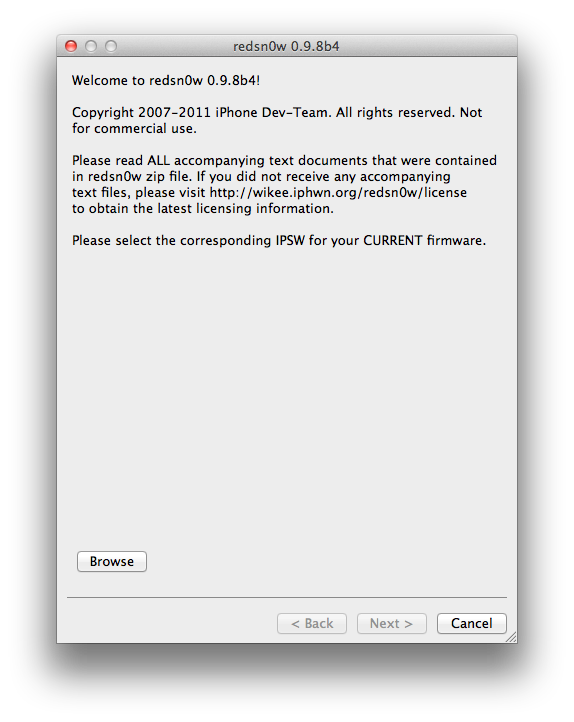
iPhone Dev Team Releases RedSn0w 0 9 8b4 to Jailbreak iOS 5 Beta 4
The iPhone Dev-Team has released RedSn0w 0.9.8b4 for developers to jailbreak iOS 5 Beta 4. Remember this is a tethered jailbreak.
In conjunction with iOS5 beta4 being released to iOS developers, redsn0w 0.9.8b4 is now available for jailbreak app developers. Remember, its a tethered jailbreak right now so youll need to use redsn0w to boot into a jailbroken state at each power cycle.
NOTE: It appears that by design, the OTA update that became available starting with iOS 5 beta4 will *not* be automatically applied to jailbroken devices. Thats a relief to those who dont want to lose their jailbreak via OTA pushes. If youre jailbroken, youll need to use the standard iTunes method to get to iOS 5 beta4.
You can download the new version of RedSn0w from here: Windows, Mac.
Monday, September 30, 2013
Fix 1604 1603 1602 1601 1600 Error While Restoring Custom iOS 5 0 1 IPSW Using Updated iREB
If you hit a 1604, 1603, 1602, 1601, 1600 error while trying to restore your iPhone with a custom iOS 5.0.1 firmware file created using Redsn0w then there is now a way to bypass the error.iH8sn0w, developer of Sn0wbreeze has released a new version of iREB tool after almost 10 months, which is compatible with iOS 5.0.1.
iREB is a tool that will put your iOS device into a pwned state so that you can upload custom firmware to it.In addition to the iOS 5.0.1 support, iREB r5 includes a number of fixes and improvements:
- Much smaller file size (390kb).
- Fixed USB 3.0 issues.
- iREBs speed for the iPhone 2G/iPhone 3G/iPod Touch 1G has
- increased significantly!
- Fixed rare DFU detection issues.
- Updated limera1n/steaks4uce payload to not hook "cmd_go"
- on 4.x images (nothing severe, but useless here).

iREB is currently available for only Windows. You can download iREB r5 using this link.
We havent tried it out yet, but if youre looking for a step-by-step guide, you can checkout below to get an idea on how to use it.
====How To Fix 1604, 1603, 1602, 1601, 1600 Error While Restoring Custom iOS 4.2.1 IPSW Firmware File Using iREBIf you hit a 1604, 1603, 1602, 1601, 1600 error while trying to restore your iPhone with a custom iOS 4.2.1 firmware file created using Sn0wbreeze 2.2 for Windows or PwnageTool 4.2 for Mac then there is a way to bypass the error.iH8sn0w, developer of Sn0wbreeze has released a new version of iREB tool, which is compatible with iOS 4.2.1.
iREB is a tool that will put your device into a pwned state so that you can upload custom firmware to it.iREB RC3 supports the following iOS devices:iREB is currently available only for Windows users.Before we start please note that that jailbreaking your iOS device may void its warranty and hence proceed with caution and at your own risk.You can follow these simple step-by-step guide to bypass the 1604, 1603, 1602, 1601, 1600 errors:
- iPhone 2G, iPhone 3G, iPhone 3G[S] (old & new bootrom), iPhone 4
- iPod Touch 2G (MB & MC), iPod Touch 3G, iPod Touch 4G
- iPad
- Apple TV 2
You should now be able to successfully restore your iOS device with the pre-jailbroken iOS 4.2.1 firmware file without hitting the 1604, 1603, 1602, 1601, 1600 error.
- Download the latest version of iREB from iH8sn0w
- Start iTunes (iREB needs iTunes 10 or above, it’s a good idea to use the latest version of iTunes – iTunes 10.1.2 as of now)
- Put your iOS device in DFU mode by following these steps:
- iPhone/iPad/iPod Touch
- Connect your iPhone/iPad/iPod Touch to your computer
- Turn it off
- Hold power and home together for 10 seconds (exactly).
- Release power but keep holding home until the computers beeps as a USB device is recognized
- A few seconds later iTunes should detect your iOS device
- Apple TV 2
- Connect your Apple TV 2 with your Computer via microUSB
- Now reboot your Apple TV by holding down Menu + Down buttons together for around 6 seconds
- After reboot, immediately hold Menu + Play until you see the message in iTunes saying that Apple TV in recovery mode is detected
- Now close iTunes and launch the iREB tool that you had downloaded earlier
- Click on the relevant device from the iREB screen and wait for few seconds until you get a white or red screen on your iOS device
- Now start iTunes again and select your iOS device from the left hand side side bar
- While on the iTunes window, hold the Shift key and click on the Restore button. (This is a VERY IMPORTANT STEP as just clicking the ‘Restore’ button without the ‘Shift’ button will result in restoring your iPhone with the latest firmware, by holding down the ‘Shift’ button, allows you choose the custom iOS 4.2.1 firmware file created using PwnageTool or Sn0wbreeze)
- Navigate and select the custom iOS 4.2.1 IPSW file to restore your iOS device with it


Sunday, September 29, 2013
Download iOS 5 0 1 beta Links
Download iOS 5.0.1 IPSW firmware files direct download links below. The update fixes bugs affecting battery life and brings back multitasking gestures to the original iPad.

iOS 5.0.1 beta contains improvements and other bug fixes including:
– Fixes bugs affecting battery life
– Adds Multitasking Gestures for original iPad
– Resolves bugs with Documents in the Cloud
– Improves voice recognition for Australian users using dictation
– Contains security improvements
iOS 5.0.1 beta introduces a new way for developers to specify files that should remain on device, even in low storage situations.
Friday, September 27, 2013
RedSn0w 0 9 13dev2 released to fix SSH issues
The iPhone Dev Team quietly released RedSn0w 0.9.13dev2 to address issues with SSH and app crashes that some users were experiencing.
The developer versions of RedSn0w are for developers wishing to jailbreak their iOS 6 beta installations. Since this version of RedSn0w does not install Cydia, SSH access is imperative, hence the fix for the users experiencing difficulties.
Per the Dev Team’s Blog:
Update #1: The “dev2” version should fix the various SSH problems and crashes with apps that some have been seeing.Head over to our downloads page to download this latest version of RedSn0w. To learn how to jailbreak your iOS 6 beta installation, check out our iOS 6 beta 2 jailbreak tutorial.
Please note, that RedSn0w 0.9.13dev2 was not released with the intent to allow you to use the latest iOS 6 beta 2 release from Apple. For this reason, you will still need to point back to previous firmware as outlined in our iOS 6 beta 2 jailbreak tutorial.

Wednesday, September 25, 2013
RedSn0w 0 9 15b1 released To Jailbreak iOS 6 Tethered
RedSn0w 0.9.15b1 released To Jailbreak iOS 6 Tethered, Downgrade To Unsupported Firmwares And More
The iPhone Dev-Team has announced RedSn0w 0.9.15b1 which brings numerous new features including the ability to restore to older firmware not being signed by Apple.
New Features:
● restore from any 5.x iOS to any other (up, down or the same) 5.x iOS on all devices as long as you have the correct blobs (see more below)
● Cydia now included in the tethered 6.0 jailbreak on A4 devices
● automatically "Just Boot" tethered when qualifying A4 device connects in DFU mode
untethered 6.0 jailbreak on old-bootrom 3GS
● untethered 6.0 hactivation on any 3GS or iPhone4
● directly restore pre-A5 devices to earlier firmware - no more complicated 15-step how-tos with stitching, iTunes errors, and "hosts file" concerns
● fetch new signed blobs for any IPSW (present or future - no redsn0w update required) using Extras->SHSH Blobs->New
● block the BB update for any 3GS or iPhone4 restore (past, present, or future - no redsn0w update required) using Extras->Even More->Restore
● deactivate any iPhone, useful for testing your "official" unlock status through iTunes. (Please only deactivate your own iPhone!)
● activation status shown on "Even more" page
● significantly more (very nerdy) info returned by "Identify" button when device is in Normal mode
● tethered jailbreak of ATV2 supported (but the only thing available for it is the SSH2 custom bundle available here - no Cydia yet. Must use "Select IPSW" for tethered boot of ATV2 for now).
● auto-exit WTF mode for older devices with broken buttons
● any time a set of blobs is fetched remotely (from Apple or Cydia), redsn0w also saves them locally (and will check there first if you click "Local")
● for your future restoring convenience, you should also submit all of your past and present TinyUmbrella blobs to Cydia if you havent done so yet. Resubmitting is okay and wont cause conflicts.
iOS 5 to iOS 5 Restores for A5+ Devices
1. redsn0w now lets you restore an A5+ device from any iOS5 to any other iOS5 as long as you have correct 5.x blobs for the starting (current) and ending points of the restore
- APtickets eliminated "higher-version only" comparison of firmware restores (just like BBtickets did for the baseband)
- example restores supported by redsn0w if you have the correct blobs: 5.1.1-to-5.0.1, 5.0.1-to-5.1.1, 5.1.1-to-5.1.1, 5.0.1-to-5.0.1
- if you dont have the blobs locally, let redsn0w try to fetch them remotely (redsn0w always tries both Apple and Cydia). Any succesful remote fetch also saves a local copy too.
2. You DO NOT QUALIFY for iOS5-to-iOS5 restores if you got to your current 5.x via an OTA update
- the tickets saved by Cydia, redsn0w, and TinyUmbrella do not cover OTA update ramdisk images
- even if they did, its the "wrong kind" of ramdisk (youd need to start at that earlier pre-OTA FW)
- devices fresh from factory or refurb may fall in the "does not qualify" category (your results will vary)
- its okay if you previously got to 5.x via an OTA update, as long as your current 5.x was installed via a normal iTunes restore. All that matters is how you got to your current 5.x most recently
- redsn0w detects an OTA/normal-restore APticket mismatch very early, so if you dont know your status there should be no harm in trying. Any device in recovery mode after such a mismatch can boot normally again just by going back to "Even More" screen from the "Restore" screen (or use "Recovery Fix" if you quit redsn0w before doing that).
3. Unlike the A4 devices, redsn0w cant (usefully) prevent the baseband updates of A5+ iPhones and iPads.
- and so, redsn0w automatically flashes the currently signed baseband when it does A5+ restores, even if those basebands didnt come with the original firmware
- stay away from this if you have an unofficial unlock that isnt supported by the newest baseband
- ● the least-tested baseband update code in redsn0w is for iPad2,3 and iPad3,2. Please give any feedback on those iOS5 restores in the comments section below.
4. iPad2 owners (all three models) with saved 4.x blobs can use those instead, even from 6.x
- if you have both 4.x and 5.x iPad2 blobs, you can always get to 5.x via the 4.x blobs, even if youre currently on 6.x
- you cannot get to 5.x from 6.x without the 4.x blobs (but you may still qualify for the iOS5-to-iOS5 restore described above)
- if somehow you have 4.x blobs but no 5.x blobs, you can still go down to 4.x from 6.x
- this only applies to iPad2 owners (theyre the only A5+ devices that ever had a public 4.x FW)
- redsn0w still supports (but doesnt require) jailbreaking A5+ devices at 5.0.1 and 5.1.1. Just head back to the first page after re-restoring to 5.x. Its always much faster to jailbreak those FW versions with a freshly-restored device, before letting iTunes restore from a saved userland backup.
5. ultrasn0w isnt yet updated for 6.x
- by now you probably should be taking advantage of the extremely cheap IMEI-based unlocks of iPhones sold by established online retailers like http:://cutyoursim.com
- still, IMEI-based unlocks dont work in all cases. Well announce when ultrasn0w is ported up to 6.x
- redsn0w will still hactivate your 3GS or iPhone4 if you run it before the device is activated. Due to the current tethered 6.x JB status, redsn0w now hactivates 6.x without requiring subsequent tethered boots. If you accidentally hactivate with redsn0w, use the "Deactivate" checkbox available from the Jailbreak screen, not the normal one in "Even more"
6. As always, redsn0w lets you "Fetch" the SHSH blobs currently flashed onto your pre-A5 device
- use this if youre at 5.x or 4.x but without having saved your blobs when the window was open
- this is only useful when Apple is no longer signing the firmware, otherwise Cydia/redsn0w "New"/TinyUmbrella blobs are superior (but youre welcome to fetch your 6.0 blobs this way anyway)
- fetching blobs in this fashion will automatically forward them up to Cydia, as well as save a local copy
Download RedSn0w v0.9.15b1 for Windows
Download RedSn0w v0.9.15b1 for Mac OS X

Monday, September 23, 2013
How to Fix iTunes Error 3191 iPhone 4 on iOS 5 5 0 1
How to Fix iTunes Error 3191 iPhone 4 on iOS 5 / 5.0.1 ? This post is going to tackle the issue of iTunes Error 3191 which can happen when a user connects iPhone 4 which has been jailbroken and operating on iOS 5 / 5.0.1 to iTunes. As per the troubleshooting is concerned, there are a possible number of reasons behind this problem.
Occasionally issues like system registry instability, corruption of system files and slowing of system performance can lead to such problems. Hardware failure can be an acute cause as well.
In order to avoid this error and get the functionality back, it is advised that users run an anti-virus scan to eliminate the possibility of a virus; and hence the issue of corrupted files can be catered to. The QuickTime app should also be checked for corrupted files as well, since a simple reinstall would do the job for you.
A recommended procedure for such is to undo the compatibility mode for QuickTime. This should be done when Windows is being used as an operating system. The steps are as follows:
How to Fix iTunes Error 3191 iPhone 4 on iOS 5 / 5.0.1 :
1.In order to do this, go to “Program Files” in your Local Disk (C). A simple search would lead you to the QuickTime Player folder.
2.Upon reaching their, right click on the Player App. In the shortcut menu, you would find the option of “Properties”.
3.In the option of “Properties”, you would find the tab labeled as “Compatibility”. Simply unchecked the box that says “Run this program in compatibility mode for”.
4.After having done that, apply the modified setting and reboot the system. In this way, appropriate syncing can be achieved and the error can be avoided.

Saturday, September 21, 2013
Jailbreak iOS 5 0 1 For iPhone iPad And iPod Touch Using Redsn0w Or Semi Tether
How TO Jailbreak iOS 5.0.1 Using Redsn0w
Well well well, after the release of iOS 5.0.1 by Apple, earlier today, folks over RedmondPie tested the last version of Redsn0w on iOS 5.0.1 and confirmed that Redsn0w can tethered-jailbreak the final iOS 5.0.1 on iPhone, iPod touch and iPad.

Actually its an old tool so you will jailbreak your iDevice and will connect it to your computer to boot using Redsn0w whenever your iDevice is switched off or rebooted, yes you can use SemiTether to jailbreak your iDevice with this iOS 5.0.1, your iDevice will boot but will not function to a satisfactory degree until connecting your device to Redsn0w.
Well well well, after the release of iOS 5.0.1 by Apple, earlier today, folks over RedmondPie tested the last version of Redsn0w on iOS 5.0.1 and confirmed that Redsn0w can tethered-jailbreak the final iOS 5.0.1 on iPhone, iPod touch and iPad.
Actually its an old tool so you will jailbreak your iDevice and will connect it to your computer to boot using Redsn0w whenever your iDevice is switched off or rebooted, yes you can use SemiTether to jailbreak your iDevice with this iOS 5.0.1, your iDevice will boot but will not function to a satisfactory degree until connecting your device to Redsn0w.
Important Notes:
- iPhone 4S and iPad 2 not supported
- If you want Untethered jailbreak please stay away!
For Unlockers Only:
- For those of you who unlocked iPhone 4 using GEVEY SIM interposer, you should create a custom, IPSW which will preserve your baseband.
- To active this, you should open Redsn0w, hit “Extras”, then “Custom IPSW” then point REdsnow to your iOS 5.0.1.
- Finally, open pwned DFU mode and select:
Quote:
| (Extras > Pwned DFU) and restore to your custom firmware via iTunes. Once complete, you’ll be able to unlock your device with GEVEY once more. |
Getting Started
1- Download iTunes for Mac or Windows .
2- Back your device up through iTunes.
3- Update your iDevice to iOS 5.0.1
4- Download Redsn0w for Mac or Windows.
5- Run Redsn0w, hit “Extras” => “Select IPSW”, point it to iOS 5.0 firmware which you can download from here. Select the appropriate firmware file tailored for your device.
6- Select “Jailbreak” and Select “Install Cydia”, followed by DFU mode and then Redsn0w will do the rest.
7- Now you will need to launch Redsn0w to boot tethered, select “Extras”, follow this step by “Just Boot”. Once everything is complete you will need to follow this simple tutorial again whenever your iDevice is switched off or rebooted.
“Semi-Tethered”
You can follow our simple tutorial posted here to download and install Semi-Tethered on your iPhone, iPad and iPod touch, yes it will allow you to boot your iDevice, but of course not as like Redsn0w, boot with limited use of features.
iOS 5 For iPhone, iPad And iPod Touch Download Links:
-
Download iOS 5 iPhone 4 (GSM)
-
Download iOS 5 iPhone 4 (Verizon)
-
Download iOS 5 iPhone 3GS
-
Download iOS 5 iPad 2 WiFi
-
Download iOS 5 iPad 2 GSM
-
Download iOS 5 iPad 2 CDMA
-
Download iOS 5 iPad
-
Download iOS 5 iPod touch 3G
Download iOS 5 iPod touch 4G
Download iTunes 10.5 for Windows and Mac
6- Select “Jailbreak” and Select “Install Cydia”, followed by DFU mode and then Redsn0w will do the rest.
7- Now you will need to launch Redsn0w to boot tethered, select “Extras”, follow this step by “Just Boot”. Once everything is complete you will need to follow this simple tutorial again whenever your iDevice is switched off or rebooted.
“Semi-Tethered”
You can follow our simple tutorial posted here to download and install Semi-Tethered on your iPhone, iPad and iPod touch, yes it will allow you to boot your iDevice, but of course not as like Redsn0w, boot with limited use of features.
Wednesday, September 18, 2013
Jailbreak 5 0 1 Semi Untethered with Redsn0w 0 9 9b8 on iPhone 4 3G iPod Touch 4G 3G iPad Tutorial
How to Jailbreak iOS 5.0.1 with Redsn0w 0.9.9b8 on iPhone 4, 3GS, iPad 1, iPod Touch 4G, 3G. Thanks to Dev-team as Redsn0w 0.9.9b8 still able to jailbreak iOS 5.0.1 for all iOS devices except iPad 2 and iPhone 4S as the featured an advanced hardware.

The new software, iOS 5.0.1, can be jailbroken using redsn0w 0.9.9b8 and the SemiTether tool can be used on iOS 5.0.1 to bring semi-tethered jailbreak. For more information about the SemiTether.
Whats Semi-Untethered jailbreak means :
The main issue of tethered jailbreak is that you need to connect your device to computer to use Redsn0w "Just Boot" tethered option every time your reboot your device. Semi-tethered jailbreak come specially to fix this issue, as it allows you reboot your device without connecting it with computer. So now you have untethered jailbreak on iOS 5. But the main issue is that 99% of jailbreak apps and tweaks wont work at all. So what now ? Semi-tethered jailbreak is only a protection for you if your device reboots while you were away from your computer, but you will be able to use the most important functions of you iPhone until you get home and connect it with Redsn0w.
Supported devices :
Step 2: Backup your iPhone, iPad or iPod touch and restore it using the iOS 5.0.1 IPSW file downloaded from the first step.
Step 3: Download Redsn0w 0.9.9b8 for Windows or Mac OS X .
Step 4: Open Redsn0w and select “Extras” then “Select IPSW” and browse for the iOS 5.0 IPSW file.

Step 5: Now click on “Jailbreak” then “Install Cydia”. You’ll need to follow the on-screen instructions to get your device into DFU mode.

Step 6: Once jailbroken, your device will be rebooted.
Step 7: Now open Redsn0w again and hit “Extras” then “Just Boot”.

Step 8: Follow our previous Guide for “SemiTether” and install the tool to get the semi untethered jailbreak.

The new software, iOS 5.0.1, can be jailbroken using redsn0w 0.9.9b8 and the SemiTether tool can be used on iOS 5.0.1 to bring semi-tethered jailbreak. For more information about the SemiTether.
Whats Semi-Untethered jailbreak means :
The main issue of tethered jailbreak is that you need to connect your device to computer to use Redsn0w "Just Boot" tethered option every time your reboot your device. Semi-tethered jailbreak come specially to fix this issue, as it allows you reboot your device without connecting it with computer. So now you have untethered jailbreak on iOS 5. But the main issue is that 99% of jailbreak apps and tweaks wont work at all. So what now ? Semi-tethered jailbreak is only a protection for you if your device reboots while you were away from your computer, but you will be able to use the most important functions of you iPhone until you get home and connect it with Redsn0w.
Supported devices :
- iPhone 4 (semi untethered)
- iPhone 3GS new bootrom (semi untethered)
- iPhone 3GS old bootrom (untethered)
- iPod touch 4G (semi untethered)
- iPod touch 3G (semi untethered)
- iPad 1 (semi untethered)
Jailbreak iOS 5.0.1 Semi Untethered:
Step 1: Download iTunes 10.5 and iOS 5.0.1 final version.Step 2: Backup your iPhone, iPad or iPod touch and restore it using the iOS 5.0.1 IPSW file downloaded from the first step.
Step 3: Download Redsn0w 0.9.9b8 for Windows or Mac OS X .
Step 4: Open Redsn0w and select “Extras” then “Select IPSW” and browse for the iOS 5.0 IPSW file.
Step 5: Now click on “Jailbreak” then “Install Cydia”. You’ll need to follow the on-screen instructions to get your device into DFU mode.
Step 6: Once jailbroken, your device will be rebooted.
Step 7: Now open Redsn0w again and hit “Extras” then “Just Boot”.
Step 8: Follow our previous Guide for “SemiTether” and install the tool to get the semi untethered jailbreak.
Redsn0w 0 9 9b6 fixes Location Services issue for 3GS w 06 15
 redsn0w_testers redsn0w_testers by MuscleNerd
redsn0w 0.9.9b6 fixes Location Services issue for 3GS w/06.15. See #14 is.gd/6eek4Y to re-run it over existing iOS5 JB
Update #14: We’ve released version 0.9.9b6 of redsn0w, with both a functional fix and cosmetic fix for iOS5 jailbreakers. For iPhone3GS owners with the 06.15 baseband, this redsn0w eliminates the network crash you saw when using Location Services in iOS5 (in fact, you don’t even need to disable Location Services anymore during the initial setup). The cosmetic fix is to the visual countdown you see when going into DFU mode.
It’s okay to re-run this redsn0w over an existing device jailbroken at iOS5. Just choose “Jailbreak” again and de-select Cydia (in other words, all the checkboxes will be unchecked). If you are lucky enough to have an old-bootrom iPhone3GS, please pre-select the IPSW first (redsn0w can’t yet auto-detect the FW version of your old-bootrom 3GS if it’s already been jailbroken).
Here are the download links:
Monday, September 16, 2013
Fix Microphone Problem After iOS 5 5 0 1 Jailbreak With Redsn0w
Many of iPhone users experienced problems with microphone of iPhone 4 as it stopped working after iOS 5 jailbreak using Redsn0w 0.9.9b7. After trying FaceTime with contacts, they still have the same problem, no one of contacts could hear them but they could hear their contacts clearly. It is kind of strange as microphone is functioning properly with the Voice Memos app through regular phone calls.

How to Fix Microphone Problem After iOS 5 / 5.0.1 Jailbreak
The only reason behind the stated problem seems that jailbreaking process has not been done through iTunes. In order to jailbreak and iOS device you have to connect your device with iTuens and follow the instruction appears in redsn0w.
However we also have some readers complaining that they have been facing the same problem even after following this process. The possible reason working behind it might be that you activated your device using Redsnow and then getting over it can be done when you activate it to iTunes or SAM. Downloading and installing some jailbreak apps or tweaks in Cydia store might also be the reason for it. In this case, it is recommended that you uninstall all such apps by going in the Manage Tab in Cydia.
After trying all these steps and still facing the error, the last that we can recommend is that you restore your iPhone to the stock iOS 5.0.1 firmware and jailbreak it using Redsn0w 0.9.9b8.
This new iPhone firmware will surely help you stay safe from any untethered jailbreak once publically available; it helps to fix the exploit that has been built up by pod2G and the iPhone Dev-Team.
How to Fix Microphone Problem After iOS 5 / 5.0.1 Jailbreak
The only reason behind the stated problem seems that jailbreaking process has not been done through iTunes. In order to jailbreak and iOS device you have to connect your device with iTuens and follow the instruction appears in redsn0w.
However we also have some readers complaining that they have been facing the same problem even after following this process. The possible reason working behind it might be that you activated your device using Redsnow and then getting over it can be done when you activate it to iTunes or SAM. Downloading and installing some jailbreak apps or tweaks in Cydia store might also be the reason for it. In this case, it is recommended that you uninstall all such apps by going in the Manage Tab in Cydia.
After trying all these steps and still facing the error, the last that we can recommend is that you restore your iPhone to the stock iOS 5.0.1 firmware and jailbreak it using Redsn0w 0.9.9b8.
This new iPhone firmware will surely help you stay safe from any untethered jailbreak once publically available; it helps to fix the exploit that has been built up by pod2G and the iPhone Dev-Team.
Subscribe to:
Posts (Atom)