Showing posts with label ipad. Show all posts

Friday, October 11, 2013

Siri on an iPad


When Apple first announced Siri, one of the most frequent questions about the digital assistant was which devices would it support. Unfortunately, it didn’t take long to realize that Apple was limiting the voice-recognition service to just the iPhone 4S. I was particularly surprised that Siri wasn’t coming to the iPad 2, seeing as it’s equipped with the same A5 processor as the 4S.

Well it looks like I wasn’t the only one interested in Siri on an iPad. A jailbreak developer known on twitter as Jackoplane tweeted screenshots of Siri enabled in the settings of a jailbroken first-gen iPad.

Unfortunately, though, there appears to be an issue – jailbroken Siri doesn’t play nice with Apple’s server. So, any command that requires contact with Apple servers is not possible on a device other than the iPhone 4S.

But other than the server issue, the successful port of Siri to the iPad means that there might some hope.

Via: CNET

Read More..

Thursday, October 10, 2013

IPad buyers in Japan Queue Up to 1 km

Jakarta - Apple iPad Debut in Japan raises the joy that is rarely seen at other electronic products present, visible from the queue which reaches 1 km.

Japanese electronics industry was declining in recent years, accelerated by the presence of such a device Apple iPad, Amazon Kindle and Kizio.


Meanwhile, Japanese electronics firms have been defeated by South Korean conglomerate Samsung Electronics. Constrained financial conditions are weakening and are reluctant to take risks, companies in Japans defeat in innovation.

Japan is known as flat-screen television industry players, digital cameras and video game systems, but they do not have personal computers extraordinary.

On the first day iPad launch in Japan, the queue at one of the official Apple store reaches over one kilometer further.

Buyers in Japan is very unique, because they are really concerned and usability features from the outside to the inside of a gadget, even though the thick instruction book to read, according to analysts.

"Consumers in Japan are very different patterns of thought with its global customers," said Atul Goyal, an analyst at CLSA.

"IPad is very unique and detailed from hardware to software, in addition to its use so it is very popular in Japan". [Ito]
Read More..

Wednesday, October 9, 2013

How to Use 3D Maps on the iPad or Phone

With the launch of iOS 6, iPad and iPhone users will now have the ability to view 3D maps on their devices. Curious how you can get in on this 3D mapping action? Then continue reading below for instructions on how to use 3D maps on the iPad and iPhone.

To clear up any misconceptions, you’re not going to be needing special glasses because this is not “Avatar throw your popcorn in the air” 3D. This 3D map mode provides three-dimensional renderings of things such as buildings and so on. It can be viewed “Standard” map mode or “Satellite” mode, which overlays aerial photography onto the 3D geometry.


Apple is dropping Google Maps as the mapping service that powers the Maps app and is instead rolling out their own mapping service. This has been made possible by Apple’s acquisition of multiple companies over the last several years. Let’s take a look at each of these companies annual reports. Not interested? Ok, let’s just focus on how to turn on 3D maps on your iPad or iPhone.
Click here to enlarge
You Will Need:
Instructions:
1. Open the Maps app on your iPhone or iPad.
2. Navigate to whatever location you wish to view in 3D.
3. Touch the “3D” button in the bottom left of the screen to enable 3D. Once you are in 3D mode, you can switch to Satellite view just as you would in normal 2D maps by touching the “peeling paper” button in the bottom right of the screen and selecting “Satellite”.
4. To change the angle that you are viewing the 3D maps, swipe the screen up and down with 2 fingers.
5. To turn off 3D, simply touch “3D” again to go back to Standard view.

Note that not all locations will have 3D buildings available, but this will improve over time as Apple builds out the database.
Read More..

Monday, October 7, 2013

With TinyUmbrella 04 32 00 Save 4 3 2 4 2 7 SHSH for iPhone iPod Touch iPad

TinyUmbrella, has pushed a new update from TinyUmbrella to version 4.32.00 to allow you to save iOS 4.3.2 on iPhone 4, 3GS, iPod touch 4G, 3G and iPad, also TinyUmbrella 4.32.00 allows you to save SHSH for Verizon iPhone 4 running iOS 4.2.7.
Click here to enlarge
As a reminder, to save your SHSH blobs, simply connect your iDevice via USB to your computer, launch TinyUmbrella, and click the “Save SHSH” button.

Download TinyUmbrella 4.32.00 for Mac
Download TinyUmbrella 4.32.00 for Windows
Read More..

Friday, October 4, 2013

Downgrade iOS 5 GM To iOS 4 3 5 On iPhone iPad iPod Touch

Yesterday was a big day starting from the iPhone 4S to the recently released iOS 5 GM for developers. Since iOS 5 GM is installable by everyone, you may have updated to iOS 5 by now. In case you didn’t like the tethered jailbreak, found a few problems on your iOS device or discovered some apps that were not supported, that you desperately needed… you’re in luck: you can downgrade iOS 5 to iOS 4.3.3, iOS 4.3.5 or older.


Click here to enlarge
Before you downgrade, please remember you can only downgrade your iDevice firmware if, and only if, you have saved your SHSH blobs somewhere safely, hopefully with Saurik’s Cydia server, or locally on your machine.
From now on, I will assume you have saved your blobs on Saurik’s Cydia server.

STEP 1: To start with, you need to make sure you have a copy of iOS 4.3.5 or whatever firmware you need to downgrade for your device which you can find and download from here.
STEP 2: Next, you need to make sure your hosts file is pointing to Saurik’s server, and not Apple’s. If you haven’t done this then please check this guide.

Alternatively, use TinyUmbrella to make iTunes look at Cydia’s Server in the Advanced options.


Click here to enlarge

STEP 3:
Now plug in your iOS device, and switch it off, but leave it plugged in.

STEP 4: Put your device into DFU mode, our guide here.

STEP 5: Select your firmware manually to restore to. (Shift on Windows, and option on a Mac)
Click here to enlarge

It says that it will talk to Apple when really, it is talking to the Cydia servers.

Click here to enlargeHey presto! Your device should now have downgraded without a hitch…
But, should your phone should now have an error, such as error 1015, DO NOT PANIC! This is normal and has a quick fix. Just download anduse Recboot to kick it out of recovery mode –
Click here to enlarge
Apple has just released iOS 4.3.5 ipsw firmware for iPhone 4, 3GS, iPod touch 4G, 3G, iPad 2, 1 and Apple TV 2G. As most of you know that iOS 4.3.4 was released on July 15. iOS 4.3.5 firmware come to fix a security vulnerability with certificate validation.


Click here to enlarge
Download iOS 4.3.5 firmware IPSW files (Direct Links) - Official from Apple:
Read More..

Monday, September 30, 2013

How to Get Cydia 1 1 iPhone iPod Touch iPad Whats New

Cydia 1.1 has just been released. Jay Freeman (aka Saurik) -Cydia creator- has just announced via his Twitter account that Cydia 1.1 is now available. Freeman mentioned that Cydia 1.1 is faster, slimmer and more stable and its including an improved search alogrithm and a "resume where you left off" feature.

Cydia 1.1: faster, slimmer, and more stable; including an improved search algorithm and “resume where you left off”. Available in Cydia now!
How to get new Cydia 1.1 ? you only have to run Cydia and it will prompt you to run some updates, just accept and it will automatically update your Cydia to version 1.1

Whats New on Cydia 1.1 : 

Features of Cydia 1.1 Application:
  • Ability to run and operate Activator, libstatusbar, and SimulatedKeyEvents while Cydia is running
  • An overall speed improvement, including the “Loading Changes” dialog
  • Low memory usage
  • Advanced search mechanism with a new relevancy algorithm
  • Better management of broken repositories. Broken Repo’s can now be deleted easily.
Here is the full transcript of Saurik about upcoming Cydia 1.1:

Multitasking

“This is simply not possible at this time. I realize everyone wants it, and hell: I want it, too; but everyone saying it is important doesn’t make it possible. The reason Cydia doesn’t have iOS 4 compliant multi-tasking is that, to make the modifications it makes to the system, it runs as “root”, a user that has more permissions on the system than anything else, which means that SpringBoard, a lowly process running as “mobile”, cannot suspend/resume it.

Now, this is something that /can/ be remedied, and is something that I’ve been thinking of how to do for a long time, but all the obvious ways people like to bring up for making Cydia’s GUI run as mobile with only small parts running as root would make Cydia run slower, and speed is something that is primary on everyone’s minds when they are using Cydia. Luckily, there are things I’ve figured out that may make this more reasonably possible, but certainly not for this release.”

Leaving Mobile Substrate On while Cydia is Running

“If you did this you would find your system would suddenly become unusable. I realize that it sounds all nice and fuzzy that Mobile Substrate should modify all applications on the system, including Cydia, but again: Cydia runs as root. Almost all extensions in the ecosystem are NOT designed with this in mind, and when suddenly given root access start destroying the permissions of your configuration files and Media folders, making all normal applications unable to use them.

Therefore, with this release of Cydia, I’ve gone through the “big ticket items”-which seem to come down to Activator (what starts SBSettings), libstatusbar (adds notification items to the status bar), and SimulatedKeyEvents (injection of key events from Veency)-to verify with their developers that they will work correctly in an environment running as root. These extensions (plus WinterBoard, which doesn’t work on root on 4.x but is harmless, and will be fixed in a future release) are what are available from inside of Cydia until Cydia is modified to run as mobile.”


Better Interface and Backup Option

“A backup function actually does not require pushing a new build of Cydia, but it requires time to figure out how to scale the users to support the kind of load Cydia has. Cydia is running with many orders of magnitudes more users than any of its competitors have, which means that a lot of things that people like to think “should be simple, X did it” are actually much harder to implement. I also keep privacy at the forefront of my mind while building features like this, and want to be 100% certain that no one can get access to your installed products list other than you.

As for a “better looking interface”, I try hard to maintain something that competes with Apple’s products. A few things rotted on 4.x (the positions and sizes of some buttons), and the various “black” interfaces (the black bar and the black screen) get mixed reports, but otherwise the main problem users have with Cydia is not Cydia: it is with repositories. Every time I’ve gotten actual feedback “this specific thing is bad”, where that thing isn’t something that Apple themselves do in their iTunes or App Store applications (which should be taken as the “intuitive model”), it is in areas of the interface I simply do not have any control over: the content shown for a package by the repository.”

Confusion With the Term “Changes”

“Maybe I’m crazy, but I always thought of the word “Changes” to be a very non-geeky end-user term for “stuff that changed”. It certainly isn’t a technical term: it was not chosen because of some geeky desire to have the codebase match the UI, nor was it chosen because it had some esoteric meaning in Latin or Greek. It was instead chosen as it was a single word that immediately meant to the largest number of people I talked to exactly what that page did: showed you what changed. Regardless, “New Releases/Updates” certainly won’t fit on a tab label.”


Speed – Much more FASTER

“As with /every/ release of Cydia, Cydia 1.1 is faster than previous releases. In specific, it is faster than 1.0.3366 by a good margin, which itself was faster than 1.0.3222 by an even larger chasm. On this note, however, it is important to note that Cydia is tackling a hard problem: no other application I have seen on the iPhone, from Apple or any third party, is attempting to search index and manage tens of thousands of data items, on the client, in real time, aggregated from user-selected sources.

In contrast, Cydia has some of the fastest technology in existence with regards to handling this data, whether it be custom algorithms (Cydia includes a locale-aware string comparison radix sort, which AFAIK is the fastest sorting algorithm in any iOS application) or special on-disk data structures (new in 1.1 is “Cytore”, a new way to store local metadata on packages that can be loaded nearly instantaneously from flash; for those out there who are technically minded, it is an on-disk memory mapped hashtable, which drastically beats out alternatives people like to try to bring up such as SQLite).”

Loading Time – LESS

“Despite myths to the contrary, the amount of data displayed in the Changes list does not drastically affect how quickly it loads. There /was/ a bug in many versions of Cydia 1.0 that caused there to be at least a little delay related to the number of items on the list, but this bug was already fixed as of 1.0.3366. The cost of the calculation is deciding what entries should be on the list at all (and specifically which ones are actually updates vs. new releases), not displaying them all at once. That said, Cydia 1.0.3366 moves the loading of changes until after you click the tab, which makes it more evidence how much time is being spent on this feature (which itself is, again, faster on 1.1).”

Memory Usage – LOW

“Despite Cydia 1.1 continuing to attempt to juggle tens of thousands of items in memory, thanks to Cytore, it uses much less memory than ever before. Other optimizations have been made, as with every version of Cydia, in order to decrease the memory usage of the app as a whole. Additionally, and in particular, Cydia 1.1 is much more conscientious of memory warnings, and attempts to throw out as much state as possible during these events.

That said, the amount of memory on even reasonably modern devices (anything past the iPhone 3G) available for running applications (not in total, but available after Apple’s system applications get their share), is an order of magnitude greater: whereas on an iPhone 3G you were working with maybe 20MB of available memory, on an iPhone 3G[S] you have 150MB, and an on iPhone 4 you have 400MB available. So, despite Cydia 1.1 actually needing less memory to operate than Cydia 1.0, the pressure on memory is pretty much gone, and will not affect future users thanks to hardware upgrades.”

Advanced Search

“Unfortunately, this device is simply too slow to provide “advanced search capabilities”, and certainly not suggestions, given the constraints of “from user-selected repositories” “in something resembling real time”. That said, Cydia 1.1 has a much better search mechanism, including an integer-arithmetic radix-sorted relevancy algorithm I managed to implement.

What would really be needed to have a truly amazing search experience is to not do searching on the client: to instead handle it on my servers. This is how products like the App Store, Kindle, or Netflix work: it is not at all common for services users are used to to attempt to manage the entire database /on the device/, doing local searching, rather than having the data and computation for that existing in offline-indexed search structures on a massive server in the cloud.

Unfortunately, the reason people use Cydia are varied, and many people are using Cydia with repositories that frankly they shouldn’t be: whether the repository contains software that is dangerous (a niche community with tweaks receiving minimal testing, or using bad practices like on-disk file patching) or downright illegal (there are things you are allowed to do in your country that I cannot in mine), I am certainly not going to be acting as the centralized storage and indexing gateway for people to find and manage this content.

Instead, what keeps people coming back to Cydia is the fact that it acts as the fundamental alternative: that rather going to Apple, with their carefully curated set of centralized experiences, you go to Cydia, “the wild west of software”, where software modifies other software in a kind of reckless abandon that is going to lead to pain even in the best possible scenarios, and in the worst possible worlds is going to lead to things that you will not be able to list on a default repository, and which Cydia may even warn you about installing, but which you should still be able to access and even search for using Cydia’s search mechanisms.”

Error Messages

“Errors from Cydia do not come from Cydia. If you type a URL into Cydia for a broken repository, that repository is going to be low-quality and is going to cause you problems. If it is offline, Cydia is going to tell you it is offline, and if it is malformed Cydia is going to get angry about that. Cydia is simply going to sit there idly while there are a ton of broken and offline repositories in your list: it will tell you all of the errors involved in the hope that you will remove the broken repositories and get on with your life (which is a very apt metaphor, as most third party repositories are very slow, and cause your refresh experience to take a very very very long time).”

“Rate” and “Review” Sections

“We actually tried this, and it was a miserable failure: more time had to be spent moderating the reviews, most of which were misleading, inflammatory, or downright inappropriate, than anyone got value out of this mechanism: it was even worse than on the App Store, which is notorious for bad reviews (people often rate down a package for inane reasons, making the data horribly invalid).

Given these issues, I attempted to put together a vision of how comments and ratings could work in Cydia, and even made a trial implementation (screenshots were even handed out at some points, and I did demos at a few conferences), but when word came up that I was even considering releasing it, I received strong pushback from some of the best developers in the ecosystem–the people you are most likely to want to give mega-good reviews to–that if I continued with that they would give up on the ecosystem, due to the issues from before.

And, to be honest, I am not certain that I would have solved those problems, and given subsequent experiences from alternative products, and looking at how people used the ratings, what people said in the comments, and how things finally got rated, I no longer believe that I would have: I believe the concept of the off-the-shelf “comments and ratings” to be a fundamentally flawed system that inherently leads to abuse.

Now, not all rating systems need to be “off-the-shelf”, so something truly innovating and “actually solving the problem” is what I hope to one day provide for Cydia. In the meantime, however, I always do my best to avoid injecting seriously suboptimal tradeoffs into our ecosystem.”


Improved Compatibility Listings

“Cydia has, for a while, contained numerous features that would allow repositories to help with this problem.

a mechanism to specify firmware compatibility on packages (packages can Depends: specific firmware revisions).
the Cydia Store lets vendors block purchases for specific firmwares (any paid product can register its compatibility with its repository, and then I will filter it to users who can use it).
the firmware version is sent as part of the user-agent to the web pages for each product, allowing developers to display their own warnings.
compatibility is even more specially able to be done by feature detection, allowing packages to say “I need voiceover support on a device with a camera running an armv7 CPU and a retina screen”.
In essence, there is very little excuse for packages, repositories, products, or anything else in the Cydia ecosystem to be poorly specified in terms of firmware compatibility. That said, almost no packages in the ecosystem, and even very few products (where one would imagine this to be the most important), have this information included at any of these levels, which is rather disappointing.

So, Cydia 1.1 is not going to attempt to improve on any of these mechanisms, as Cydia 1.0 already has more than enough of them: the real onus is now on the developers and artists of specific items.”

Removal of Dead Content

“I do not have any control over what content is available in Cydia. I mean, I can refuse to personally accept money for it, but I have almost no introspection over things that are either free or sold on the developer’s website. For years I have attempted to get repositories to pull obsolete packages: they refuse. Instead of lobbying me, who agrees with you and is powerless, you need to be sending these complaints to the default repositories: BigBoss, ModMyi, and ZodTTD.”


Install Requirements

(Tags saying if installations of apps/tweaks, etc. need a springboard refresh or if the device needs to reboot)

“While this is often stated, this is simply not how this mechanism works: packages compute whether they need a reboot or reload as they install, allowing packages to make optimizations like “I only need to reboot if the user is using this firmware version and has this other package installed with this setting specified”. In fact, all of my packages that need features like this attempt these optimizations, and often you will not need as many reboots or reloads because of it.

Therefore, specifying this as static tags on a package would increase the number of reboots a user has to perform needlessly. That said, for packages where it is not obvious (extensions are going to require a reload, and MobileSubstrate is going to require a reboot), such as cases of MMS clients that require a reboot, it should certainly be best practice for the developer to put this information on their package information screen. This is even easier for the developer/vendor than modifying the package, and even then is very uncommonly specified: adding the tag therefore won’t even change how often it is reported.”

Repo Management

“With regards to repositories that did not add correctly, as stated by Ryan Petrich, Cydia 1.1 should no longer end up in situations where broken repositories are so unusable that they are also undeletable. That said, many users complain about repositories installed via a package: to delete these repositories you will need to remove the package that represents them.

(Due to some of these complexities, it is Cydia policy going forward that no repositories will be installable from default repositories via packages, and the existing ones under More Sources will be transitioned to a new mechanism for handling these that has been added that will allow more direct, simpler, and safer manipulation of repositories using a soon-to-be-revamped More Sources page.)”
Read More..

How to Get Installer iPhone iPod Touch iPad Cydia Alternative

Infini-Dev, the guys behind Installer - the worlds first 3rd party app store - have successfully ported Installer to jailbroken iOS 4.3.3.

Yesterday we had succeed "porting" Installer to 4.3.3 and below.
Installer was worlds first 3rd party app store, Introduced by NullRiver, or later known as RipDev.
RipDev was awesome at Installers, they also made Icy, Hood, and other apps.
Icy is also ported by us, and released 1 month ago.

How does Installer work :
Installer works with a different system than Cydia, that wy you wont be able to add a Cydia repo into installer.
As we speak we are working on a new community source for installer only, wich means you will be able to install things via installer.
We could use help, you may help us by submitting apps that where hosted by installer, or apps that have the installer structure. Or by making app with a installer structure.

Right now, Installer claims to work on every single iOS released after 2.1, even on 4.3.3
How to install Installer on iPhone, iPod touch or iPad :

Step 1: You MUST have jailbroken iPhone, iPod or iPad, to jailbreak click
Step 2: Open Cydia > Manage > Edit > Add then add this repo "http://fr0stdev.co.cc/repo"


Step 3: Search for "Installer" and install it, congratulations, you will find Installer icon on your Springboard

Read More..

Saturday, September 21, 2013

Jailbreak iOS 5 0 1 For iPhone iPad And iPod Touch Using Redsn0w Or Semi Tether


How TO Jailbreak iOS 5.0.1 Using Redsn0w

Well well well, after the release of iOS 5.0.1 by Apple, earlier today, folks over RedmondPie tested the last version of Redsn0w on iOS 5.0.1 and confirmed that Redsn0w can tethered-jailbreak the final iOS 5.0.1 on iPhone, iPod touch and iPad.


Actually its an old tool so you will jailbreak your iDevice and will connect it to your computer to boot using Redsn0w whenever your iDevice is switched off or rebooted, yes you can use SemiTether to jailbreak your iDevice with this iOS 5.0.1, your iDevice will boot but will not function to a satisfactory degree until connecting your device to Redsn0w.

Important Notes:
  • iPhone 4S and iPad 2 not supported
  • If you want Untethered jailbreak please stay away!
For Unlockers Only:

  • For those of you who unlocked iPhone 4 using GEVEY SIM interposer, you should create a custom, IPSW which will preserve your baseband.
  • To active this, you should open Redsn0w, hit “Extras”, then “Custom IPSW” then point REdsnow to your iOS 5.0.1.
  • Finally, open pwned DFU mode and select:
Quote:
(Extras > Pwned DFU) and restore to your custom firmware via iTunes. Once complete, you’ll be able to unlock your device with GEVEY once more.


Getting Started

1- Download iTunes for Mac or Windows .
2- Back your device up through iTunes.

3- Update your iDevice to iOS 5.0.1

4- Download Redsn0w for Mac or Windows.
5- Run Redsn0w, hit “Extras” => “Select IPSW”, point it to iOS 5.0 firmware which you can download from here. Select the appropriate firmware file tailored for your device.

iOS 5 For iPhone, iPad And iPod Touch Download Links:


6- Select “Jailbreak” and Select “Install Cydia”, followed by DFU mode and then Redsn0w will do the rest.

7- Now you will need to launch Redsn0w to boot tethered, select “Extras”, follow this step by “Just Boot”. Once everything is complete you will need to follow this simple tutorial again whenever your iDevice is switched off or rebooted.

“Semi-Tethered”

You can follow our simple tutorial posted here to download and install Semi-Tethered on your iPhone, iPad and iPod touch, yes it will allow you to boot your iDevice, but of course not as like Redsn0w, boot with limited use of features.
Read More..

Wednesday, September 18, 2013

Jailbreak 5 0 1 Semi Untethered with Redsn0w 0 9 9b8 on iPhone 4 3G iPod Touch 4G 3G iPad Tutorial

How to Jailbreak iOS 5.0.1 with Redsn0w 0.9.9b8 on iPhone 4, 3GS, iPad 1, iPod Touch 4G, 3G. Thanks to Dev-team as Redsn0w 0.9.9b8 still able to jailbreak iOS 5.0.1 for all iOS devices except iPad 2 and iPhone 4S as the featured an advanced hardware.


The new software, iOS 5.0.1, can be jailbroken using redsn0w 0.9.9b8 and the SemiTether tool can be used on iOS 5.0.1 to bring semi-tethered jailbreak. For more information about the SemiTether.

Whats Semi-Untethered jailbreak means :

The main issue of tethered jailbreak is that you need to connect your device to computer to use Redsn0w "Just Boot" tethered option every time your reboot your device. Semi-tethered jailbreak come specially to fix this issue, as it allows you reboot your device without connecting it with computer. So now you have untethered jailbreak on iOS 5. But the main issue is that 99% of jailbreak apps and tweaks wont work at all. So what now ? Semi-tethered jailbreak is only a protection for you if your device reboots while you were away from your computer, but you will be able to use the most important functions of you iPhone until you get home and connect it with Redsn0w.

Supported devices :
  • iPhone 4 (semi untethered)
  • iPhone 3GS new bootrom (semi untethered)
  • iPhone 3GS old bootrom (untethered)
  • iPod touch 4G (semi untethered)
  • iPod touch 3G (semi untethered)
  • iPad 1 (semi untethered)
Of course the iPad 2 and iPhone 4S jailbreaks are not yet available. If you’re looking forward to fast & future jailbreak, better not upgrade to iOS 5.0.1.

Jailbreak iOS 5.0.1 Semi Untethered:

Step 1: Download iTunes 10.5 and iOS 5.0.1 final version.

Step 2: Backup your iPhone, iPad or iPod touch and restore it using the iOS 5.0.1 IPSW file downloaded from the first step.

Step 3: Download Redsn0w 0.9.9b8 for Windows or Mac OS X .

Step 4: Open Redsn0w and select “Extras” then “Select IPSW” and browse for the iOS 5.0 IPSW file.


Step 5: Now click on “Jailbreak” then “Install Cydia”. You’ll need to follow the on-screen instructions to get your device into DFU mode.

Step 6: Once jailbroken, your device will be rebooted.

Step 7: Now open Redsn0w again and hit “Extras” then “Just Boot”.


Step 8: Follow our previous Guide for “SemiTether” and install the tool to get the semi untethered jailbreak.
Read More..

Gmail Official App For iPhone iPad iPod touch Now Available For Download

Just as we reported earlier, Google has finally released their official Gmail app for iPhone, iPad and iPod touch. If you own any of the following devices, you can download official Gmail app from the iTunes App Store.


Click here to enlarge

Following are the features of official Gmail app for iPhone, iPad and iPod touch:
  • Get alerted to new messages with push notifications and sounds
  • Find an email in seconds with search across your entire inbox
  • Autocomplete email addresses from your Gmail contacts or select from your device’s address book
  • Upload photos with a click using the new attachment button in compose view
  • On iPad, navigate your inbox and read your mail simultaneously with split view
The official Gmail app for iPhone, iPad and iPod touch is free to download from the iTunes App Store. You can download it on your device if it is running iOS 4.0 firmware or higher versions.
Read More..

Tuesday, September 17, 2013

How to Jailbreak Your iPad 1 Using RedSn0w Windows 4 3 5

These are instructions on how to jailbreak your iPad 1 on the 4.3.5 firmware using RedSn0w for Windows. The Mac version of this tutorial is here. If you are on 4.3.3 or lower make sure you do NOT update to iOS 4.3.5. Use the untethered JailbreakMe instead. You can find the appropriate JailbreakMe tutorial here.

Step One
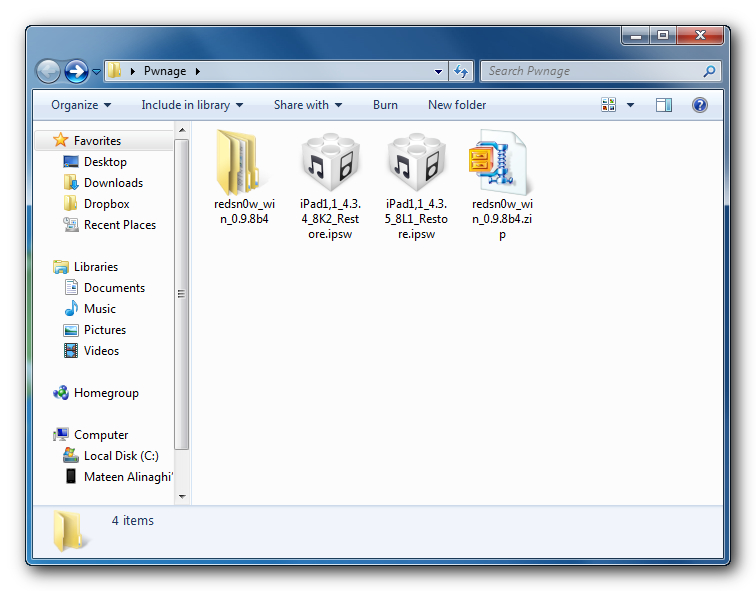
Create a folder on your desktop called Pwnage

Download RedSn0w from here and place it in the Pwnage folder. Likewise, download the latest 4.3.4 and 4.3.5 firmware from below and place it in the same folder.

4.3.4 (iPad 1): iPad1,1_4.3.4_8K2_Restore.ipsw
4.3.5 (iPad 1): iPad1,1_4.3.5_8L1_Restore.ipsw

Extract the RedSn0w zip file into the same folder.
Click here to enlarge

Step Two
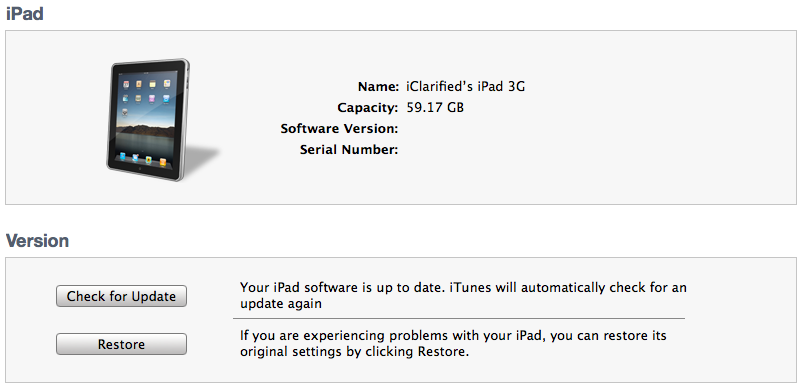
Connect your iPad to the computer and launch iTunes.
Click here to enlarge

Select your iPad from the list of devices on the left. Now hold down Shift and click the Restore button. Restore is preferred as it wont create any wasted space on your iPad.
Click here to enlarge

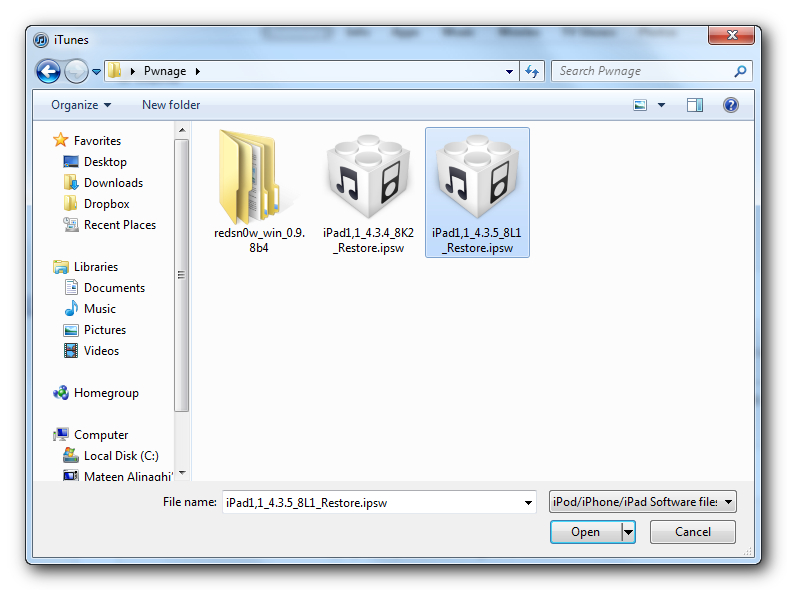
Navigate to the Pwnage folder on your desktop and select the 4.3.5 firmware ipsw. Click the Choose button to continue.
Click here to enlarge

Step Three
Once iTunes has finished updating your iPad to the desired firmware open the Pwnage folder on your desktop and launch the redsn0w application from the redsn0w folder we extracted earlier.

**Windows 7 users may need to run RedSn0w in Vista Compatibility mode. You can do this by right clicking the executable and selecting Properties from the contextual menu.
Click here to enlarge

Step Four
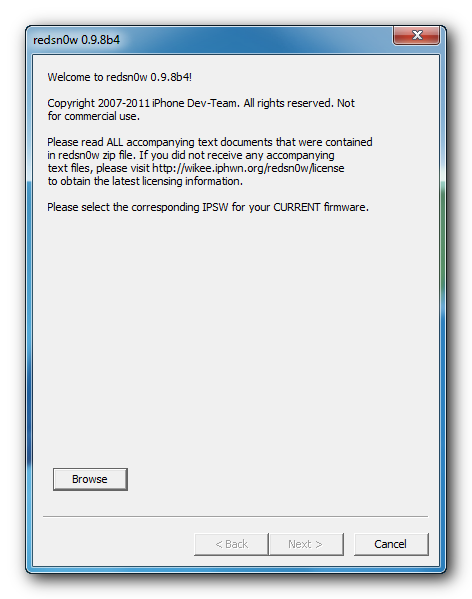
Once RedSn0w opens click the Browse button
Click here to enlarge

Step Five
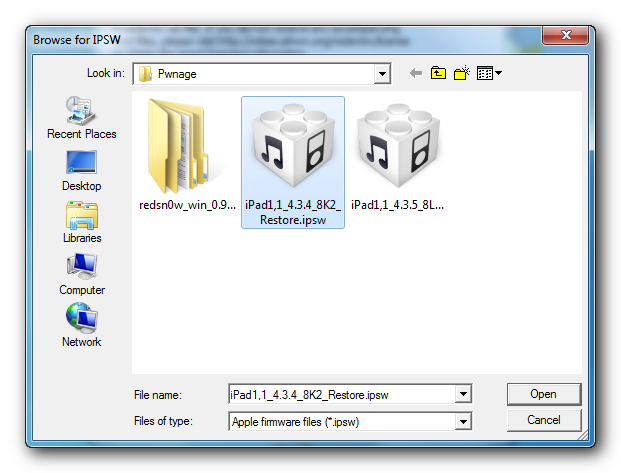
Select the 4.3.5 firmware ipsw we placed in the Pwnage folder on our desktop then click Open.
Click here to enlarge

Step Six
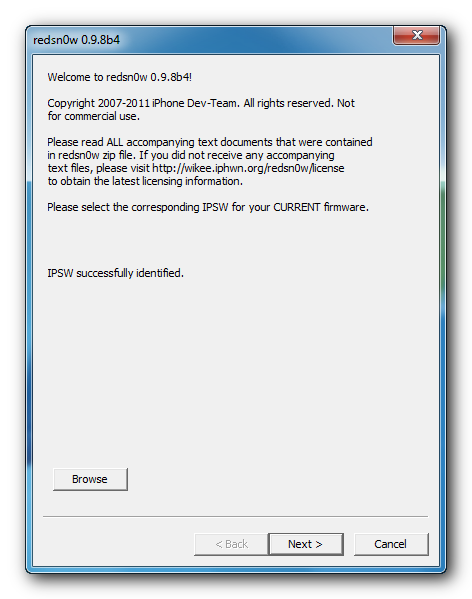
Once the firmware has been verified click the Next button to continue.
Click here to enlarge

Step Seven
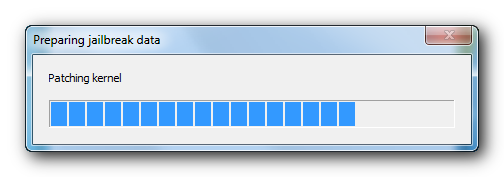
RedSn0w will now prepare the jailbreak data
Click here to enlarge

Step Eight
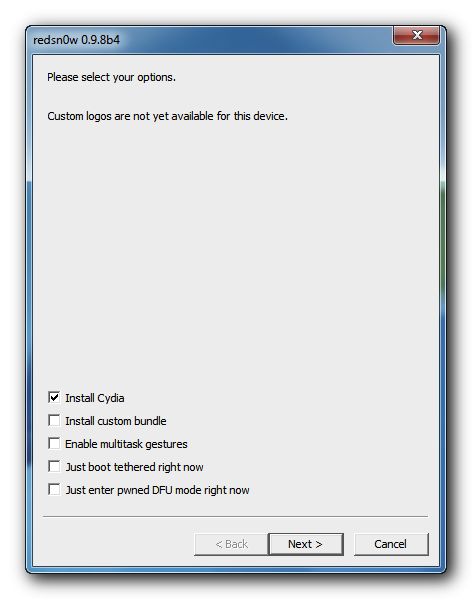
From this window you can select the jailbreak options you would like. Make sure Cydia is selected and click the Next button to continue.
Click here to enlarge

Step Nine
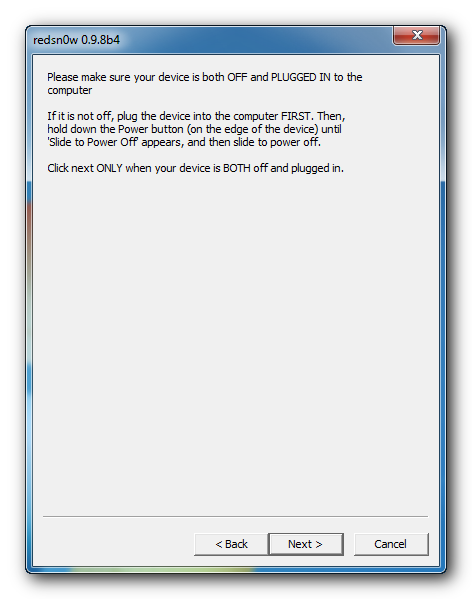
Please plug your iPad into the computer and make sure its OFF then click the Next button
Click here to enlarge

Step Ten
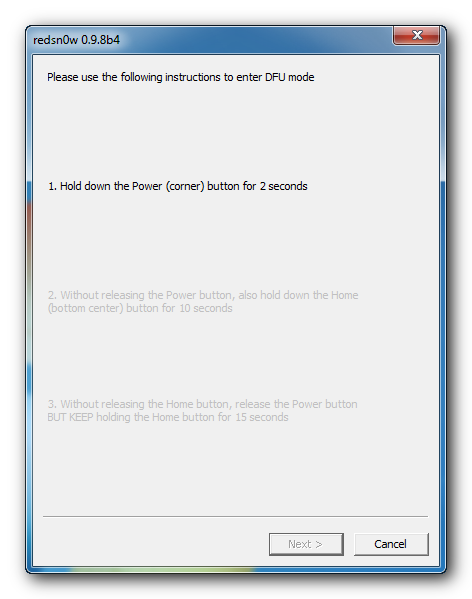
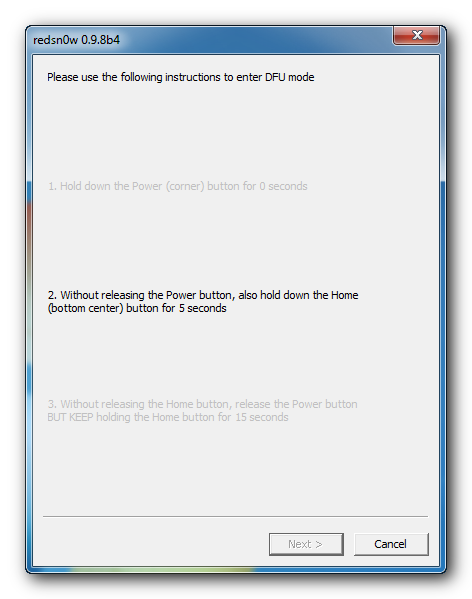
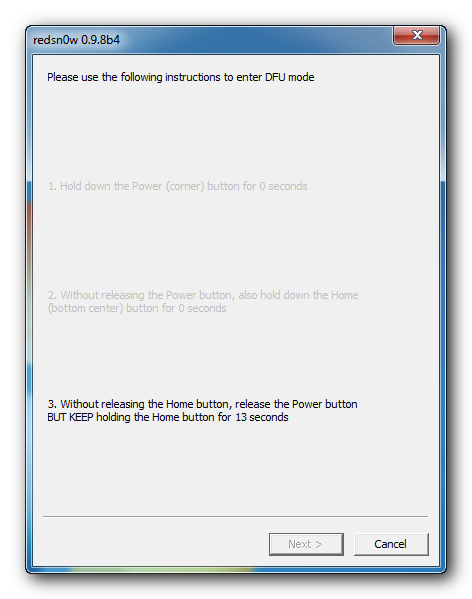
RedSn0w will now guide you through the steps to get into DFU mode. You can find more help with DFU mode here
Click here to enlarge

Hold down both the Home button and the Power button for 10 seconds.
Click here to enlarge

Release the Power button and continue holding the Home button until RedSn0w detects the device.
Click here to enlarge

Step Eleven
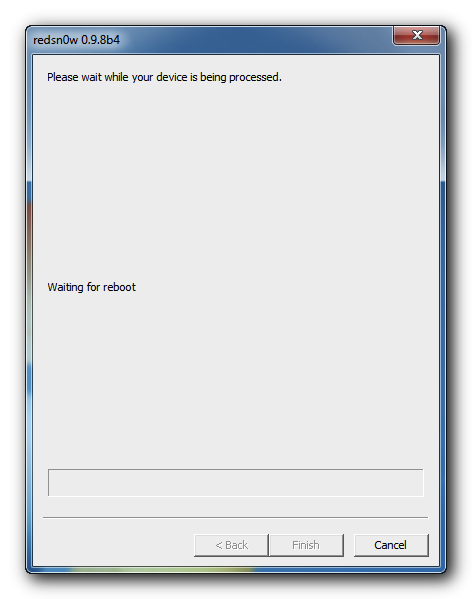
Your iPad will now reboot
Click here to enlarge

Step Twelve
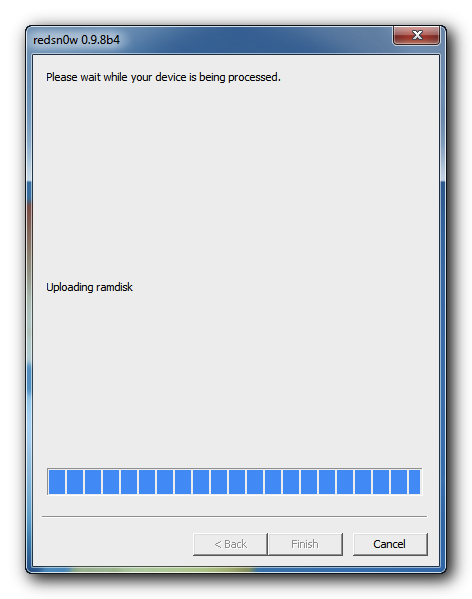
RedSn0w will then begin uploading the new RAM Disk and Kernel.
Click here to enlarge

Step Thirteen
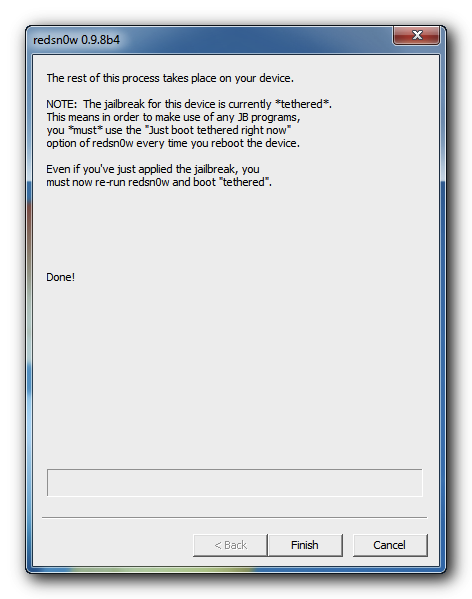
Once this is complete you will be notified that RedSn0w is done. Click the Finish button. When your iPad finishes rebooting (5 minutes or so) it will be jailbroken with Cydia on the SpringBoard.
Click here to enlarge


BOOT TETHERED
Since this is a tethered jailbreak you must use Redsn0w to help you boot back into your jailbroken device if its powered off for any reason. Simply connect your iPhone to the computer, launch RedSn0w, select Just boot tethered right now from the options window and click Next to have RedSn0w boot your device.
Click here to enlarge

*As usual a big thanks to the iPhone Dev-Team for their hard work and contribution to the iPhone community.
**Windows 7 users can try running RedSn0w as an administrator in Windows Vista or XP compatibility mode if you experience any difficulties
Read More..

Sunday, September 15, 2013

Download PayPal v3 4 App for iPhone iPad and iPod Touch

PayPal has now updated iOS app with new features that makes it more convenient and painless in order to manage your PayPal account from iDevice. It has compatibility with your iPod, iPhone and iPad, it helps you to send the money to your friends and managing your account conveniently. This PayPal app is awesome rather than using ATM or writing checks.


Some features of Paypal App described below:
  • You can send money easily as gifts and collect money for a group gift.
  • You can check yor balance,withdraw funds and see previous transactions anytime.
  • Capture a picture of check as it will add money from your iPhone directly,there will be no fees.
  • Hit to exchange contacts and send money.
What’s New in PayPal App v3.4:
  • All app features displayed on one page
  • Transaction history details are now just a tap away
  • Improved filtering of your transaction history
  • Other user experience enhancements
Download Paypal App for iPhone,iPad and iPod Touch.
Read More..