Showing posts with label and. Show all posts

Sunday, March 23, 2014

November Thanksgiving Borders and Frames!

Ive put off making these for way too long... but here they are!  I tried to balance the amount of ink that each frame used and included more frames that use a little bit less ink.  I also added some circle frames this time!


The frames from October (which I listed for free!) were a big hit, be sure to grab them below if you havent already!


On a total side note, the poll on my blog has reset itself at least 5 times this week and keeps losing all the votes :( Since I have no way of telling which one was the most popular option, Im going to do the same thing I planned on doing in case of a tie - blogging about the option thats been on the poll for longer. 
Scratch that... the poll fixed itself (just in the nick of time!) and all of the votes were restored, so Ill be going with the option that had the most votes!

Read More..

Saturday, March 22, 2014

Addition Uno! Flash Giveaway and Sale!

So many people have requested that I made an Addition Uno game, and I finally got around to it!  This center game will be perfect to go along with your addition lessons plans for Kindergarten or 1st Grade!  Grab it tonight only for 25% off!


If you want to win the set for free, be the first person to correctly guess how many days long my addition unit is!  Be sure to leave your email address!

Read More..

Thursday, March 13, 2014

Magic Y Video Lesson Poems and Visual!

I have been hard at work on this Magic Y video for what seems like forever.  I kept changing and updating it but I love the final result (as do my kids!)  Just look at how cute it looks!

Head over to TPT to check it out... for 20% off tonight only!  Or be the first person to leave me a comment and Ill send it to you for free!


Be sure to check out the preview and let me know what you think!!!

Read More..

Monday, March 10, 2014

Phonics Worksheets Mega Pack Soft C Freebie and a Giveaway!

I had to do report cards this weekend... so of course it was time for some major procrastinating!  I decided to "cute up" some items for RTI for my struggling students.  I mostly have to focus on beginning short vowel sounds with a few of my little ones, but of course, I was on a roll, so I decided to re-vamp the whole alphabet!  Heres the whole set of letters... with a whopping 13 pages per letter!!!


Since I really only need to review phonics for short vowels with a handful of students, I decided to print these pages in a binder and use dry-erase markers for  those targeted for Response to Intervention!  I printed it on colorful paper since it was almost all black and white ink... and I LOVE how it looked (as did the kids!)  Check it out below!


And of course, next year, Ill be using many of the worksheets earlier in the year when I teach phonics.  Now that I have so many cute worksheets for phonics, I kind of wish I taught a Letter of the Week, but I know I wouldnt have time for that!


Since Im also working on Soft C now, I decided to make a coordinating set of worksheets to go along with my soft c lesson plans... and as a thanks to all my loyal followers, here those are for free!


If you want to win this set for the whole alphabet along with some other amazing items, be sure to check out my friend Lianns blog for her Spring Giveaway!  Click the link below to check out her giveaway (which ends May 27th!)


Read More..

Monday, March 3, 2014

And the winner is

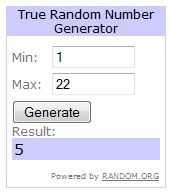
I used random.org to generate a random number from 1 to 22 (excluding my two replies to the comments)... and the winner is Jillian at Just Tinkering Around!

Jillian, Ill be sending you all 4 of the Uno Sight words games for free... Primer, 1st Grade, 2nd Grade, and 3rd Grade! Congratuations!  For anyone else who is interested, you can find these games on my TPT store below!


For today only, all of the Uno games will be 20% off, so pick up your copies today!
Read More..

Saturday, March 1, 2014

How to Make Your Own Cut and Paste Items in PowerPoint!

Cut and paste items are incredibly popular with the kids... and this tutorial reminds me that I really need to incorporate them into my lesson plans more!  This tutorial has a lot of steps, but its actually really quick to do!


Here are the poll results for this week:
 

Now, onto the tutorial!


You can download this tutorial as a PDF by clicking this picture!
Note: This tutorial is hosted on Google Docs.  To save it from there, just open the file and click File > Download to save onto your computer!

As for next weeks poll, ill be adding how to make a foldable in PowerPoint!


Read More..

Tuesday, October 15, 2013

Firmware Jailbreak and Tools Downloads Collection

Welcome to Jailbreak’s Downloads Section. In this section you will find download links to jailbreaking tools such as PwnageTool, RedSn0w, Sn0wBreeze, GreenPois0n, Seas0nPass, JailbreakMe and more! We will also be including download links to important utilities like iFaith, TinyUmbrella and F0recast.

Note #1: Updates will be posted as new jailbreaking tools are released. Also, if a jailbreaking tool’s name is in bold it means that it’s the latest version available.

Click here to enlarge
PwnageTool is a MAC OSX only jailbreaking tool that jailbreaks your iOS iDevice by creating a custom IPSW (Apple’s Firmware File); once this IPSW is created you must restore it to your iDevice through iTunes


PwnageTool 4.3.3.1 (iOS 4.3.3): Mac OS X Download
PwnageTool 4.3.3 (iOS 4.3.3): Mac OS X Download
PwnageTool 4.3.2 (iOS 4.3.2): Mac OS X Download
PwnageTool 4.3 (iOS 4.3.1): Mac OS X Download
PwnageTool 4.2 (iOS 4.2.1/4.2.6): Mac OS X Download
Click here to enlarge

Sn0wBreeze is actually the Windows alternative to the PwnageTool. It functions and operates the exact same way as the PwnageTool – Sn0wBreeze jailbreaks your iOS iDevice by creating a custom IPSW (Apple’s Firmware File); once this IPSW is created you must restore it to your iDevice through iTunes.


Sn0wBreeze 2.8b8 (iOS 5 GM): Windows Download
Sn0wBreeze 2.8b7 (iOS 5 beta 7): Windows Download
Sn0wBreeze 2.8b6 (iOS 5 beta 6): Windows Download
Sn0wBreeze 2.8b5 (iOS 5 beta 5): Windows Download
Sn0wBreeze 2.8b4 (iOS 5 beta 3): Windows Download
Sn0wBreeze 2.8b3 (iOS 5 beta 2): Windows Download

Sn0wBreeze 2.7.3 (iOS 4.2.8/4.3.3): Windows Download
Sn0wBreeze 2.7.2 (iOS 4.3 Build 8F305 Apple TV 2G): Windows Download
Sn0wBreeze 2.7.1 (iOS 4.3.3/4.2.8): Windows Download
Sn0wBreeze 2.7 (iOS 4.3.3/4.2.8): Windows Download
Sn0wBreeze 2.6.1 (iOS 4.3.2): Windows Download
Sn0wBreeze 2.6 (iOS 4.3.2/4.2.7): Windows Download
Sn0wBreeze 2.5.1 (iOS 4.3.1): Windows Download
Sn0wBreeze 2.5 (iOS 4.3.1): Windows Download
Sn0wBreeze 2.2.1 (iOS 4.2.1): Windows Download
Sn0wBreeze 2.1 (iOS 3.2.2/4.1): Windows Download
Sn0wBreeze 2.0.2 (Fixes for Error 37 and hacktivation): Windows Download
Sn0wBreeze 2 (iOS 3.1.2 ): Windows Download
Sn0wBreeze 1.7: Windows Download
Click here to enlarge
RedSn0w (originally named QuickPwn) was re-released during the times of the 2.x.x firmware generation, as one of the first jailbreaking tools to jailbreak the iPod Touch 2G. Maintained and created by the Dev-Team, RedSn0w has become one of the most used jailbreaking tools to jailbreak the iOS firmware.

RedSn0w 0.9.9b3: Windows Download | Mac OS X Download
RedSn0w 0.9.9b2: Windows Download | Mac OS X Download
RedSn0w 0.9.9b1: Windows Download | Mac OS X Download
RedSn0w 0.9.8b7c: Windows Download | Mac OS X Download
RedSn0w 0.9.8b7b: Windows Download | Mac OS X Download
RedSn0w 0.9.8b7: Windows Download | Mac OS X Download
RedSn0w 0.9.8b6: Windows Download | Mac OS X Download
RedSn0w 0.9.8b5: Windows Download | Mac OS X Download
RedSn0w 0.9.8b4: Windows Download | Mac OS X Download
RedSn0w 0.9.8b3: Windows Download | Mac OS X Download
RedSn0w 0.9.8b2: Windows Download | Mac OS X Download
RedSn0w 0.9.6rc19: Windows Download | Mac OS X Download
Redsn0w 0.9.6rc18: Windows Download | Mac OS X Download
Click here to enlarge
GreenPois0n jailbreaking tool was first released on October 12th, 2010 and it was one of the first jailbreaking tools to jailbreak the iOS 4.1 firmware. GreenPois0n is a one click jailbreaking tool; meaning that all you need to do to jailbreak your iDevice is click a button.


GreenPois0n RC6.1: Windows Download | Mac OS X Download
GreenPois0n RC6: Windows Download | Mac OS X Download
GreenPois0n RC5b4: Windows Download | Mac OS X Download
GreenPois0n RC4: Windows Download | Mac OS X Download | Linux Download
Click here to enlarge

Seas0nPass is an Apple TV 2G specific jailbreaking tool created by the FireFore development team.
Seas0nPass (Aug 19th, 2011 update): Windows Download | Mac OS X Download

Click here to enlarge
JailbreakMe is a userland jailbreak. Meaning that all you need to do to jailbreak your iDevice is visit JailbreakMe.com and just like that your iDevice will be Jailbroken. This jailbreak works on all iDevices running up to the iOS 4.3.3 firmware.


JailbreakMe 3.0: Visit JailbreakMe

JailbreakMe 2.0: Visit JailbreakMe
SPIRIT IMAGE
Spirit: Windows Download | Mac OS X Download
Click here to enlarge
TinyUmbrella is an SHSH saving tool that allows you to downgrade your iDevice’s firmware version to a lower version than you are currently running. This can often times be helpful in case you accidentally update to a firmware version that cannot be jailbroken; as by default Apple does not allow downgrading.


TinyUmbrella 5.00.11: Windows Download | Mac OS X Download


TinyUmbrella 5.00.10: Windows Download | Mac OS X Download


TinyUmbrella 5.00.09: Windows Download | Mac OS X Download


TinyUmbrella 5.00.08: Windows Download | Mac OS X Download


TinyUmbrella 5.00.07: Windows Download | Mac OS X Download
TinyUmbrella 5.00.06: Windows Download | Mac OS X Download
TinyUmbrella 5.00.05: Windows Download | Mac OS X Download
TinyUmbrella 5.00.04: Windows Download | Mac OS X Download
TinyUmbrella 5.00.03: Windows Download | Mac OS X Download
TinyUmbrella 5.00.02: Windows Download | Mac OS X Download
TinyUmbrella 5.00.01: Windows Download | Mac OS X Download
TinyUmbrella 5.00.00: Windows Download | Mac OS X Download
TinyUmbrella 4.33.02: Windows Download | Mac OS X Download
TinyUmbrella 4.33.01: Windows Download | Mac OS X Download
TinyUmbrella 4.33.00: Windows Download | Mac OS X Download
Click here to enlarge


iFaith is an SHSH saving tool that dumps SHSH blobs directly on to your iDevice. Dumping your SHSH blobs allows you to downgrade your iDevice’s firmware version to a lower version than you are currently running. This can often times be helpful in case you accidentally update to a firmware version that cannot be jailbroken; as by default Apple does not allow downgrading.


iFaith 1.3.2: Windows Download


iFaith 1.3.1: Windows Download


iFaith 1.3: Windows Download


iFaith 1.2.1: Windows Download


iFaith 1.2: Windows Download


iFaith 1.1: Windows Download


iFaith 1.0: Windows Download
Click here to enlarge


RecBoot is an application that easily kicks your iPhone, iPod Touch or iPad out of Recovery Mode and also puts your iPhone, iPod Touch or iPad into Recovery Mode.


RecBoot v2.2: Mac OS X Download


RecBoot v1.3: Windows Download | Linux Download
RecBoot v1.0.2 Mac OS X Download


Click here to enlarge
F0recast is a handy tool that will tell you information about your iDevice. For example: whether or not it can be jailbroken/unlocked.


Click here to enlarge


ipswDownloader allows you to easily download firmware files for your iDevice from an easy to use GUI (graphical user interface). Additionally the tool tells you whether or not the firmware you are downloading can be jailbroken or Unlocked.


ipswDownloader 0.5: Windows Download | Mac OS X Download (32 bit) | Mac OS X Download (64 bit)
Click here to enlarge


iTunes 10.2.0 Windows / Mac OS X Download | Windows / Mac OS X (64-bit) Download
Click here to enlarge


1.0.0: iPhone1,1_1.0_1A543a_Restore.ipsw
1.0.1: iPhone1,1_1.0.1_1C25_Restore.ipsw
1.0.2: iPhone1,1_1.0.2_1C28_Restore.ipsw
1.1.1: iPhone1,1_1.1.1_3A109a_Restore.ipsw
1.1.2: iPhone1,1_1.1.2_3B48b_Restore.ipsw
1.1.3: iPhone1,1_1.1.3_4A93_Restore.ipsw
1.1.4: iPhone1,1_1.1.4_4A102_Restore.ipsw
2.0.0 (2G): iPhone1,1_2.0_5A347_Restore.ipsw
2.0.0 (3G): iPhone1,2_2.0_5A347_Restore.ipsw
2.0.1 (2G): iPhone1,1_2.0.1_5B108_Restore.ipsw
2.0.1 (3G): iPhone1,2_2.0.1_5B108_Restore.ipsw
2.0.2 (2G): iPhone1,1_2.0.2_5C1_Restore.ipsw
2.0.2 (3G): iPhone1,2_2.0.2_5C1_Restore.ipsw
2.1.0 (2G): iPhone1,1_2.1_5F136_Restore.ipsw
2.1.0 (3G): iPhone1,2_2.1_5F136_Restore.ipsw
2.2.0 (2G): iPhone1,1_2.2_5G77_Restore.ipsw
2.2.0 (3G): iPhone1,2_2.2_5G77_Restore.ipsw
2.2.1 (2G): iPhone1,1_2.2.1_5H1_Restore.ipsw
2.2.1 (3G): iPhone1,2_2.2.1_5H11_Restore.ipsw
3.0.0 (2G): iPhone1,1_3.0_7A341_Restore.ipsw
3.0.0 (3G): iPhone1,2_3.0_7A341_Restore.ipsw
3.0.0 (3GS): iPhone2,1_3.0_7A341_Restore.ipsw
3.0.1 (2G): iPhone1,1_3.0.1_7A400_Restore.ipsw
3.0.1 (3G): iPhone1,2_3.0.1_7A400_Restore.ipsw
3.0.1 (3GS): iPhone2,1_3.0.1_7A400_Restore.ipsw
3.1.0 (2G): iPhone1,1_3.1_7C144_Restore.ipsw
3.1.0 (3G): iPhone1,2_3.1_7C144_Restore.ipsw
3.1.0 (3GS): iPhone2,1_3.1_7C144_Restore.ipsw
3.1.2 (2G): iPhone1,1_3.1.2_7D11_Restore.ipsw
3.1.2 (3G): iPhone1,2_3.1.2_7D11_Restore.ipsw
3.1.2 (3GS): iPhone2,1_3.1.2_7D11_Restore.ipsw
3.1.3 (2G): iPhone1,1_3.1.3_7E18_Restore.ipsw
3.1.3 (3G): iPhone1,2_3.1.3_7E18_Restore.ipsw
3.1.3 (3GS): iPhone2,1_3.1.3_7E18_Restore.ipsw
4.0.0 (3G): iPhone1,2_4.0_8A293_Restore.ipsw
4.0.0 (3GS): iPhone2,1_4.0_8A293_Restore.ipsw
4.0.0 (4): iPhone3,1_4.0_8A293_Restore.ipsw
4.0.1 (3G): iPhone1,2_4.0.1_8A306_Restore.ipsw
4.0.1 (3GS): iPhone2,1_4.0.1_8A306_Restore.ipsw
4.0.1 (4): iPhone3,1_4.0.1_8A306_Restore.ipsw
4.0.2 (3G): iPhone1,2_4.0.2_8A400_Restore.ipsw
4.0.2 (3GS): iPhone2,1_4.0.2_8A400_Restore.ipsw
4.0.2 (4): iPhone3,1_4.0.2_8A400_Restore.ipsw
4.1.0 (3G): iPhone1,2_4.1_8B117_Restore.ipsw
4.1.0 (3GS): iPhone2,1_4.1_8B117_Restore.ipsw
4.1.0 (4): iPhone3,1_4.1_8B117_Restore.ipsw
4.2.1 (3G): iPhone1,2_4.2.1_8C148_Restore.ipsw
4.2.1 (3GS): iPhone2,1_4.2.1_8C148a_Restore.ipsw
4.2.1 (4): iPhone3,1_4.2.1_8C148_Restore.ipsw
4.2.6 (4 CDMA): iPhone3,3_4.2.6_8E200_Restore.ipsw
4.3.0 (3GS): iPhone2,1_4.3_8F190_Restore.ipsw
4.3.0 (4 GSM): iPhone3,1_4.3_8F190_Restore.ipsw
4.3.1 (3GS): iPhone2,1_4.3.1_8G4_Restore.ipsw
4.3.1 (4 GSM): iPhone3,1_4.3.1_8G4_Restore.ipsw
4.3.2 (3GS): iPhone2,1_4.3.2_8H7_Restore.ipsw
4.3.2 (4 GSM): iPhone3,1_4.3.2_8H7_Restore.ipsw
4.2.7 (4 CDMA): iPhone3,3_4.2.7_8E303_Restore.ipsw
4.2.8 (4 CDMA): iPhone3,3_4.2.8_8E401_Restore.ipsw
4.3.3 (3GS): iPhone2,1_4.3.3_8J2_Restore.ipsw
4.3.3 (4 GSM): iPhone3,1_4.3.3_8J2_Restore.ipsw
4.2.9 (4 CDMA): iPhone3,3_4.2.9_8E501_Restore.ipsw
4.3.4 (3GS): iPhone2,1_4.3.4_8K2_Restore.ipsw
4.3.4 (4 GSM): iPhone3,1_4.3.4_8K2_Restore.ipsw
4.2.10 (4 CDMA): iPhone3,3_4.2.10_8E600_Restore.ipsw
4.3.5 (3GS): iPhone2,1_4.3.5_8L1_Restore.ipsw
4.3.5 (4 GSM): iPhone3,1_4.3.5_8L1_Restore.ipsw
Click here to enlarge


1.1: iPod1,1_1.1_3A101a_Restore.ipsw
1.1.1: iPod1,1_1.1.1_3A110a_Restore.ipsw
1.1.2: iPod1,1_1.1.2_3B48b_Restore.ipsw
1.1.3: iPod1,1_1.1.3_4A93_Restore.ipsw
1.1.4: iPod1,1_1.1.4_4A102_Restore.ipsw
1.1.5: iPod1,1_1.1.5_4B1_Restore.ipsw
2.0.0: iPod1,1_2.0_5A347_Restore.ipsw (Must purchase through iTunes)
2.0.1: iPod1,1_2.0.1_5B108_Restore.ipsw
2.2.0 (1G): iPod1,1_2.2_5G77_Restore.ipsw
2.2.0 (2G): iPod2,1_2.2_5G77a_Restore.ipsw
2.2.1 (2G): iPod2,1_2.2.1_5H11a_Restore.ipsw
3.1.2 (3G): iPod3,1_3.1.2_7D11_Restore.ipsw
3.1.3 (3G): iPod3,1_3.1.3_7E18_Restore.ipsw
4.0.0 (2G): iPod2,1_4.0_8A293_Restore.ipsw
4.0.0 (3G): iPod3,1_4.0_8A293_Restore.ipsw
4.0.2 (2G): iPod2,1_4.0.2_8A400_Restore.ipsw
4.0.2 (3G): iPod3,1_4.0.2_8A400_Restore.ipsw
4.1.0 (2G): iPod2,1_4.1_8B117_Restore.ipsw
4.1.0 (3G): iPod3,1_4.1_8B117_Restore.ipsw
4.1.0 (4G): iPod4,1_4.1_8B117_Restore.ipsw
4.2.1 (2G): iPod2,1_4.2.1_8C148_Restore.ipsw
4.2.1 (3G): iPod3,1_4.2.1_8C148_Restore.ipsw
4.2.1 (4G): iPod4,1_4.2.1_8C148_Restore.ipsw
4.3.0 (3G): iPod3,1_4.3_8F190_Restore.ipsw
4.3.0 (4G): iPod4,1_4.3_8F190_Restore.ipsw
4.3.1 (3G): iPod3,1_4.3.1_8G4_Restore.ipsw
4.3.1 (4G): iPod4,1_4.3.1_8G4_Restore.ipsw
4.3.2 (3G): iPod3,1_4.3.2_8H7_Restore.ipsw
4.3.2 (4G): iPod4,1_4.3.2_8H7_Restore.ipsw
4.3.3 (3G): iPod3,1_4.3.3_8J2_Restore.ipsw
4.3.3 (4G): iPod4,1_4.3.3_8J2_Restore.ipsw
4.3.4 (3G): iPod3,1_4.3.4_8K2_Restore.ipsw
4.3.4 (4G): iPod4,1_4.3.4_8K2_Restore.ipsw
4.3.5 (3G): iPod3,1_4.3.5_8L1_Restore.ipsw
4.3.5 (4G): iPod4,1_4.3.5_8L1_Restore.ipsw
Click here to enlarge
3.2.0: iPad1,1_3.2_7B367_Restore.ipsw
3.2.1: iPad1,1_3.2.1_7B405_Restore.ipsw
3.2.2: iPad1,1_3.2.2_7B500_Restore.ipsw
4.2.1: iPad1,1_4.2.1_8C148_Restore.ipsw
4.3.0 (1): iPad1,1_4.3_8F190_Restore.ipsw
4.3.1 (iPad 1): iPad1,1_4.3.1_8G4_Restore.ipsw
4.3.1 (iPad 2 Wi-Fi): iPad2,1_4.3.1_8G4_Restore.ipsw
4.3.1 (iPad 2 GSM): iPad2,2_4.3.1_8G4_Restore.ipsw
4.3.1 (iPad 2 CDMA): iPad2,3_4.3.1_8G4_Restore.ipsw
4.3.2 (iPad 1): iPad1,1_4.3.2_8H7_Restore.ipsw
4.3.2 (iPad 2 Wi-Fi): iPad2,1_4.3.2_8H7_Restore.ipsw
4.3.2 (iPad 2 GSM): iPad2,2_4.3.2_8H7_Restore.ipsw
4.3.2 (iPad 2 CDMA): iPad2,3_4.3.2_8H8_Restore.ipsw
4.3.3 (iPad 1): iPad1,1_4.3.3_8J3_Restore.ipsw
4.3.3 (iPad 2 Wi-Fi): iPad2,1_4.3.3_8J2_Restore.ipsw
4.3.3 (iPad 2 GSM): iPad2,2_4.3.3_8J2_Restore.ipsw
4.3.3 (iPad 2 CDMA): iPad2,3_4.3.3_8J2_Restore.ipsw
4.3.4 (iPad 1): iPad1,1_4.3.4_8K2_Restore.ipsw
4.3.4 (iPad 2 Wi-Fi): iPad2,1_4.3.4_8K2_Restore.ipsw
4.3.4 (iPad 2 GSM): iPad2,2_4.3.4_8K2_Restore.ipsw
4.3.4 (iPad 2 CDMA): iPad2,3_4.3.4_8K2_Restore.ipsw
4.3.5 (iPad 1): iPad1,1_4.3.5_8L1_Restore.ipsw
4.3.5 (iPad 2 Wi-Fi): iPad2,1_4.3.5_8L1_Restore.ipsw
4.3.5 (iPad 2 GSM): iPad2,2_4.3.5_8L1_Restore.ipsw
4.3.5 (iPad 2 CDMA): iPad2,3_4.3.5_8L1_Restore.ipsw
Click here to enlarge


4.1.0 (Apple TV 2G): AppleTV2,1_4.1_8M89_Restore.ipsw
4.2.0 (Apple TV 2G): AppleTV2,1_4.2_8C150_Restore.ipsw
4.2.1 (Apple TV 2G): AppleTV2,1_4.2.1_8C154_Restore.ipsw
4.3.0 (Apple TV 2G): AppleTV2,1_4.3_8F191m_Restore.ipsw
4.3.0 (Apple TV 2G – Build 8F202): AppleTV2,1_4.3_8F202_Restore.ipsw
4.3.0 (Apple TV 2G – Build 8F305): AppleTV2,1_4.3_8F305_Restore.ipsw
4.3.0 (Apple TV 2G – Build 8F455): AppleTV2,1_4.3_8F455_Restore.ipsw
Read More..

Monday, October 14, 2013

Apple Reveals iCloud At WWDC 2011 And Its Free!

Apple has finally revealed iCloud at WWDC 2011. Steve Jobs defines this service as: "iCloud stores your content in the cloud and wirelessly pushes it to all your device. It automatically uploads it, stores it, and pushes it to all your devices." Managing content between our devices is never going to be the same again, thanks to iCloud.


iCloud will automatically store daily content such as your books, photos, videos, app data, music bought from iTunes and device settings via Wi-Fi. The Documents in the Cloud app will store projects that you make in the iWork suite and will sync it seamlessly across all your iOS devices.

PhotoStream is going to be a new gallery in the Photos app of your iOS device and will sync all the pictures that you take with Mac computers, other iOS devices, Apple TV and even Windows PCs. As soon as you take a picture on your iPhone, it will automatically be synced to other iOS devices, Mac computers and even Windows PCs as well as being stored in the cloud for 30 days.

iCloud will not be serving any ads to its users. iCloud is going to be offered free for all users and will be implemented in all devices running iOS 5. Users will get free storage of 5GB for contacts, mail and calendar. PhotoStream doesnt count.
Read More..

Sunday, October 6, 2013

SEO For Beginners And See Your Site With the Eyes of a Spider

SEO For Beginners And See Your Site With the Eyes of a Spider

SEO For Newbies And See Your Web page With the Sight of a Examine - Youve finished your web style, downloaded your information, and set up your blog, but youre still not getting as many visitors as you expected for. What gives? Chances are you havent started working on one of the most essential ways to market your site, Look for Web page Search engine optimization (SEO).

what seo is?

Search Web page Search engine optimization represents the collection of techniques and methods that allow a site to get more traffic from search engines (Google, Google, Microsoft). SEO can be separated into two main areas: off-page SEO (work that occurs individual from the website) and on-page SEO (website changes to create your site position better). This guide will cover both places in detail! Remember, a site is not fully enhanced for search engines unless it utilizes both on and off-page SEO.

what seo is not?

SEO is not buying the number #1 provided weblink through Google Google adwords and stating that you have a #1 position on Google. Purchasing paid positions on search engines is a type of Look for Web page Marketing (SEM), and is not protected in this guide.

SEO is not position #1 for your organizations name. If youre reading this guide, you probably already know that position for well-known conditions is awful near difficult, but particular conditions, such as a company name, is a giveaway. The search engines usually are smart enough to prize you that position by standard (unless you are being penalized).

who uses seo?

If a site is currently rated #10 on Google for the key term, "how to create egg comes," but wants to rise to #1, this sites needs to consider SEO. Because search engines have become more and more well-known on the web, nearly anyone trying to get seen on the web can benefit from a little SEO adoring.

See Your Web page With the Sight of a Spider

Making initiatives to boost a site is excellent but what number is how search engines see your time and effort. While even the most cautious optimization does not assurance covers position in search engines search, if your site does not adhere to basic seo facts, then it is more than certain that this excellent site will not score well with search engines. One way to examine in advance how your SEO attempts are seen by search engines is to use search applications simulation.

Spiders Explained

Basically all spiders function on the same concept � they spider the Web and catalog webpages, which are saved in a data source and later use various methods to figure out pr, importance, etc of the gathered webpages. While the methods of determining position and importance widely change among search engines, the way they catalog sites is more or less consistent and it is crucial that you know what spiders are interested in and what they neglect.

Search engine spiders are spiders and they do not read your webpages the way a human does. Instead, they tend to see only particular products and are impaired for many accessories (Flash, JavaScript) that are suitable for people. Since spiders figure out if people will find your site, it is worth to consider what spiders like and what dont.

Flash, JavaScript, Picture Written text or Frames?!

Flash, JavaScript and image text are NOT noticeable to search engines. Supports are a real problems with regards to SEO position. All of them might be excellent with regards to style and excellent but for search engines they are absolutely incorrect. An amazing error one can create is to have a Show introduction web page (frames or no frames, this will hardly create the situation worse) with the search conditions hidden in the movement. Seek advice from the Look for Web page Examine Simulator tool a web page with Show and pictures (and usually no text or incoming or confident hyperlinks) and you will see that to search engines this web page appears almost empty.

Running your site through this simulation will show you more than the fact that Show and JavaScript are not SEO preferred. In a way, spiders are like text internet explorer and they dont see anything that is not a piece of text. So having pictures with text in it means nothing to a spider and it will neglect it. A workaround (recommended as a SEO best practice) is to include significant information of the look in the ALT feature of the <IMG> tag but be cautious not to use too many search conditions in it because you risk charges for search term filling. ALT feature is especially essential, when you use backlinks rather than text for backlinks. You can use ALT text for explaining what a Show film is about but again, be cautious not to trespass the line between optimization and over-optimization.

Are Your Hyperlinks Spiderable?

The search engine spider simulation can be of excellent help when trying to figure out if the backlinks cause to the right position. For example, exchanging links sites often put bogus backlinks to your site with _javascript (using rabbit over events and products to create the weblink look genuine) but actually this is not a weblink that search engines will see and adhere to. Since the spider simulation would not display such backlinks, youll know that something with the weblink is incorrect.

It is suggested to use the <noscript> tag, versus _javascript centered choices. The reason is that _javascript centered choices are not spiderable and all the backlinks in them will be ignored as web page text. The fix for your problem is to put all food selection backlinks in the <noscript> tag. The <noscript> tag can hold a lot but please avoid using it for weblink filling or any other kind of SEO adjustment.

If you happen to have plenty of backlinks on your webpages (although it is suggested to have less than 100 backlinks on a page), then you might have difficulty verifying if they are OK. For example, if you have webpages that display �403 Forbidden�, �404 Page Not Found� or similar mistakes that prevent the spider from opening your website, then it is certain that this web page will not be listed. It is necessary to bring up that a spider simulation does not cope with 403 and 404 mistakes because it is verifying where backlinks cause to not if the focus on of the weblink is in position, so you need to use other resources for verifying if the objectives of backlinks are the designed ones.

Looking for Your Keywords

While there are particular resources, like the Keyword Play area or the Web page Keyword Recommendations, which cope with search conditions in more details, search engine spider simulators also help to see with your eyes of a spider where search conditions are located among the writing of your website. Why is this important? Because search conditions in the first sentences of a web page think about more than search conditions in the middle or at the end. And if search conditions creatively appear to us to be on the top, this may not be the way spiders see them. Consider a standard Web page with platforms. In this case chronologically the value that explains your website structure (like routing backlinks or individual tissues with text that are the same sitewise) might come first and what is more intense, can be so long that the actual page-specific articles will be displays away from the top of your website. When we look at your website in a web browser, to us everything is fine � the page-specific articles is on top but since in the HTML value this is just the opposite, your website will not be observed as keyword-rich.

Are Powerful Pages Too Powerful to be Seen At All

Dynamic webpages (especially ones with question represents in the URL) are also an extra that spiders do not love, although many search engines do catalog dynamic webpages as well. Operating the spider simulation will give you an idea how well your dynamic webpages are approved by search engines. Useful suggestions how to cope with search engines and dynamic URLs can be discovered in the Powerful URLs vs. Fixed URLs article.

Meta Keywords and Meta Description

Meta search conditions and meta information, as the name indicates, are to be discovered in the <META> tag of a HTML web page. Once meta search conditions and meta information were the best requirements for identifying importance of a web page but now search engines employ alternative systems for identifying importance, so you can securely miss list search conditions and information in Meta data (unless you want to add there guidelines for the spider what to catalog and what not but apart from that meta labels are not very useful anymore).
Read More..

Saturday, October 5, 2013

WWDC 2012 and the surprises Apple will announce jailbreak is on !!!


HOT WWDC 2012 and the surprises Apple will announce jailbreak is on !!!

With only a week to go before WWDC 2012 and the surprises Apple will announce there, today seems like a good time to release updates to our suite of free software to include the rocky-racoon jailbreak and untether developed by @pod2g and @planetbeing!

Today’s updates are:


  • PwnageTool 5.1.1
  • redsn0w 0.9.12b1
  • cinject 0.5.4 (version 0.5.3 also had rocky-racoon but this includes some updates)
  • ultrasn0w 1.2.7 (5.1.1 compatibility only - no new baseband support)


If you’ve already installed rocky-racoon, don’t bother reinstalling it unless you’ve had problems and would like to try a different tool. The underlying untethered jailbreak (rocky-racoon) is identical to what is already installed by last week’s tools like Absinthe, cinject-0.5.3, and the rocky-racoon Cydia package — only the injection method offered by the above tools differs.
redsn0w allows owners of A4+earlier devices to install rocky-racoon two different ways:

  • backup/restore method similar to Absinthe and cinject
  • its traditional limera1n-based ramdisk install. If you have a lot of media on your A4 device (music, movies, TV shows, etc), then the ramdisk method is preferrred because it avoids any possibility of later problems related to syncing to iCloud (including Photo Stream and Music Match). The ramdisk method is not available for A5 devices or later because limera1n can’t be used. If you’d like to use redsn0w’s ramdisk method, just be sure to put the A4 device in DFU or Recovery mode before starting redsn0w (otherwise it will immediately start to use the backup/restore method).


We’ve also added a new redsn0w feature specifically for those who got in on the SAM unlock: you can now include your SAM tickets as part of your initial ramdisk jailbreak of iPhone4 or earlier, or alternatively you can upload your SAM tickets to any device after its been jailbroken. redsn0w accepts either the individual SAM activation ticket plist file, or the entire zip file created by redsn0w’s “Backup” button. As usual, redsn0w continues to cover all of its previous jailbreaks and untethers (so redsn0w-0.9.12b1 covers everything from 5.1.1 all the way back to 4.1).
PwnageTool also avoids any possible sync issues, but again it applies only to A4+earlier devices.

If you unlock your iPhone with ultrasn0w or a commercial method, you must use PwnageTool to avoid updating your baseband otherwise you’ll lose the unlock. PwnageTool will also jailbreak+untether the AppleTV2,1 5.0_2B206f (unless you customize the IPSW further, you’ll have just basic SSH access to the device).

If you’d like to contribute to those that actually developed rocky-racoon, please visit here (any other links you may see are not going to the actual rocky-racoon developers, they’re being diverted to other “related” or fraudulent accounts).


This particular jailbreak brought an unusual amount of fanfare and hoopla to the table, including “press releases” and other haughty silliness.

We’d just like to take this opportunity to remind everyone that jailbreaking is about freedom, not fame and donations!


Here are the download links. Please use our comment section below to give feedback. Enjoy!


Read More..

Friday, October 4, 2013

How To Use Gevey SIM Ultrasnow 1 2 4 on IOS 5 And What’s the Diffrence


If you decided to unlock your iPhone 4, 3GS on iOS 5 so you have two ways the
  • First way: is to use Ultrasnow 1.2.4 which has released by the Dev- team to unlock iPhone 4, 3GS on iOS 5 which supported these baseband 01.59.00 / 04.26.08 / 05.11.07 / 05.12.01 / 05.13.04 / 06.15.00.
  • Second way: is to use Gevey SIM in order to unlock iPhone 4 on iOS 5 Gevey Sim supported baseband 01.59.00 / 02.10.00 / 03.10.1 / 04.10.1 but notes if you have an iPhone 4 that is currently unlocked with a Gevey SIM card, you can unlock your iPhone on the iOS 5 firmware with the same Gevey SIM card as long as you preserve your baseband while updating to the iOS 5 firmware. So the difference between UltraSn0w and the Gevey SIM card, is that UltraSn0w only supports a limited number of older basebands while the Gevey SIM card supports a limited number of newer basebands.
Days ago we showed you how To Unlock iPhone 4, 3GS On iOS 5 using Ultrasn0w 1.2.4 so how to unlock iphone using Gevey Sim on iOS 5 ? here’s the answer below.

Download Required:

  • Download iOS 5 firmware
  • Download iTunes 10.5
  • Download Redsn0w 0.9.9b5
How to preserve iPhone 4 baseband guide


STEP 1: Connect your iPhone 4 into you computer then open Redsn0w 0.9.9b5.
STEP 2: Now select Extras then “Custom IPSW” option so that you can create your pre-jailbroken custom firmware.
STEP 3: Redsn0w will start cooking your custom IPSW and you’ll get it in few minutes.
STEP 4: Once you get your firmware, select ‘Pwned DFU’ from RedSn0w.
STEP 5: Follow the on-screen instructions to get your iPhone in DFU mode.
STEP 6: Once it’s in DFU mode, close Redsn0w then open iTunes 10.5 downloaded above and you should get your iPhone in Recovery Mode message.
STEP 7: Now hold the Option key on Mac and hit Restore. Point iTunes to your iPhone 4 Custom iOS 5 IPSW which begins with NO_BB. (WARNING: Don’t select the stock one or you’ll lose your unlock)
Read More..

Thursday, October 3, 2013

2013 Toyota Highlander Release Date and Redesign

2013 Toyota Highlander Release Date and Redesign - Toyota organized to launch some versions of its best car for 2013 design. Here, what we are going to talk about is about the new 2013 Toyota Highlander. This car also such as as one of the best cross-over SUV.

2013 Toyota Highlander Release Date and Redesign
The new Toyota Highlander will get all-new item metal but will stay absolutely recognizable as a Toyota cross-over SUV. The 2008-2012 second-generation Highlander was among the companys more efficient style projects, combining a dynamic form with efficient style. Toyota is attempting to produce all its designs with a more youthful look, and for the third-generation Highlander this indicates a little bit better body program factors and a more aggressive bbq grill, but little modify to its primary two-box details.

The 2013 Toyota Highlander, like its generation-one and generation-two forerunner, will generally be a tall-roof chariot developed on the same understructure as the Camry midsize vehicle. That will secure its place as a real cross-over because its program and form will be just one unibody structure just like that of a cars. Unibody designs benefits trip, handling, and gas usage because they think about less than the truck-like, separate-body-and-frame growth typical of old-school SUVs, such as the Toyota 4Runner.

2013 Toyota Highlander Interior
What the 2013 Toyota Highlander Prices? Well, it will likely from $39,000 � $45,000. So what about the discharge date? We have lately study in some resources which says that the new Toyota Highlander will go available later in this season, big probability in drop 2012.
Read More..

Sn0wbreeze 2 3b1 Brings iOS 4 3 Tethered Jailbreak Stock Update With Baseband Preservation And Fast Tethered Boot Tool

sn0wbreeze 2.3b1 1 Sn0wbreeze 2.3b1 Brings iOS 4.3 Tethered Jailbreak, Stock Update With Baseband Preservation And Fast Tethered Boot Tool
Just a quick heads-up: iH8sn0w pushed a new update to sn0wbreeze which brings the software to v2.3b1. The new updated comes with a lot of *good stuff* such as a tethered jailbreak for iOS 4.3, stock update to iOS 4.3 with baseband preservation, and a real fast tethered boot tool.
You need:
  • iOS device ( iPhone 3Gs/4, iPad 1st gen, iPod Touch 3G/4G )
  • iOS 4.3
  • sn0wbreeze 2.3b1
How to:
1. Even if there are a couple of new features in this release, the functionality of the tool remains the same. Just follow this sn0wbreeze tutorial and you should be good. The only thing you need to pay attention to, when creating a custom iOS 4.3 ipsw, is step 6 of the tutorial. iH8sn0w added a new option which allows you to update your iOS device to a stock iOS 4.3 while preserving your baseband.
sn0wbreeze 2.3b1 6 Sn0wbreeze 2.3b1 Brings iOS 4.3 Tethered Jailbreak, Stock Update With Baseband Preservation And Fast Tethered Boot Tool
Other than that, the process is exactly the same. Just create your custom ipsw, and shift+restore your iOS device.
2. To boot into the tethered kernel, you need to use iBooty which is included with this release of sn0wbreeze. You will notice a new iBooty icon on your desktop. Just open it, select your device, and run it. Can’t get any easier than this.
iBooty Sn0wbreeze 2.3b1 Brings iOS 4.3 Tethered Jailbreak, Stock Update With Baseband Preservation And Fast Tethered Boot Tool

HOW TO: Use Sn0wbreeze To Untethered Jailbreak iOS 4.2.1 [video]

HOW TO: Use Sn0wbreeze To Untethered Jailbreak iOS 4.2.1 [video]

sn0wbreeze 51 HOW TO: Use Sn0wbreeze To Untethered Jailbreak iOS 4.2.1 [video]
A new version of sn0wbreeze was released, which is able to untether jailbreak iOS 4.2.1. This tool allows you to create a custom firmware, and in this tutorial we’re going to show you exactly how to use it.

Snowbreeze is compatible with:
  • iPhone 3G/3GS/4
  • iPod Touch 2G/3G/4
  • iPad
How To:
1. Download Sn0wbreeze
2. Download stock iOS 4.2.1
NOTE: Windows Vista/Win7 users , you will need to run the toll in Administrator mode. To do that, right click on the tool’s icon and select ‘Run as administrator’…
3. Connect your iOS device
4. Open Snowbreeze and you will see a splash screen which tells you that this software is not for commercial use. Click OK ( see splash screen above ). On the next screen just click on the blue arrow to continue…
5. Now you will need to choose the stock iOS 4.2.1 downloaded earlier. Click on ‘Browse’, select it and click ‘Open’…

sn0wbreeze 3 HOW TO: Use Sn0wbreeze To Untethered Jailbreak iOS 4.2.1 [video]

6. Choose ‘Expert Mode’ and click on the blue arrow to continue…

sn0wbreeze 2 HOW TO: Use Sn0wbreeze To Untethered Jailbreak iOS 4.2.1 [video]

7. Now we need to customize our firmware. Just click on ‘General’ and then, click on the blue arrow to continue…
8. Here you can add:
  • animated bootlogos
  • choose to install openSSH
  • resize the root partition
  • add native backgrounding, user wallpaper, battery percentage etc
sn0wbreeze 1 HOW TO: Use Sn0wbreeze To Untethered Jailbreak iOS 4.2.1 [video]
9. Once you are done, click on the blue arrow to continue. Now sn0wbreeze will create the custom firmware
10. Now, you will need to put the device in DFU mode. Follow the instructions on the screen.
15. Open iTunes. It will prompt you with a message that it found a device in recovery mode. Click OK…
16. Hold down the Shift key and click on restore. Choose the custom firmware you just created and click open. MAKE SURE it’s the custom firmware and not the stock one… ( you will recognize the custom one because it’s called ‘sn0wbreeze_iPhone_xxx’ )
17. Wait for iTunes to restore your iOS device with the custom firmware.
18. That’s it. Enjoy
NOTE: sn0wbreeze may fail. If it does, visit ih8sn0w’s website and check if there is an updated version available

Read More..