















Showing posts with label jailbreak. Show all posts

Tuesday, October 15, 2013

Firmware Jailbreak and Tools Downloads Collection

Welcome to Jailbreak’s Downloads Section. In this section you will find download links to jailbreaking tools such as PwnageTool, RedSn0w, Sn0wBreeze, GreenPois0n, Seas0nPass, JailbreakMe and more! We will also be including download links to important utilities like iFaith, TinyUmbrella and F0recast.

Note #1: Updates will be posted as new jailbreaking tools are released. Also, if a jailbreaking tool’s name is in bold it means that it’s the latest version available.

Click here to enlarge
PwnageTool is a MAC OSX only jailbreaking tool that jailbreaks your iOS iDevice by creating a custom IPSW (Apple’s Firmware File); once this IPSW is created you must restore it to your iDevice through iTunes


PwnageTool 4.3.3.1 (iOS 4.3.3): Mac OS X Download
PwnageTool 4.3.3 (iOS 4.3.3): Mac OS X Download
PwnageTool 4.3.2 (iOS 4.3.2): Mac OS X Download
PwnageTool 4.3 (iOS 4.3.1): Mac OS X Download
PwnageTool 4.2 (iOS 4.2.1/4.2.6): Mac OS X Download
Click here to enlarge

Sn0wBreeze is actually the Windows alternative to the PwnageTool. It functions and operates the exact same way as the PwnageTool – Sn0wBreeze jailbreaks your iOS iDevice by creating a custom IPSW (Apple’s Firmware File); once this IPSW is created you must restore it to your iDevice through iTunes.


Sn0wBreeze 2.8b8 (iOS 5 GM): Windows Download
Sn0wBreeze 2.8b7 (iOS 5 beta 7): Windows Download
Sn0wBreeze 2.8b6 (iOS 5 beta 6): Windows Download
Sn0wBreeze 2.8b5 (iOS 5 beta 5): Windows Download
Sn0wBreeze 2.8b4 (iOS 5 beta 3): Windows Download
Sn0wBreeze 2.8b3 (iOS 5 beta 2): Windows Download

Sn0wBreeze 2.7.3 (iOS 4.2.8/4.3.3): Windows Download
Sn0wBreeze 2.7.2 (iOS 4.3 Build 8F305 Apple TV 2G): Windows Download
Sn0wBreeze 2.7.1 (iOS 4.3.3/4.2.8): Windows Download
Sn0wBreeze 2.7 (iOS 4.3.3/4.2.8): Windows Download
Sn0wBreeze 2.6.1 (iOS 4.3.2): Windows Download
Sn0wBreeze 2.6 (iOS 4.3.2/4.2.7): Windows Download
Sn0wBreeze 2.5.1 (iOS 4.3.1): Windows Download
Sn0wBreeze 2.5 (iOS 4.3.1): Windows Download
Sn0wBreeze 2.2.1 (iOS 4.2.1): Windows Download
Sn0wBreeze 2.1 (iOS 3.2.2/4.1): Windows Download
Sn0wBreeze 2.0.2 (Fixes for Error 37 and hacktivation): Windows Download
Sn0wBreeze 2 (iOS 3.1.2 ): Windows Download
Sn0wBreeze 1.7: Windows Download
Click here to enlarge
RedSn0w (originally named QuickPwn) was re-released during the times of the 2.x.x firmware generation, as one of the first jailbreaking tools to jailbreak the iPod Touch 2G. Maintained and created by the Dev-Team, RedSn0w has become one of the most used jailbreaking tools to jailbreak the iOS firmware.

RedSn0w 0.9.9b3: Windows Download | Mac OS X Download
RedSn0w 0.9.9b2: Windows Download | Mac OS X Download
RedSn0w 0.9.9b1: Windows Download | Mac OS X Download
RedSn0w 0.9.8b7c: Windows Download | Mac OS X Download
RedSn0w 0.9.8b7b: Windows Download | Mac OS X Download
RedSn0w 0.9.8b7: Windows Download | Mac OS X Download
RedSn0w 0.9.8b6: Windows Download | Mac OS X Download
RedSn0w 0.9.8b5: Windows Download | Mac OS X Download
RedSn0w 0.9.8b4: Windows Download | Mac OS X Download
RedSn0w 0.9.8b3: Windows Download | Mac OS X Download
RedSn0w 0.9.8b2: Windows Download | Mac OS X Download
RedSn0w 0.9.6rc19: Windows Download | Mac OS X Download
Redsn0w 0.9.6rc18: Windows Download | Mac OS X Download
Click here to enlarge
GreenPois0n jailbreaking tool was first released on October 12th, 2010 and it was one of the first jailbreaking tools to jailbreak the iOS 4.1 firmware. GreenPois0n is a one click jailbreaking tool; meaning that all you need to do to jailbreak your iDevice is click a button.


GreenPois0n RC6.1: Windows Download | Mac OS X Download
GreenPois0n RC6: Windows Download | Mac OS X Download
GreenPois0n RC5b4: Windows Download | Mac OS X Download
GreenPois0n RC4: Windows Download | Mac OS X Download | Linux Download
Click here to enlarge

Seas0nPass is an Apple TV 2G specific jailbreaking tool created by the FireFore development team.
Seas0nPass (Aug 19th, 2011 update): Windows Download | Mac OS X Download

Click here to enlarge
JailbreakMe is a userland jailbreak. Meaning that all you need to do to jailbreak your iDevice is visit JailbreakMe.com and just like that your iDevice will be Jailbroken. This jailbreak works on all iDevices running up to the iOS 4.3.3 firmware.


JailbreakMe 3.0: Visit JailbreakMe

JailbreakMe 2.0: Visit JailbreakMe
SPIRIT IMAGE
Spirit: Windows Download | Mac OS X Download
Click here to enlarge
TinyUmbrella is an SHSH saving tool that allows you to downgrade your iDevice’s firmware version to a lower version than you are currently running. This can often times be helpful in case you accidentally update to a firmware version that cannot be jailbroken; as by default Apple does not allow downgrading.


TinyUmbrella 5.00.11: Windows Download | Mac OS X Download


TinyUmbrella 5.00.10: Windows Download | Mac OS X Download


TinyUmbrella 5.00.09: Windows Download | Mac OS X Download


TinyUmbrella 5.00.08: Windows Download | Mac OS X Download


TinyUmbrella 5.00.07: Windows Download | Mac OS X Download
TinyUmbrella 5.00.06: Windows Download | Mac OS X Download
TinyUmbrella 5.00.05: Windows Download | Mac OS X Download
TinyUmbrella 5.00.04: Windows Download | Mac OS X Download
TinyUmbrella 5.00.03: Windows Download | Mac OS X Download
TinyUmbrella 5.00.02: Windows Download | Mac OS X Download
TinyUmbrella 5.00.01: Windows Download | Mac OS X Download
TinyUmbrella 5.00.00: Windows Download | Mac OS X Download
TinyUmbrella 4.33.02: Windows Download | Mac OS X Download
TinyUmbrella 4.33.01: Windows Download | Mac OS X Download
TinyUmbrella 4.33.00: Windows Download | Mac OS X Download
Click here to enlarge


iFaith is an SHSH saving tool that dumps SHSH blobs directly on to your iDevice. Dumping your SHSH blobs allows you to downgrade your iDevice’s firmware version to a lower version than you are currently running. This can often times be helpful in case you accidentally update to a firmware version that cannot be jailbroken; as by default Apple does not allow downgrading.


iFaith 1.3.2: Windows Download


iFaith 1.3.1: Windows Download


iFaith 1.3: Windows Download


iFaith 1.2.1: Windows Download


iFaith 1.2: Windows Download


iFaith 1.1: Windows Download


iFaith 1.0: Windows Download
Click here to enlarge


RecBoot is an application that easily kicks your iPhone, iPod Touch or iPad out of Recovery Mode and also puts your iPhone, iPod Touch or iPad into Recovery Mode.


RecBoot v2.2: Mac OS X Download


RecBoot v1.3: Windows Download | Linux Download
RecBoot v1.0.2 Mac OS X Download


Click here to enlarge
F0recast is a handy tool that will tell you information about your iDevice. For example: whether or not it can be jailbroken/unlocked.


Click here to enlarge


ipswDownloader allows you to easily download firmware files for your iDevice from an easy to use GUI (graphical user interface). Additionally the tool tells you whether or not the firmware you are downloading can be jailbroken or Unlocked.


ipswDownloader 0.5: Windows Download | Mac OS X Download (32 bit) | Mac OS X Download (64 bit)
Click here to enlarge


iTunes 10.2.0 Windows / Mac OS X Download | Windows / Mac OS X (64-bit) Download
Click here to enlarge


1.0.0: iPhone1,1_1.0_1A543a_Restore.ipsw
1.0.1: iPhone1,1_1.0.1_1C25_Restore.ipsw
1.0.2: iPhone1,1_1.0.2_1C28_Restore.ipsw
1.1.1: iPhone1,1_1.1.1_3A109a_Restore.ipsw
1.1.2: iPhone1,1_1.1.2_3B48b_Restore.ipsw
1.1.3: iPhone1,1_1.1.3_4A93_Restore.ipsw
1.1.4: iPhone1,1_1.1.4_4A102_Restore.ipsw
2.0.0 (2G): iPhone1,1_2.0_5A347_Restore.ipsw
2.0.0 (3G): iPhone1,2_2.0_5A347_Restore.ipsw
2.0.1 (2G): iPhone1,1_2.0.1_5B108_Restore.ipsw
2.0.1 (3G): iPhone1,2_2.0.1_5B108_Restore.ipsw
2.0.2 (2G): iPhone1,1_2.0.2_5C1_Restore.ipsw
2.0.2 (3G): iPhone1,2_2.0.2_5C1_Restore.ipsw
2.1.0 (2G): iPhone1,1_2.1_5F136_Restore.ipsw
2.1.0 (3G): iPhone1,2_2.1_5F136_Restore.ipsw
2.2.0 (2G): iPhone1,1_2.2_5G77_Restore.ipsw
2.2.0 (3G): iPhone1,2_2.2_5G77_Restore.ipsw
2.2.1 (2G): iPhone1,1_2.2.1_5H1_Restore.ipsw
2.2.1 (3G): iPhone1,2_2.2.1_5H11_Restore.ipsw
3.0.0 (2G): iPhone1,1_3.0_7A341_Restore.ipsw
3.0.0 (3G): iPhone1,2_3.0_7A341_Restore.ipsw
3.0.0 (3GS): iPhone2,1_3.0_7A341_Restore.ipsw
3.0.1 (2G): iPhone1,1_3.0.1_7A400_Restore.ipsw
3.0.1 (3G): iPhone1,2_3.0.1_7A400_Restore.ipsw
3.0.1 (3GS): iPhone2,1_3.0.1_7A400_Restore.ipsw
3.1.0 (2G): iPhone1,1_3.1_7C144_Restore.ipsw
3.1.0 (3G): iPhone1,2_3.1_7C144_Restore.ipsw
3.1.0 (3GS): iPhone2,1_3.1_7C144_Restore.ipsw
3.1.2 (2G): iPhone1,1_3.1.2_7D11_Restore.ipsw
3.1.2 (3G): iPhone1,2_3.1.2_7D11_Restore.ipsw
3.1.2 (3GS): iPhone2,1_3.1.2_7D11_Restore.ipsw
3.1.3 (2G): iPhone1,1_3.1.3_7E18_Restore.ipsw
3.1.3 (3G): iPhone1,2_3.1.3_7E18_Restore.ipsw
3.1.3 (3GS): iPhone2,1_3.1.3_7E18_Restore.ipsw
4.0.0 (3G): iPhone1,2_4.0_8A293_Restore.ipsw
4.0.0 (3GS): iPhone2,1_4.0_8A293_Restore.ipsw
4.0.0 (4): iPhone3,1_4.0_8A293_Restore.ipsw
4.0.1 (3G): iPhone1,2_4.0.1_8A306_Restore.ipsw
4.0.1 (3GS): iPhone2,1_4.0.1_8A306_Restore.ipsw
4.0.1 (4): iPhone3,1_4.0.1_8A306_Restore.ipsw
4.0.2 (3G): iPhone1,2_4.0.2_8A400_Restore.ipsw
4.0.2 (3GS): iPhone2,1_4.0.2_8A400_Restore.ipsw
4.0.2 (4): iPhone3,1_4.0.2_8A400_Restore.ipsw
4.1.0 (3G): iPhone1,2_4.1_8B117_Restore.ipsw
4.1.0 (3GS): iPhone2,1_4.1_8B117_Restore.ipsw
4.1.0 (4): iPhone3,1_4.1_8B117_Restore.ipsw
4.2.1 (3G): iPhone1,2_4.2.1_8C148_Restore.ipsw
4.2.1 (3GS): iPhone2,1_4.2.1_8C148a_Restore.ipsw
4.2.1 (4): iPhone3,1_4.2.1_8C148_Restore.ipsw
4.2.6 (4 CDMA): iPhone3,3_4.2.6_8E200_Restore.ipsw
4.3.0 (3GS): iPhone2,1_4.3_8F190_Restore.ipsw
4.3.0 (4 GSM): iPhone3,1_4.3_8F190_Restore.ipsw
4.3.1 (3GS): iPhone2,1_4.3.1_8G4_Restore.ipsw
4.3.1 (4 GSM): iPhone3,1_4.3.1_8G4_Restore.ipsw
4.3.2 (3GS): iPhone2,1_4.3.2_8H7_Restore.ipsw
4.3.2 (4 GSM): iPhone3,1_4.3.2_8H7_Restore.ipsw
4.2.7 (4 CDMA): iPhone3,3_4.2.7_8E303_Restore.ipsw
4.2.8 (4 CDMA): iPhone3,3_4.2.8_8E401_Restore.ipsw
4.3.3 (3GS): iPhone2,1_4.3.3_8J2_Restore.ipsw
4.3.3 (4 GSM): iPhone3,1_4.3.3_8J2_Restore.ipsw
4.2.9 (4 CDMA): iPhone3,3_4.2.9_8E501_Restore.ipsw
4.3.4 (3GS): iPhone2,1_4.3.4_8K2_Restore.ipsw
4.3.4 (4 GSM): iPhone3,1_4.3.4_8K2_Restore.ipsw
4.2.10 (4 CDMA): iPhone3,3_4.2.10_8E600_Restore.ipsw
4.3.5 (3GS): iPhone2,1_4.3.5_8L1_Restore.ipsw
4.3.5 (4 GSM): iPhone3,1_4.3.5_8L1_Restore.ipsw
Click here to enlarge


1.1: iPod1,1_1.1_3A101a_Restore.ipsw
1.1.1: iPod1,1_1.1.1_3A110a_Restore.ipsw
1.1.2: iPod1,1_1.1.2_3B48b_Restore.ipsw
1.1.3: iPod1,1_1.1.3_4A93_Restore.ipsw
1.1.4: iPod1,1_1.1.4_4A102_Restore.ipsw
1.1.5: iPod1,1_1.1.5_4B1_Restore.ipsw
2.0.0: iPod1,1_2.0_5A347_Restore.ipsw (Must purchase through iTunes)
2.0.1: iPod1,1_2.0.1_5B108_Restore.ipsw
2.2.0 (1G): iPod1,1_2.2_5G77_Restore.ipsw
2.2.0 (2G): iPod2,1_2.2_5G77a_Restore.ipsw
2.2.1 (2G): iPod2,1_2.2.1_5H11a_Restore.ipsw
3.1.2 (3G): iPod3,1_3.1.2_7D11_Restore.ipsw
3.1.3 (3G): iPod3,1_3.1.3_7E18_Restore.ipsw
4.0.0 (2G): iPod2,1_4.0_8A293_Restore.ipsw
4.0.0 (3G): iPod3,1_4.0_8A293_Restore.ipsw
4.0.2 (2G): iPod2,1_4.0.2_8A400_Restore.ipsw
4.0.2 (3G): iPod3,1_4.0.2_8A400_Restore.ipsw
4.1.0 (2G): iPod2,1_4.1_8B117_Restore.ipsw
4.1.0 (3G): iPod3,1_4.1_8B117_Restore.ipsw
4.1.0 (4G): iPod4,1_4.1_8B117_Restore.ipsw
4.2.1 (2G): iPod2,1_4.2.1_8C148_Restore.ipsw
4.2.1 (3G): iPod3,1_4.2.1_8C148_Restore.ipsw
4.2.1 (4G): iPod4,1_4.2.1_8C148_Restore.ipsw
4.3.0 (3G): iPod3,1_4.3_8F190_Restore.ipsw
4.3.0 (4G): iPod4,1_4.3_8F190_Restore.ipsw
4.3.1 (3G): iPod3,1_4.3.1_8G4_Restore.ipsw
4.3.1 (4G): iPod4,1_4.3.1_8G4_Restore.ipsw
4.3.2 (3G): iPod3,1_4.3.2_8H7_Restore.ipsw
4.3.2 (4G): iPod4,1_4.3.2_8H7_Restore.ipsw
4.3.3 (3G): iPod3,1_4.3.3_8J2_Restore.ipsw
4.3.3 (4G): iPod4,1_4.3.3_8J2_Restore.ipsw
4.3.4 (3G): iPod3,1_4.3.4_8K2_Restore.ipsw
4.3.4 (4G): iPod4,1_4.3.4_8K2_Restore.ipsw
4.3.5 (3G): iPod3,1_4.3.5_8L1_Restore.ipsw
4.3.5 (4G): iPod4,1_4.3.5_8L1_Restore.ipsw
Click here to enlarge
3.2.0: iPad1,1_3.2_7B367_Restore.ipsw
3.2.1: iPad1,1_3.2.1_7B405_Restore.ipsw
3.2.2: iPad1,1_3.2.2_7B500_Restore.ipsw
4.2.1: iPad1,1_4.2.1_8C148_Restore.ipsw
4.3.0 (1): iPad1,1_4.3_8F190_Restore.ipsw
4.3.1 (iPad 1): iPad1,1_4.3.1_8G4_Restore.ipsw
4.3.1 (iPad 2 Wi-Fi): iPad2,1_4.3.1_8G4_Restore.ipsw
4.3.1 (iPad 2 GSM): iPad2,2_4.3.1_8G4_Restore.ipsw
4.3.1 (iPad 2 CDMA): iPad2,3_4.3.1_8G4_Restore.ipsw
4.3.2 (iPad 1): iPad1,1_4.3.2_8H7_Restore.ipsw
4.3.2 (iPad 2 Wi-Fi): iPad2,1_4.3.2_8H7_Restore.ipsw
4.3.2 (iPad 2 GSM): iPad2,2_4.3.2_8H7_Restore.ipsw
4.3.2 (iPad 2 CDMA): iPad2,3_4.3.2_8H8_Restore.ipsw
4.3.3 (iPad 1): iPad1,1_4.3.3_8J3_Restore.ipsw
4.3.3 (iPad 2 Wi-Fi): iPad2,1_4.3.3_8J2_Restore.ipsw
4.3.3 (iPad 2 GSM): iPad2,2_4.3.3_8J2_Restore.ipsw
4.3.3 (iPad 2 CDMA): iPad2,3_4.3.3_8J2_Restore.ipsw
4.3.4 (iPad 1): iPad1,1_4.3.4_8K2_Restore.ipsw
4.3.4 (iPad 2 Wi-Fi): iPad2,1_4.3.4_8K2_Restore.ipsw
4.3.4 (iPad 2 GSM): iPad2,2_4.3.4_8K2_Restore.ipsw
4.3.4 (iPad 2 CDMA): iPad2,3_4.3.4_8K2_Restore.ipsw
4.3.5 (iPad 1): iPad1,1_4.3.5_8L1_Restore.ipsw
4.3.5 (iPad 2 Wi-Fi): iPad2,1_4.3.5_8L1_Restore.ipsw
4.3.5 (iPad 2 GSM): iPad2,2_4.3.5_8L1_Restore.ipsw
4.3.5 (iPad 2 CDMA): iPad2,3_4.3.5_8L1_Restore.ipsw
Click here to enlarge


4.1.0 (Apple TV 2G): AppleTV2,1_4.1_8M89_Restore.ipsw
4.2.0 (Apple TV 2G): AppleTV2,1_4.2_8C150_Restore.ipsw
4.2.1 (Apple TV 2G): AppleTV2,1_4.2.1_8C154_Restore.ipsw
4.3.0 (Apple TV 2G): AppleTV2,1_4.3_8F191m_Restore.ipsw
4.3.0 (Apple TV 2G – Build 8F202): AppleTV2,1_4.3_8F202_Restore.ipsw
4.3.0 (Apple TV 2G – Build 8F305): AppleTV2,1_4.3_8F305_Restore.ipsw
4.3.0 (Apple TV 2G – Build 8F455): AppleTV2,1_4.3_8F455_Restore.ipsw
Read More..

Saturday, October 12, 2013

xCon Bypassing Jailbreak Detection in App Store Applications

Click here to enlarge
New day, new tweak in Cydia. xCon is a project aimed to be a one-stop solution to bypassing jailbreak detection in App Store applications. This replaces my now-obsolete “DirecTV iPad Patch” available in Cydia.
Supported Apps

  • Bloomberg Anywhere
  • Cablevision
  • Cisco M-Learning
  • DirecTV iPad
  • Grimm’s Fairy Tale apps
  • Time Warner Cable
  • Verizon OnDemand/FlexView
if you want to help, you can email the dev ( via Cydia ) the name of the application that needs to get patched.. Not every app can be patched, but most of them can.
xCon is available in Cydia via modmyi repo…


HOW TO: Say F*ck You Back To Time Warner And Bypass Their Jailbreak Detection

Click here to enlarge
So, Time Warner has decided to not only detect jailbroken iPads but to block those users as well. This basically blocks out anyone who legally jailbreaks their device,and it is taking away a service that their customers pay for as well.

Jailbreakers aren’t the kind that take things like this laying down. Developer @Crossingman (Adrian) has made an aptly named tweak that quickly disables it. Send some love his way.
Download this .deb file, install like any other .deb file ( if you don’t know how, check out this tutorial.), respring, and you’re good to go.

Click here to enlarge
 HOW TO: Auto Install .deb Files On Your iPhone And iTouch


Back in the days we showed you how to install and remove .deb files manually. To do this, you need to know how to SSH and how to use MobileTerminal. Well there is an easy way, and it was pointed to us by one of our site’s friends that we didn’t write about it. Because we focused on other things, and ( i know this will sound crazy ) for me is easier to type the command in the terminal, well.. we just didn’t write about it. Better late than never, some may say, so let’s see how to auto install a .deb file.
Requirements

  • jailbroken iDevice
  • know how to SSH
How to do it
  • Load your SSH client ( Cyberduck for Mac, WinSCP for Windows )
  • Browse to /var/root/Media/
  • Create a new folder called Cydia and inside that folder a folder called AutoInstall ( make sure you create the folders exactly as you read them here. This is case-sensitive. )
  • Now copy any .deb file you might have inside the AutoInstall folder , than reboot AND respring your iDevice.
Here’s a great video of the entire process, if something didn’t spark with the written part


How to undo it
The easiest way is via Cydia. In fact, the app is installed just like any apps you normally download and install via Cydia. You therefore can also use Cydia to check for its updates too, for instance.
Read More..

Friday, October 11, 2013

Cookie Backs Up Your SAM Activation Ticket From Your iPhone Jailbreak Tweak


Cookie is a new tweak that surfaced up on Cydia which will allow you to back up and restore your activation ticket, So if you had trouble doing it manually like we previously showed you, or just had to do the process for many times , then the second choice to go with is Cookie.


Click here to enlarge


Apple has entirely shut down the window that enabled us to unlock our iPhones, so only those who acted fast last week by unlocking their devices using SAM, then before their devices were restored by Apple, they were able to back up the activation ticket, only if you done all that in the limited time window we had, then you are one of the people who can endlessly unlock their iPhones over and over again.If the process of restoring your activation tickets manually, doesn’t seem quite intriguing, then you should use this jailbreak tweak, Cookie .
This a description for the tweak by the developers :

“Cookie can Backup your iPhone Activation Tickets to Cloud, and once you back it up, you can Restore it to your iPhone ANY TIME! Ticket data is stored on weiphone servers. Use this if you have Activation Tickets gotten by SAM trick, do it before it’s too late”


You must be wondering how it does that. Well, actually Cookie will send the activation ticket to Weiphone’s server, attached with your UDID “Unique Device Identifier” and IMSI “International Mobile Subscriber Identity”. If your UDID and IMSI match as they did when you uploaded your unlock, Cookie will restore it for you if you ever lost the data.
If you are kind of worried about your IMSI being out there, which you should, then we recommend going at it manually.


You can download Cookie for free, It is available on Cydia via the BigBoss repo.
Read More..

Thursday, October 10, 2013

Jailbreak iOS 6 beta with RedSn0w 0 9 13dev1

Earlier today, the iPhone Dev Team released RedSn0w 0.9.13dev1 to jailbreak the iOS 6 beta on certain iOS devices. Because this jailbreak is obviously aimed at developers only, the process and the results are a tad bit different that normal.


If you’re a developer, and you have an iPhone 4, 3GS, or iPod touch 4th generation running iOS 6 beta, then step inside as we showcase how to jailbreak with this development version of RedSn0w.

Note: This is aimed at developers only. Again, this will not install Cydia on your device, will not hacktivate, and it’s suggested that unlockers who want to preserve the baseband, stay away. This only works with iPhone 4, 3GS, and iPod touch 4th gen. No A5 Devices. This is a tethered jailbreak.

Step 1: Download and open RedSn0w 0.9.13dev1.

Step 2: Click Extras > Select IPSW, and point to your iOS 6 firmware file for your device.
Step 3: Click back and Click jailbreak. Place your device into DFU mode, and the jailbreak should begin. RedSn0w will prompt you to Install SSH. Make sure that option is checked, and click Next. the jailbreak will proceed until completion.
Step 4: Once on your Home screen, go back to RedSn0w and click Extras > Just boot. This will perform a tethered boot. You will need to place your device into DFU mode again to proceed.
Step 5: Once the tethered boot is completed, your device will go back to your Home screen. Congratulations, your device is now jailbroken. You can now use SSH, or another iPhone file navigation utility to browse the default file structure. This may allow you to install apps and tweaks manually if need be. Again, this is for advanced users only, as no GUI interface is there to help you through this process.
Read More..

Monday, October 7, 2013

Sn0wbreeze 2 8b1 Released To Jailbreak iOS 5 Beta 1 Tethered On Windows

iH8sn0w has finally updated sn0wbreeze. Sn0wbreeze 2.8b1 is now available for download and will jailbreak iOS 5 beta 1 tethered on iPhone, iPad and iPod touch.
sn0wbreeze v2.8 BETA 1 Release Notes:
————————————–
* Supports iOS 5.0 BETA 1 (9A5220p)
* Supports the following Devices:
- iPhone 3GS
- iPhone 4 [GSM]
- iPhone 4 [CDMA]
- iPod Touch 3G
- iPod Touch 4
- iPad 1G
————————————–
* Props to @MuscleNerd for the kernel patches. :)
————————————–
* THIS IS INTENDED FOR DEVELOPERS ONLY!!!
* This sn0wbreeze does NOT add afc2 or Hacktivate to prevent users from removing the UDID check after jailbreak.
* UNLOCKERS SHOULD STAY AWAY!!!
* This is a /TETHERED/ jailbreak via iBooty.
————————————–
Now available at: http://ih8sn0w.com/sb28b1
————————————–
// iH8sn0w
Please keep in mind that iOS 5 beta 1 jailbreak is tethered as of now and will require you to connect your jailbroken device to the computer every time you boot it up
Read More..

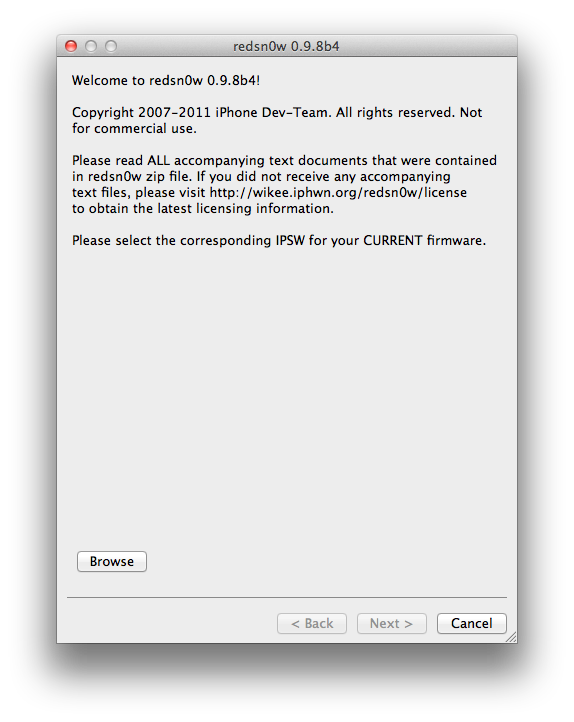
iPhone Dev Team Releases RedSn0w 0 9 8b4 to Jailbreak iOS 5 Beta 4


The iPhone Dev-Team has released RedSn0w 0.9.8b4 for developers to jailbreak iOS 5 Beta 4. Remember this is a tethered jailbreak.

In conjunction with iOS5 beta4 being released to iOS developers, redsn0w 0.9.8b4 is now available for jailbreak app developers. Remember, its a tethered jailbreak right now so youll need to use redsn0w to boot into a jailbroken state at each power cycle.


Click here to enlarge

NOTE: It appears that by design, the OTA update that became available starting with iOS 5 beta4 will *not* be automatically applied to jailbroken devices. Thats a relief to those who dont want to lose their jailbreak via OTA pushes. If youre jailbroken, youll need to use the standard iTunes method to get to iOS 5 beta4.


You can download the new version of RedSn0w from here: Windows, Mac.
Read More..

Saturday, October 5, 2013

WWDC 2012 and the surprises Apple will announce jailbreak is on !!!


HOT WWDC 2012 and the surprises Apple will announce jailbreak is on !!!

With only a week to go before WWDC 2012 and the surprises Apple will announce there, today seems like a good time to release updates to our suite of free software to include the rocky-racoon jailbreak and untether developed by @pod2g and @planetbeing!

Today’s updates are:


  • PwnageTool 5.1.1
  • redsn0w 0.9.12b1
  • cinject 0.5.4 (version 0.5.3 also had rocky-racoon but this includes some updates)
  • ultrasn0w 1.2.7 (5.1.1 compatibility only - no new baseband support)


If you’ve already installed rocky-racoon, don’t bother reinstalling it unless you’ve had problems and would like to try a different tool. The underlying untethered jailbreak (rocky-racoon) is identical to what is already installed by last week’s tools like Absinthe, cinject-0.5.3, and the rocky-racoon Cydia package — only the injection method offered by the above tools differs.
redsn0w allows owners of A4+earlier devices to install rocky-racoon two different ways:

  • backup/restore method similar to Absinthe and cinject
  • its traditional limera1n-based ramdisk install. If you have a lot of media on your A4 device (music, movies, TV shows, etc), then the ramdisk method is preferrred because it avoids any possibility of later problems related to syncing to iCloud (including Photo Stream and Music Match). The ramdisk method is not available for A5 devices or later because limera1n can’t be used. If you’d like to use redsn0w’s ramdisk method, just be sure to put the A4 device in DFU or Recovery mode before starting redsn0w (otherwise it will immediately start to use the backup/restore method).


We’ve also added a new redsn0w feature specifically for those who got in on the SAM unlock: you can now include your SAM tickets as part of your initial ramdisk jailbreak of iPhone4 or earlier, or alternatively you can upload your SAM tickets to any device after its been jailbroken. redsn0w accepts either the individual SAM activation ticket plist file, or the entire zip file created by redsn0w’s “Backup” button. As usual, redsn0w continues to cover all of its previous jailbreaks and untethers (so redsn0w-0.9.12b1 covers everything from 5.1.1 all the way back to 4.1).
PwnageTool also avoids any possible sync issues, but again it applies only to A4+earlier devices.

If you unlock your iPhone with ultrasn0w or a commercial method, you must use PwnageTool to avoid updating your baseband otherwise you’ll lose the unlock. PwnageTool will also jailbreak+untether the AppleTV2,1 5.0_2B206f (unless you customize the IPSW further, you’ll have just basic SSH access to the device).

If you’d like to contribute to those that actually developed rocky-racoon, please visit here (any other links you may see are not going to the actual rocky-racoon developers, they’re being diverted to other “related” or fraudulent accounts).


This particular jailbreak brought an unusual amount of fanfare and hoopla to the table, including “press releases” and other haughty silliness.

We’d just like to take this opportunity to remind everyone that jailbreaking is about freedom, not fame and donations!


Here are the download links. Please use our comment section below to give feedback. Enjoy!


Read More..

Thursday, October 3, 2013

Sn0wbreeze 2 3b1 Brings iOS 4 3 Tethered Jailbreak Stock Update With Baseband Preservation And Fast Tethered Boot Tool

sn0wbreeze 2.3b1 1 Sn0wbreeze 2.3b1 Brings iOS 4.3 Tethered Jailbreak, Stock Update With Baseband Preservation And Fast Tethered Boot Tool
Just a quick heads-up: iH8sn0w pushed a new update to sn0wbreeze which brings the software to v2.3b1. The new updated comes with a lot of *good stuff* such as a tethered jailbreak for iOS 4.3, stock update to iOS 4.3 with baseband preservation, and a real fast tethered boot tool.
You need:
  • iOS device ( iPhone 3Gs/4, iPad 1st gen, iPod Touch 3G/4G )
  • iOS 4.3
  • sn0wbreeze 2.3b1
How to:
1. Even if there are a couple of new features in this release, the functionality of the tool remains the same. Just follow this sn0wbreeze tutorial and you should be good. The only thing you need to pay attention to, when creating a custom iOS 4.3 ipsw, is step 6 of the tutorial. iH8sn0w added a new option which allows you to update your iOS device to a stock iOS 4.3 while preserving your baseband.
sn0wbreeze 2.3b1 6 Sn0wbreeze 2.3b1 Brings iOS 4.3 Tethered Jailbreak, Stock Update With Baseband Preservation And Fast Tethered Boot Tool
Other than that, the process is exactly the same. Just create your custom ipsw, and shift+restore your iOS device.
2. To boot into the tethered kernel, you need to use iBooty which is included with this release of sn0wbreeze. You will notice a new iBooty icon on your desktop. Just open it, select your device, and run it. Can’t get any easier than this.
iBooty Sn0wbreeze 2.3b1 Brings iOS 4.3 Tethered Jailbreak, Stock Update With Baseband Preservation And Fast Tethered Boot Tool

HOW TO: Use Sn0wbreeze To Untethered Jailbreak iOS 4.2.1 [video]

HOW TO: Use Sn0wbreeze To Untethered Jailbreak iOS 4.2.1 [video]

sn0wbreeze 51 HOW TO: Use Sn0wbreeze To Untethered Jailbreak iOS 4.2.1 [video]
A new version of sn0wbreeze was released, which is able to untether jailbreak iOS 4.2.1. This tool allows you to create a custom firmware, and in this tutorial we’re going to show you exactly how to use it.

Snowbreeze is compatible with:
  • iPhone 3G/3GS/4
  • iPod Touch 2G/3G/4
  • iPad
How To:
1. Download Sn0wbreeze
2. Download stock iOS 4.2.1
NOTE: Windows Vista/Win7 users , you will need to run the toll in Administrator mode. To do that, right click on the tool’s icon and select ‘Run as administrator’…
3. Connect your iOS device
4. Open Snowbreeze and you will see a splash screen which tells you that this software is not for commercial use. Click OK ( see splash screen above ). On the next screen just click on the blue arrow to continue…
5. Now you will need to choose the stock iOS 4.2.1 downloaded earlier. Click on ‘Browse’, select it and click ‘Open’…

sn0wbreeze 3 HOW TO: Use Sn0wbreeze To Untethered Jailbreak iOS 4.2.1 [video]

6. Choose ‘Expert Mode’ and click on the blue arrow to continue…

sn0wbreeze 2 HOW TO: Use Sn0wbreeze To Untethered Jailbreak iOS 4.2.1 [video]

7. Now we need to customize our firmware. Just click on ‘General’ and then, click on the blue arrow to continue…
8. Here you can add:
  • animated bootlogos
  • choose to install openSSH
  • resize the root partition
  • add native backgrounding, user wallpaper, battery percentage etc
sn0wbreeze 1 HOW TO: Use Sn0wbreeze To Untethered Jailbreak iOS 4.2.1 [video]
9. Once you are done, click on the blue arrow to continue. Now sn0wbreeze will create the custom firmware
10. Now, you will need to put the device in DFU mode. Follow the instructions on the screen.
15. Open iTunes. It will prompt you with a message that it found a device in recovery mode. Click OK…
16. Hold down the Shift key and click on restore. Choose the custom firmware you just created and click open. MAKE SURE it’s the custom firmware and not the stock one… ( you will recognize the custom one because it’s called ‘sn0wbreeze_iPhone_xxx’ )
17. Wait for iTunes to restore your iOS device with the custom firmware.
18. That’s it. Enjoy
NOTE: sn0wbreeze may fail. If it does, visit ih8sn0w’s website and check if there is an updated version available

Read More..

Tuesday, October 1, 2013

How to Use Sn0wbreeze To Untethered Jailbreak iOS 4 3 3 And 4 2 8 Windows

Click here to enlarge


A new version of sn0wbreeze was released, which is able to untethered jailbreak iOS 4.2.3 and iOS 4.2.8 for Verizon iPhone 4. This tool allows you to create a custom firmware, and in this tutorial we’re going to show you exactly how to use it.

Compatibility:
  • iPhone 3G[S]/4/Verizon 4
  • iPod Touch 3G/4
  • iPad 1
  • Apple TV 2
How To:
NOTE: the below tutorial uses screenshots from our previous sn0wbreeze tutorial. Don’t worry about it, the necessary adjustments have been made and the process is exactly the same.


1. Download
Hotfile.com: One click file hosting: sn0wbreeze-v2.7r2.zip
NOTE: Windows Vista/Win7 users , you will need to run the toll in Administrator mode. To do that, right click on the tool’s icon and select ‘Run as administrator’…

3. Connect your iOS device

4. Open Snowbreeze and you will see a splash screen which tells you that this software is not for commercial use. Click OK ( see splash screen above ). On the next screen just click on the blue arrow to continue…

5. Now you will need to choose the stock iOS 4.3.3 downloaded earlier. Click on ‘Browse’, select it and click ‘Open’…


Click here to enlarge

6. Choose ‘Expert Mode’ and click on the blue arrow to continue…

Click here to enlarge

7. Now we need to customize our firmware. Just click on ‘General’ and then, click on the blue arrow to continue…
8. Here you can add:
  • animated bootlogos
  • choose to install openSSH
  • resize the root partition
  • add native backgrounding, user wallpaper, battery percentage etc

Click here to enlarge

9. Once you are done, click on the blue arrow to continue. Now sn0wbreeze will create the custom firmware

10. Now, you will need to put the device in DFU mode. Follow the instructions on the screen.

Click here to enlarge

11. Open iTunes. It will prompt you with a message that it found a device in recovery mode. Click OK…

Click here to enlarge

12. Hold down the Shift key and click on restore. Choose the custom firmware you just created and click open. MAKE SURE it’s the custom firmware and not the stock one… ( you will recognize the custom one because it’s called ‘sn0wbreeze_iPhone_xxx’ )

13. Wait for iTunes to restore your iOS device with the custom firmware.

14. That’s it. Enjoy
Read More..

Jailbreak iOS 5 Untethered Hole Discovered By Pod2G

It has been a while since weve heard any update about jailbreak iOS 5 untethered. However, today weve got some great news about the iOS 5 untethered jailbreak from the Chronic Dev Team. Pod2g, a member of the team, has discovered a bug in iOS 5 which will lead to untethered jailbreak on iOS 5.


Theres still no ETA about the released. Pod2g said that the team will be working on releasing the jailbreak as soon as possible. The untethered jailbreak on iOS 5 will be possible for all devices except the iPhone 4S and iPad 2.

iPad 2 and iPhone 4S jailbreak is currently under work by P0sixninja of Chornic Dev Team and MuscleNerd of the iPhone Dev Team.
Read More..

Monday, September 30, 2013

How to Jailbreak Apple TV 2G Untethered on iOS 4 3 1 using Seas0nPass

Pre-launch checklist
  1. Make sure youre running the latest version of iTunes.
  2. Download Seas0nPass: Mac [10.6 or later] | Windows [XP or later]
  3. micro USB cable will be required to complete the jailbreak.
  4. Disconnect all iPods, iPhones, and iPads from the computer before running Seas0nPass.

Step 1: Unzip the Seas0nPass.zip file and launch Seas0nPass.
SP-launch.jpg
Step 2: If your AppleTV is not yet jailbroken, select Create IPSW. (if already jailbroken, and you just need to do a tethered boot scroll down).
SP-main.jpg
Step 3: The latest AppleTV software will be downloaded and used to create a custom jailbroken software file.
SP-create.jpg
Step 4: When prompted, connect your AppleTV using a micro-USB cable (leave power disconnected), and hold both the MENU and PLAY/PAUSE buttons for 7 seven seconds.
SP-restore.jpg
Step 5: iTunes will open automatically and start the restore process.
 SP-itunes.jpg
Step 6: iTunes will confirm the restore when complete - your AppleTV is now jailbroken. Please proceed to the tethered boot section below.

Using Seas0nPass for a tethered boot

Some AppleTV software versions require a tethered boot. This means the AppleTV must be connected to a computer for a brief moment during startup.
Note: The AppleTV MUST be disconnected from the computer (for at least a brief moment) after restoring in iTunes for the tethered boot process below to work properly.
Step 1: Open Seas0nPass and select the Boot Tethered option.
SP-main.jpg
Step 2: When prompted, connect the AppleTV to your computer via USB. Wait for the rapid flashing light then connect the power. Once both are connected hold both the MENU and PLAY/PAUSE buttons for 7 seven seconds.
SP-tetherprompt.jpg
Step 3: Seas0n Pass will complete the tethered boot automatically. Once complete, remove the USB cable and connect the HDMI cable.
Note: Timing is key. Once the you receive the success message shown below, the USB cable should be removed and HDMI cable connected before the light on the front of the AppleTV stops flashing. (Dont worry there is ample to do this, so you dont need Superman speed).
Read More..

Sunday, September 29, 2013

F0recast 1 3 Update Released To Check Jailbreak State Of iOS Device

you dont know whether or not your device can be jailbroken or your iPhone is able to be unlocked or not, f0recast is the tool for you. Its specially for those who are new to the jailbreaking scene. Good news is that the developer, iH8sn0w has updated f0recast to version 1.3 and it now supports the current jailbreak state.


Click here to enlarge

F0recast will display the serial number of your iPhone, iPad or iPod touch, the baseband version if youre using an iPhone or 3G iPad, model number of both MC and non-MC devices and the bootloader version. It will also show whether or not your device can be jailbroken or unlocked, and which tools to use for that purpose. To use f0recast, simply connect your device to the computer and run f0recast. It will do all of the rest on its own. F0recast 1.3 is now available for both Mac and PC machines.

Download f0recast 1.3 for Windows
Download f0recast 1.3 for Mac
Read More..

Wednesday, September 25, 2013

Jailbreak news Unsafe Siri iPhone 4 port debuts on Cydia iOS 5 downgrade via iFaith


We know Apple previously tested Siri on iPhone 4 and older devices but hasn’t enabled the voice recognition software to work on customers’ iOS devices released before the iPhone 4S. Meanwhile however, the hacking community cracked Apple’s digital secretary to work on jailbroken devices and ported the dictation feature to iPhone 4. And now, it looks like a Chinese hacker group called CD-Team was able to create the first fully-featured Siri port. Called H1Siri, it’s already available on Cydia, a third-party store carrying unsanctioned software for jailbroken devices. The hack lets you use the full range of Siri features on both jailbroken fourth-generation iPod touch and GSM/CDMA iPhone 4 running either iOS 5.0 or the latest 5.0.1 version.

According to iClarified, the 100MB download is available via both Cydia.be and iphone3gsystem.fr/cydia repositories (select Manage > Sources > Edit in Cydia, add the sources and do a search for H1Siri). Be advised that H1Siri comes from a relatively unknown party and contains cracks so it’s likely illegal. Also note it passes your personal information to a shady third-party server. If you’re interested, a how-to guide is available here. Some think the hack takes advantage of SiriProxy, a proxy server that fools Siri into believing it is talking to Apple’s servers.


Please note that we couldn’t determine at press time the magic behind this tweak and some users reported intermittent connectivity issues, another indication of H1Siri talking to a third-party proxy server rather than communicate with the Apple cloud directly. The Siri Proxy project has been used to enable interesting uses, from managing a radio-controlled thermostat to controlling your Plex media center to starting your car.

As for jailbreaking, those waiting for an untethered iOS 5 jailbreak will be happy to know that a new tool is now available for easy downgrading to iOS 5.0…


Called iFaith, a Windows application, it lets you circumvent Apple’s restricted downgrade system which prevents people from downgrading their devices to an older iOS 5.x firmware. The new version, iFaith 1.4, works around that Apple-imposed limitation by permitting unsigned restores based on dumped iOS 5 signature hash blobs. This is important because, as noted by MuscleNerd, an upcoming untethered iOS 5 jailbreak might require iFait for user restores. According to the iFaith developer, iH8sn0w, it is possible to restore to iOS 5.0.1 and preserve iPhone 4 baseband by dumping the blobs with iFaith first. The tool does not support A5 devices yet. Because the sn0wbreeze tool (another iH8sn0w’s creation) isn’t capable of iFaith blobs yet, users are advised to use the redsn0w app. More information in iH8sn0w’s video tour included below. As for Siri, an iPhone 4S exclusive that currently understands and can speak English, French and German, Apple says “in 2012, Siri will support additional languages, including Japanese, Chinese, Korean, Italian, and Spanish”. Apple’s language technologies engineers are already hard at work developing Siri for the Chinese market.
Read More..

How to jailbreak iOS 6 1 2 with evasi0n 1 4

Jailbreak iOS 6.1.2

Evasion 1.4 was just released with support for the recently released iOS 6.1.2, and we’ve got the details on how to use it to jailbreak your iDevice of choice. Although iOS 6.1.2 doesn’t bring any new features to the table, there is a bug fix that makes the upgrade worth it.
Take a look inside as we show you how to jailbreak iOS 6.1.2 with evasi0n 1.4. This tutorial is for the Mac, but the same principal applies across all computing platforms.

Video Tutorial

How to jailbreak iOS 6.1.2

Notes: As always, before we get started, there are a few things to keep in mind here. First, read our jailbreak preparation post. It covers a few vital ideas that should make your life easier when it comes to managing and maintaining your jailbreak.
Be sure that your device’s passcode lock is disabled. The passcode lock can interfere with the jailbreak process. Also, make sure that when you upgraded to iOS 6.1.2, it was done, not via an OTA update, but via an iTunes update. While it’s possible that it will work, OTA updates have caused known problems in the past with regard to jailbreaks, it’s best to just play it safe. Okay, let’s get started!

Step 1: Head over to our download page, and download evasi0n 1.4. The downloads are available for Mac, Windows, or Linux.
Step 2: Save the evasi0n app to your desktop, and run it.
Step 3: Connect your iOS device to evasi0n, and ensure that evasi0n detects your device. Evasi0n should work with any iOS 6 firmware from iOS 6.0 to iOS 6.1.2. In this case, you will be using iOS 6.1.2.
Step 4: Click the jailbreak button, and the jailbreak process will begin. Be patient, as this takes a while. You will notice your device reboot several times throughout the entire process. The main thing is just to be patient.
Step 5: Eventually, evasi0n will ask you to unlock your device, and tap the Jailbreak icon on your Home screen once. Follow these instructions, ensuring that you tap the icon only one time, and then leave the device alone and let it continue.
Step 6: The evasi0n app will complete its course, and you will be able to click the Exit button. The iOS device, however, still needs to finish up a few additional steps, so again, be patient and don’t touch your device.
Step 7: Eventually, the jailbreak will finish, and you can unlock your iOS device, and open the Cydia app on your Home screen. Cydia will need to initialize, which takes about 1 to 2 minutes. After the initialization is complete, the device will respring again.
Step 8: Reopen Cydia, select Hacker, and begin enjoying your newly jailbroken iOS device running iOS 6.1.2.

Remember, this is an untethered jailbreak, so you can feel free to reboot your device at will. Also, remember to take the necesarry steps to protect your jailbreak. you can do so by reading our post that describes how to protect device.

Be sure to let me know what you think in the comment section below if you have any questions, comments, or concerns regarding this latest update to evasi0n.
Read More..