Showing posts with label seas0npass. Show all posts
Showing posts with label seas0npass. Show all posts
Monday, September 30, 2013
How to Jailbreak Apple TV 2G Untethered on iOS 4 3 1 using Seas0nPass
Pre-launch checklist
Step 1: Unzip the Seas0nPass.zip file and launch Seas0nPass.
 Step 2: If your AppleTV is not yet jailbroken, select Create IPSW. (if already jailbroken, and you just need to do a tethered boot scroll down).
 Step 3: The latest AppleTV software will be downloaded and used to create a custom jailbroken software file.
 Step 4: When prompted, connect your AppleTV using a micro-USB cable (leave power disconnected), and hold both the MENU and PLAY/PAUSE buttons for 7 seven seconds.
 Step 5: iTunes will open automatically and start the restore process.
 Step 6: iTunes will confirm the restore when complete - your AppleTV is now jailbroken. Please proceed to the tethered boot section below.
Note: The AppleTV MUST be disconnected from the computer (for at least a brief moment) after restoring in iTunes for the tethered boot process below to work properly.
Step 1: Open Seas0nPass and select the Boot Tethered option.
Step 2: When prompted, connect the AppleTV to your computer via USB. Wait for the rapid flashing light then connect the power. Once both are connected hold both the MENU and PLAY/PAUSE buttons for 7 seven seconds.
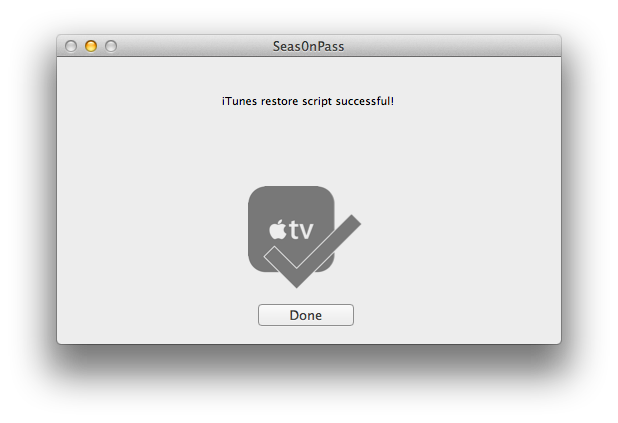
 Step 3: Seas0n Pass will complete the tethered boot automatically. Once complete, remove the USB cable and connect the HDMI cable.
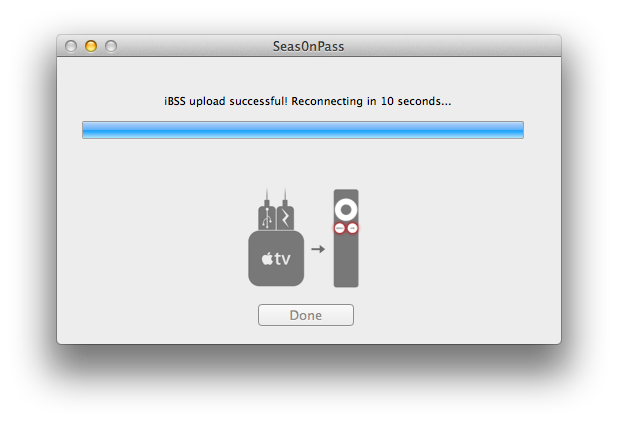
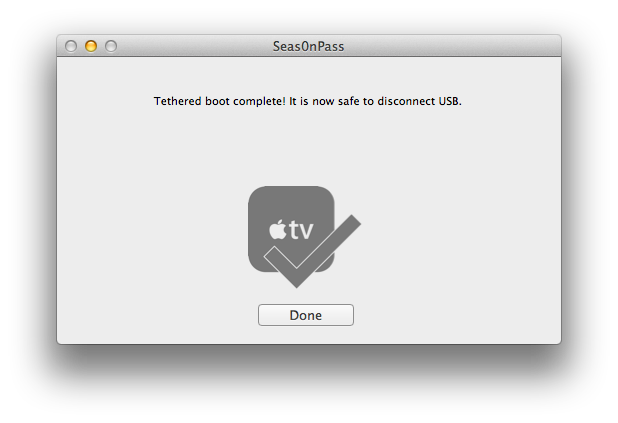
Note: Timing is key. Once the you receive the success message shown below, the USB cable should be removed and HDMI cable connected before the light on the front of the AppleTV stops flashing. (Dont worry there is ample to do this, so you dont need Superman speed).

Read More..
- Make sure youre running the latest version of iTunes.
- Download Seas0nPass: Mac [10.6 or later] | Windows [XP or later]
- A micro USB cable will be required to complete the jailbreak.
- Disconnect all iPods, iPhones, and iPads from the computer before running Seas0nPass.
Step 1: Unzip the Seas0nPass.zip file and launch Seas0nPass.
Using Seas0nPass for a tethered boot
Some AppleTV software versions require a tethered boot. This means the AppleTV must be connected to a computer for a brief moment during startup.Note: The AppleTV MUST be disconnected from the computer (for at least a brief moment) after restoring in iTunes for the tethered boot process below to work properly.
Step 1: Open Seas0nPass and select the Boot Tethered option.
Note: Timing is key. Once the you receive the success message shown below, the USB cable should be removed and HDMI cable connected before the light on the front of the AppleTV stops flashing. (Dont worry there is ample to do this, so you dont need Superman speed).

Tuesday, September 17, 2013
Jailbreak Your Apple TV 2G Using Seas0nPass Mac 4 4 3
These are instructions on how to jailbreak your Apple TV 2G on iOS 4.4.3 using Seas0nPass. Please note this a tethered jailbreak and will require the help of a computer to reboot your device if its powered off.
Step One
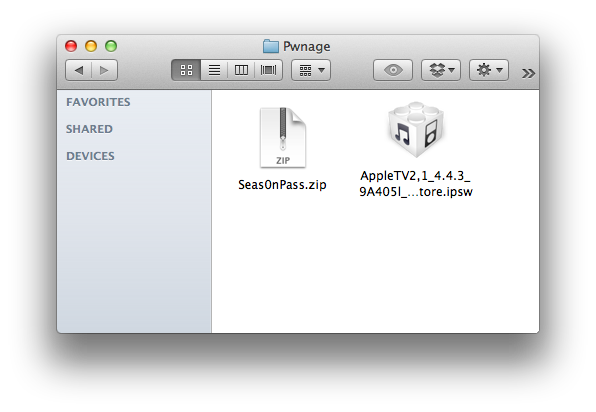
Create a Pwnage folder on your desktop. Download and place the latest version of Seas0nPass and the Apple TV 4.4.3 firmware ipsw into the folder.
- Seas0nPass
- Apple TV Firmware
Step Two
Double click the Seas0nPass archive to extract it. Then double click the extracted Seas0nPass application to launch it.

Step Three
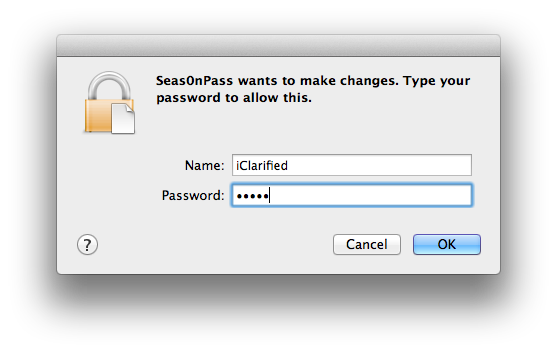
When prompted, input your administrative username and password then click the OK button.
Step Four
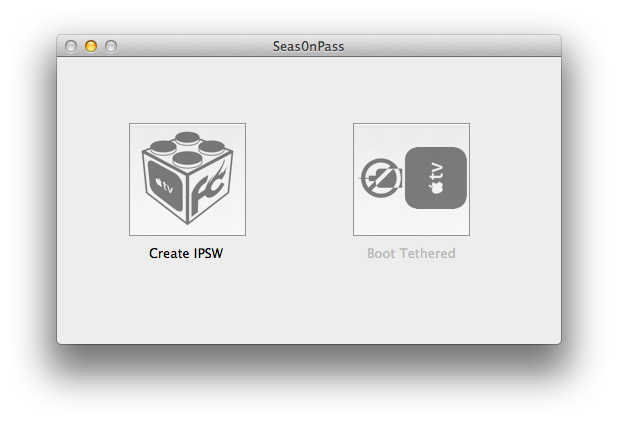
Hold down the Option key and click the Create IPSW button.
Step Five
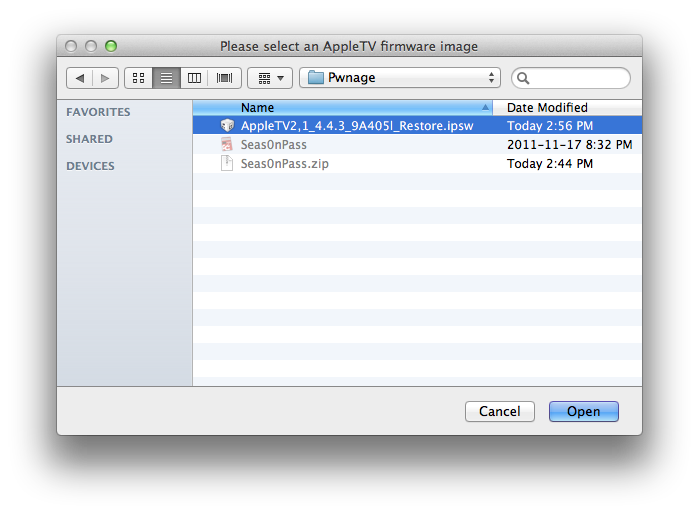
Select the Apple TV ipsw from the Pwnage folder on your desktop and click the Open button.
Step Six
Seas0nPass will now prepare your custom IPSW.
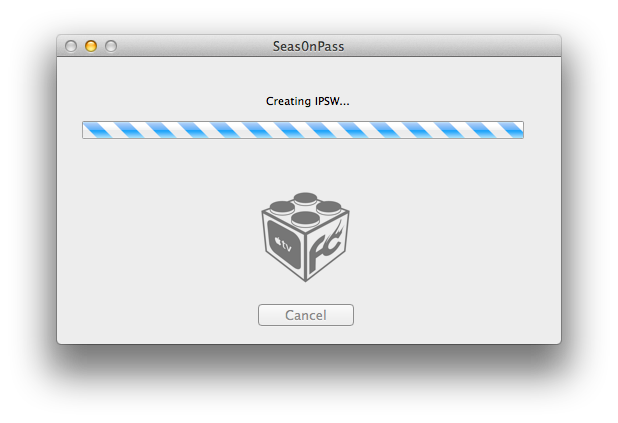
Step Seven
Once your custom IPSW file has been created, Seas0nPass will ask you to connect the Apple TV to your computer via a micro-USB cable and use the remote to put it into DFU mode by holding MENU and PLAY/PAUSE for 7 seconds. The power cable should be unplugged during this process. Immediately hold the buttons after inserting the USB cable.
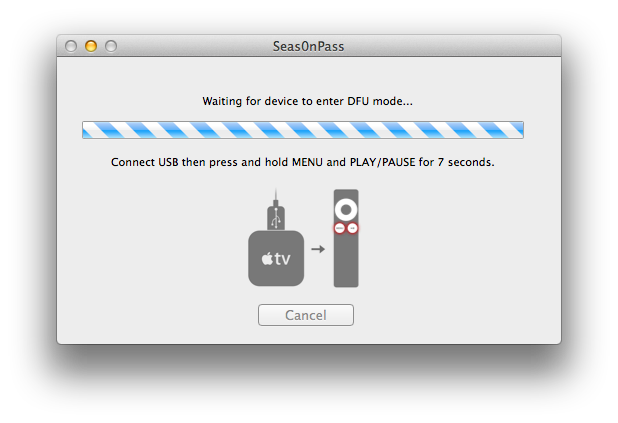
Step Eight
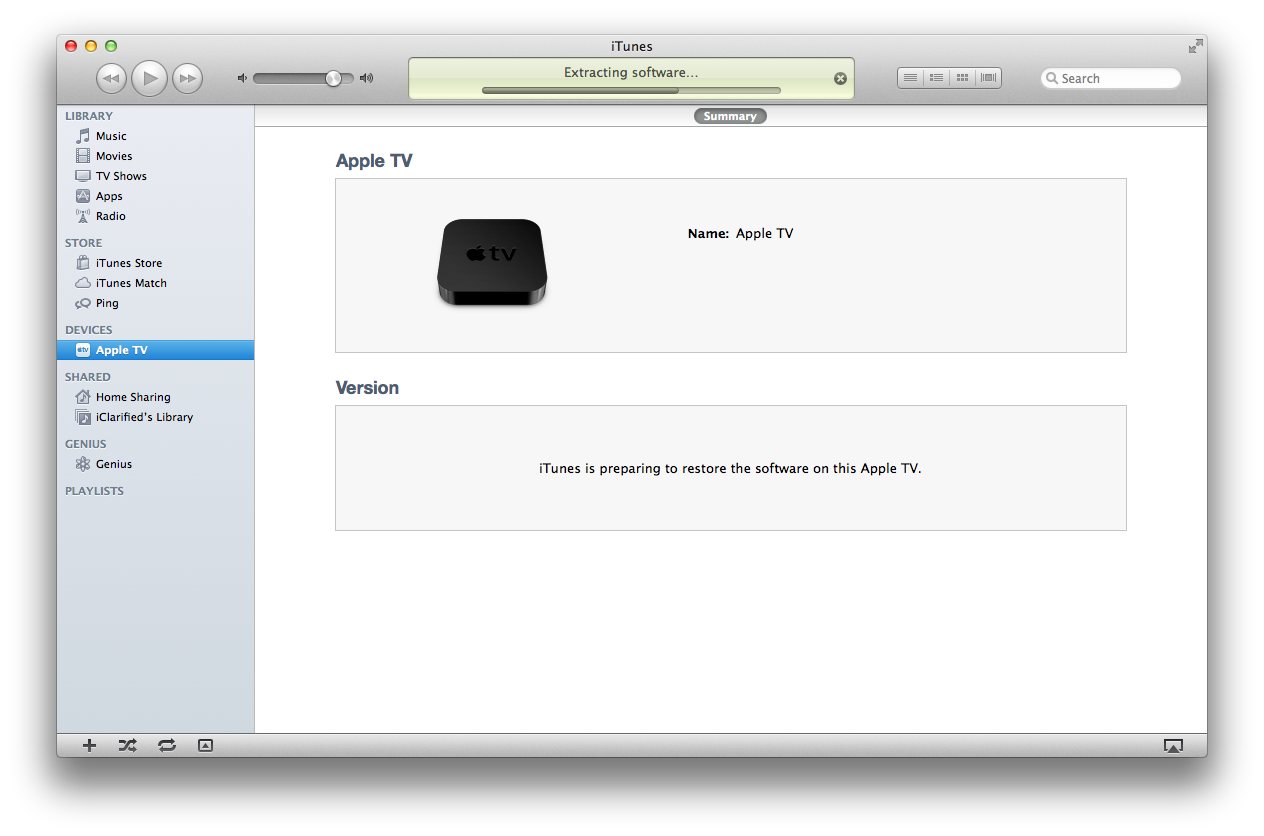
Once your Apple TV has been detected in DFU mode, Seas0nPass will upload some files, automatically launch iTunes, and beginning restoring to the new firmware.
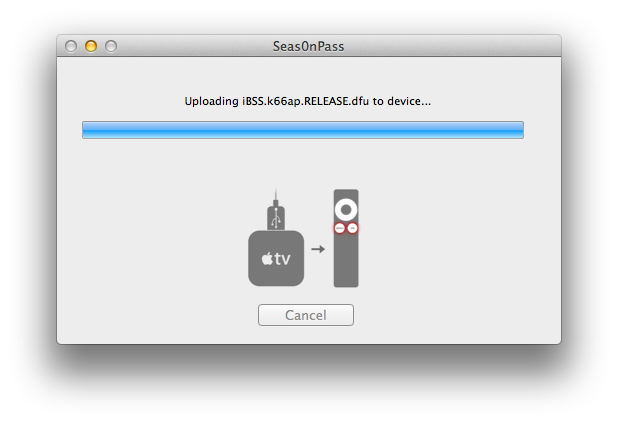
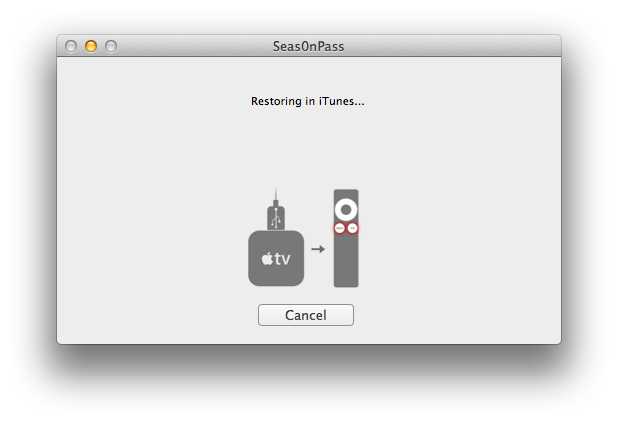
BOOT TETHERED
To boot your Apple TV you will need to follow these instructions.
Step One
Launch Seas0nPass by double clicking its icon.
Step Two
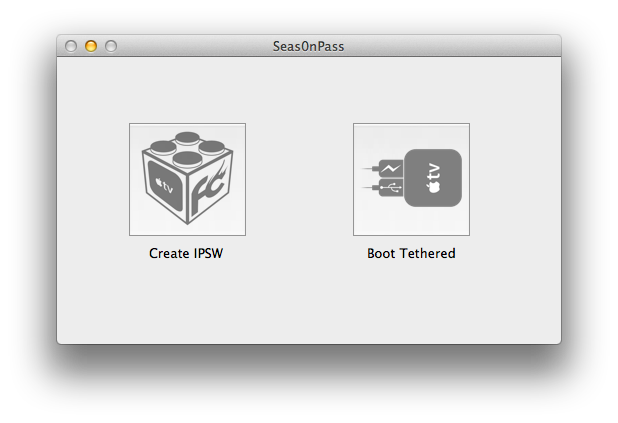
Select Boot Tethered from the main menu.
Step Three
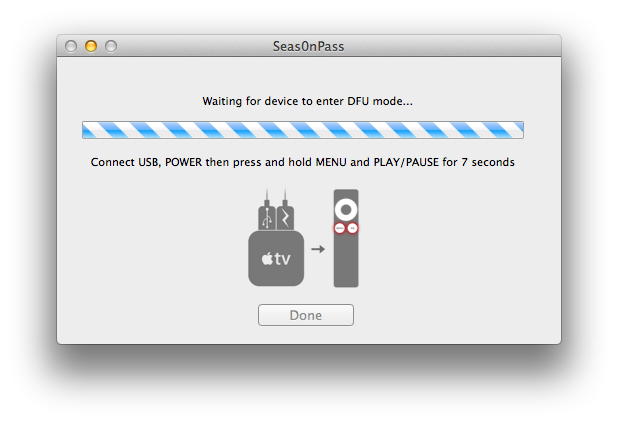
Connect the Apple TV to the computer via USB, plug it into the power outlet, and hold MENU and PLAY/PAUSE on the Apple TV remote for 7 seconds.
Step Four
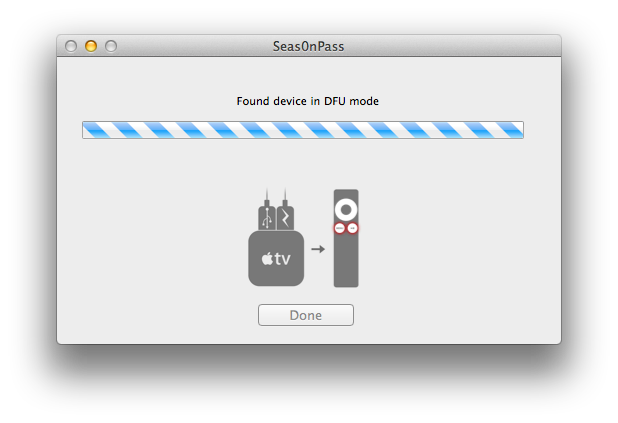
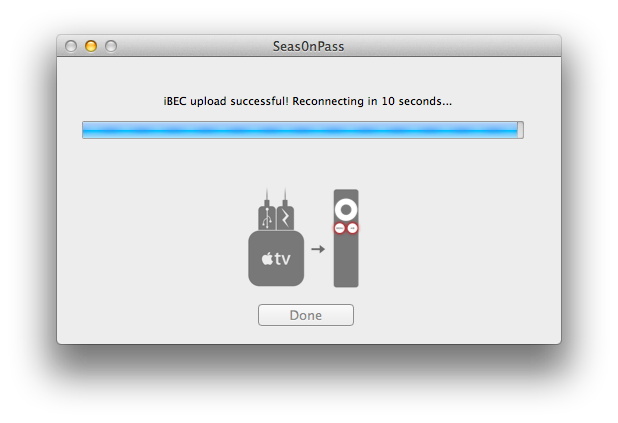
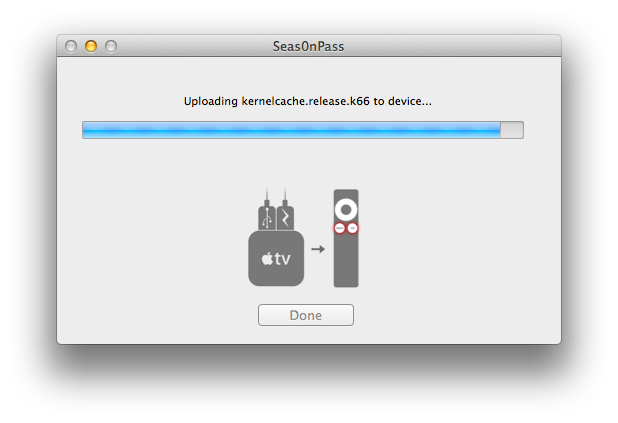
Seas0nPass will detect the device in DFU mode and begin the boot process.
Step Five
Once the tethered boot is complete you can remove the USB cable and connect the HDMI cable to begin using your jailbroken device!
Subscribe to:
Posts (Atom)