Showing posts with label from. Show all posts
Showing posts with label from. Show all posts
Friday, October 11, 2013
Cookie Backs Up Your SAM Activation Ticket From Your iPhone Jailbreak Tweak
Cookie is a new tweak that surfaced up on Cydia which will allow you to back up and restore your activation ticket, So if you had trouble doing it manually like we previously showed you, or just had to do the process for many times , then the second choice to go with is Cookie.
Apple has entirely shut down the window that enabled us to unlock our iPhones, so only those who acted fast last week by unlocking their devices using SAM, then before their devices were restored by Apple, they were able to back up the activation ticket, only if you done all that in the limited time window we had, then you are one of the people who can endlessly unlock their iPhones over and over again.If the process of restoring your activation tickets manually, doesn’t seem quite intriguing, then you should use this jailbreak tweak, Cookie .
This a description for the tweak by the developers :
“Cookie can Backup your iPhone Activation Tickets to Cloud, and once you back it up, you can Restore it to your iPhone ANY TIME! Ticket data is stored on weiphone servers. Use this if you have Activation Tickets gotten by SAM trick, do it before it’s too late”
You must be wondering how it does that. Well, actually Cookie will send the activation ticket to Weiphone’s server, attached with your UDID “Unique Device Identifier” and IMSI “International Mobile Subscriber Identity”. If your UDID and IMSI match as they did when you uploaded your unlock, Cookie will restore it for you if you ever lost the data.
If you are kind of worried about your IMSI being out there, which you should, then we recommend going at it manually.
You can download Cookie for free, It is available on Cydia via the BigBoss repo.


Saturday, October 5, 2013
RedSn0w collection From DEV Team
Below you can find links to download RedSn0w, a tool released by the iPhone Dev-Team to jailbreak the iPhone, iPad, and iPod touch.
RedSn0w 0.9.8b6 (Mac): redsn0w_mac_0.9.8b6.zip
RedSn0w 0.9.8b6 (Windows): redsn0w_win_0.9.8b6.zip
RedSn0w 0.9.8b5 (Mac): redsn0w_mac_0.9.8b5.zip
RedSn0w 0.9.8b5 (Windows): redsn0w_win_0.9.8b5.zip
RedSn0w 0.9.8b4 (Mac): redsn0w_mac_0.9.8b4.zip
RedSn0w 0.9.8b4 (Windows): redsn0w_win_0.9.8b4.zip
RedSn0w 0.9.8b3 (Mac): redsn0w_mac_0.9.8b3.zip
RedSn0w 0.9.8b3 (Windows): redsn0w_win_0.9.8b3.zip
RedSn0w 0.9.8b2 (Mac): redsn0w_mac_0.9.8b2.zip
RedSn0w 0.9.8b2 (Windows): redsn0w_win_0.9.8b2.zip
RedSn0w 0.9.8b1 (Mac): redsn0w_mac_0.9.8b1.zip
RedSn0w 0.9.8b1 (Windows): redsn0w_win_0.9.8b1.zip
RedSn0w 0.9.6rc19 (Mac): redsn0w_mac_0.9.6rc19.zip
RedSn0w 0.9.6rc19 (Windows): redsn0w_win_0.9.6rc19.zip
RedSn0w 0.9.6rc16 (Mac): redsn0w_mac_0.9.6rc16.zip
RedSn0w 0.9.6rc16 (Windows): redsn0w_win_0.9.6rc16.zip
Wednesday, October 2, 2013
HOW TO The Complete Idiots Guide To Downgrading From iOS 5 To 4 X
Well you had to do it didn’t you. You just had to taste that forbidden fruit… and now you have been cast from the garden, and are sitting in the dark… alone… with a pretty black brick that used to be your beloved iPhone. Attempts to roll back have left you frustrated and your soul seeks guidance… Not to fret! We are here to help bring you back from the abyss!
Before we get started, here is a few items you will need to acquire…Now that we are all Squared away there, you will need to download the following items before you can proceed.
- Some ice for your head, to sooth it from all the pounding against the desk
- A cold drink (this may take a min)
Ok that was fun. Now what? The rest of this walk threw assumes you have at least a somewhat higher IQ then that bricked iPhone your holding. If not, stop here and check craig’s list, perhaps someone there can help you.
- The IPSW of choice (I would recommend 4.3.3 as it is jailbreakable and still being signed by apple. I can’t think of any logical reason why you would want to roll back further… But, your are not the logical type now are you (as proved by your updating to a buggy beta without any means of correcting your own mistake! What were you thinking!). Just make sure you have your SHSH stored with Cydia if you choose to go older then 4.3.3) this can be found up there in the corner under the downloads link. Just find your device and go.
- TinyUmbrella. This can be found at http://thefirmwareumbrella.blogspot.com/ . Just download the version that will work for your system. I’m assuming your on a Mac, so this guide will be based on that system. Otherwise it’s similar, so follow along anyway.
- iTunes 10.5 beta. You should have this already as you needed it to install 5.0beta, but just google it, if for some reason you don’t already have it. (I can’t link that here, sorry folks)
If you are wanting to roll back to 4.3.3 (which should be most of you who are not drooling on themselves), follow these easy steps
- Open iTunes
- Plug in your device
- Enter DFU mode
Steps to enter DFU mode:
- Turn device off
- Hold power button for 3 seconds
- Without releasing power button, hold down home button for 10 seconds
- Release power button, but continue to hold the home button until iTunes recognizes your iPhone in recovery mode. If you did it right, it should just have a black screen with no connect to iTunes logo.
5. Hold down the option key and click the restore button in iTunes6. ```wse to wherever you have your IPSW saved and select it.
7. iTunes will give you some gibberish about wiping out all your data… I know you might not be able to read it, just click the flashing ok button.
8. Sit back and do whatever it is you do while your computer is working (just try not to drool on the keyboard.)
9. If you are using an iPhone 4, you should be done. If not, you have received some sort of error more then likely. This is normal. Open TinyUmbrella and click the exit from restore button.10. YOUR DONE!!! Be sure to put your helmet back on before you go outside
NOTE: if you have changed your host file for cydia, you have to change it back to use this guide. TinyUmbrella will do this for you in the advanced tab.


Sunday, September 29, 2013
Downgrade Blocked Starting From iOS 5
In earlier June, precisley after Apple released iOS 5 beta 2, MuscleNerd of iPhone Dev-team announced for the first time that restoring with saved SHSH blobs are nearing the end. He said "the days of restoring with saved SHSH blobs are nearing an end :( Apple is getting much smarter with the APTicket".

Today MusclNerd is confirming what he said earlier, he announced that saving iOS 5 SHSH blobs is not available anymore. To make it clear, MusclNerd words mean that you wont be able to downgrade from future versions of iOS 5 to pervious versions of iOS 5. But you still able to downgrade from iOS 5 to any lower iOS version that you have its SHSH blobs.
But we still have some hopes, as MuscleNerd has mentioned that Dev-team will be able to defeat this issue with more cat & mouse. So, we highly recommend to stay away from any upcoming update of iOS 5.x.x until hackers confirm that its jailbreakable firmware.
Today MusclNerd is confirming what he said earlier, he announced that saving iOS 5 SHSH blobs is not available anymore. To make it clear, MusclNerd words mean that you wont be able to downgrade from future versions of iOS 5 to pervious versions of iOS 5. But you still able to downgrade from iOS 5 to any lower iOS version that you have its SHSH blobs.
But we still have some hopes, as MuscleNerd has mentioned that Dev-team will be able to defeat this issue with more cat & mouse. So, we highly recommend to stay away from any upcoming update of iOS 5.x.x until hackers confirm that its jailbreakable firmware.
Wednesday, September 18, 2013
Remove a Windows Boot Camp Partition From Your Mac
These are instructions on how to remove a Windows Boot Camp partition and expand your Mac OS X partition to regain the newly available hard drive space.
Step One
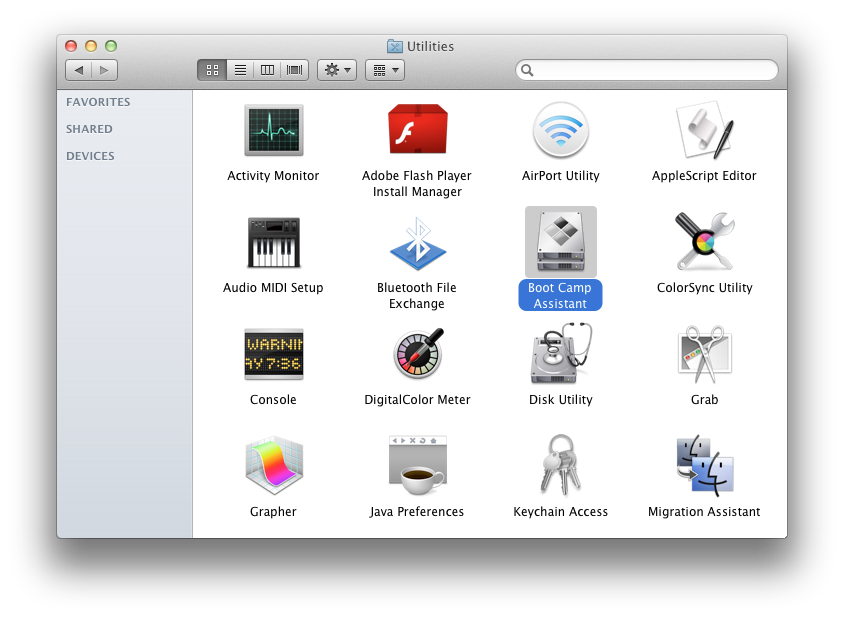
Launch Boot Camp Assistant from the Applications:Utilities folder.
Step Two
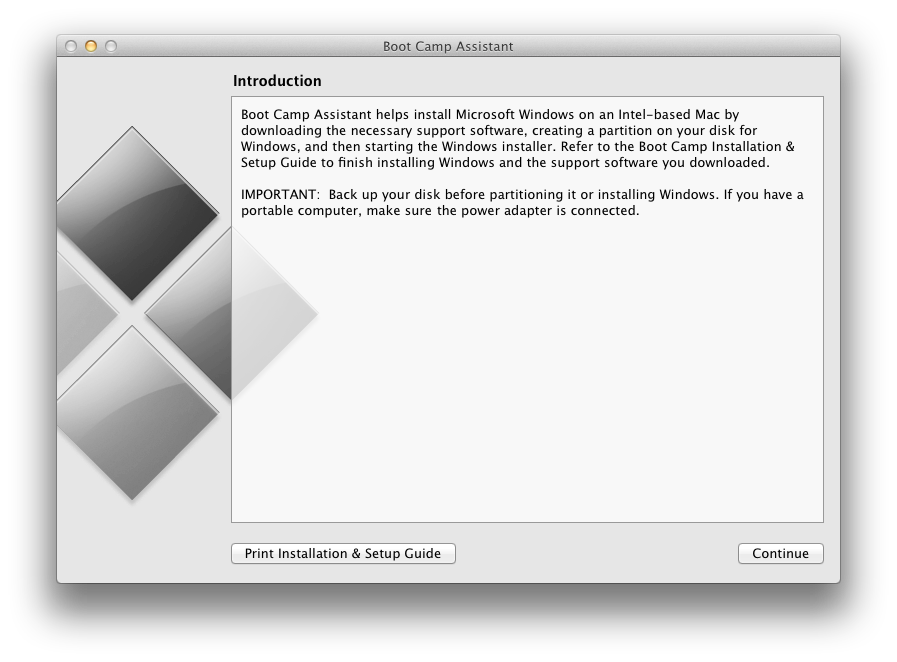
Click the Continue button.
Step Three
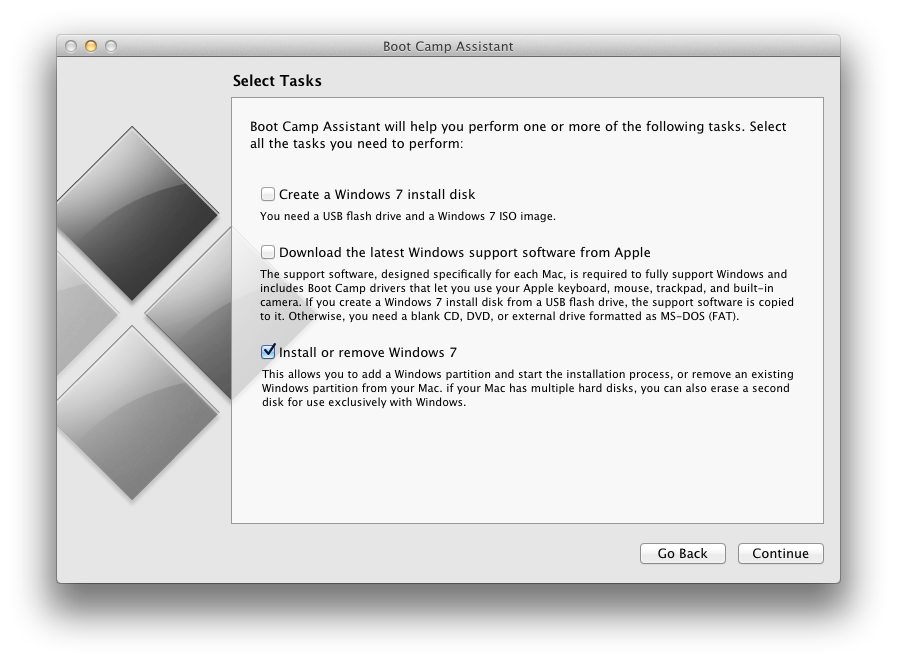
Check only the Install or remove Windows 7 option and click Continue.
Step Four
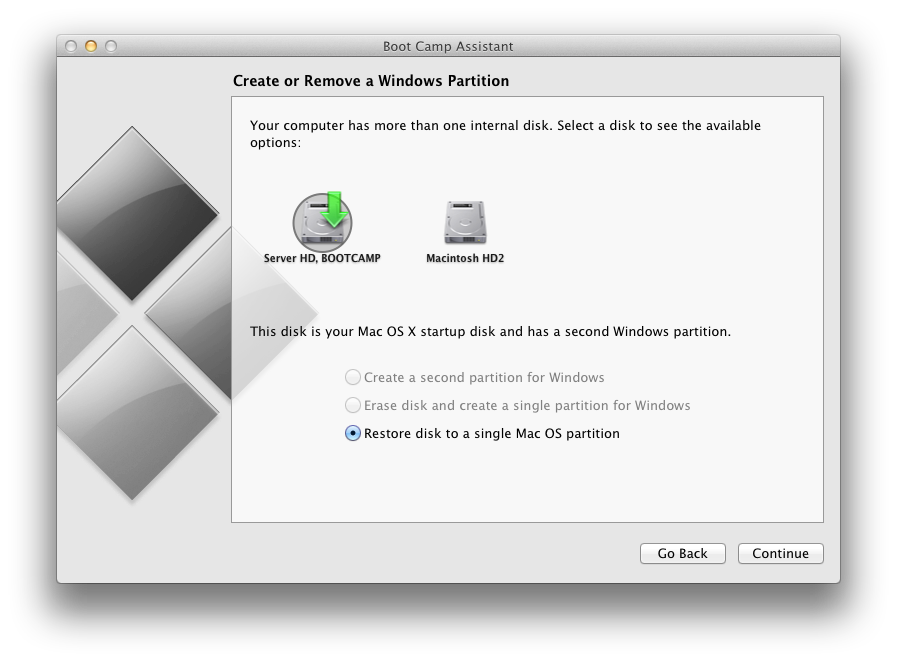
Choose Restore disk to a single Mac OS partition and click Continue.
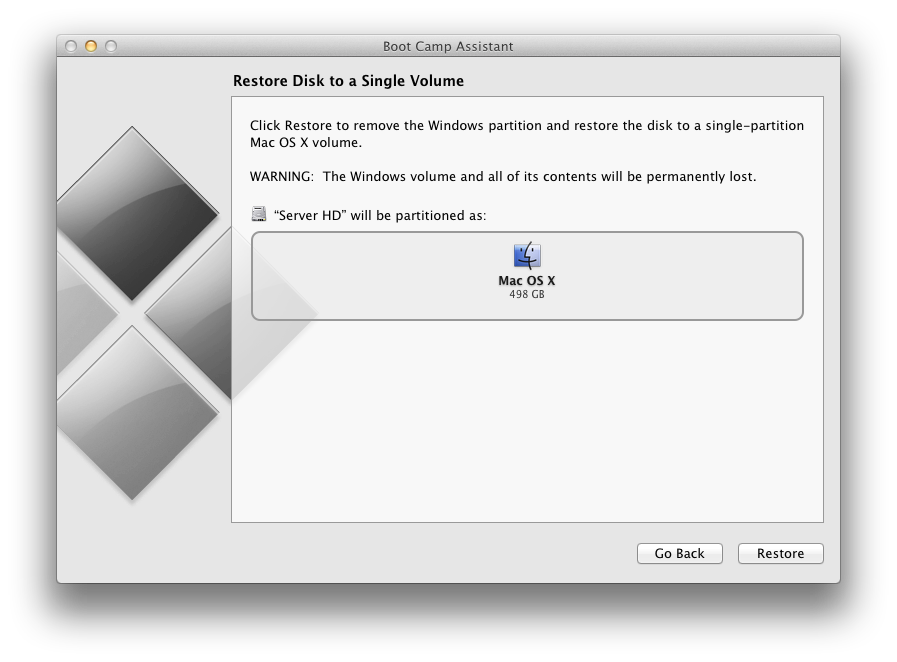
Step Five
Click the Restore button to begin.
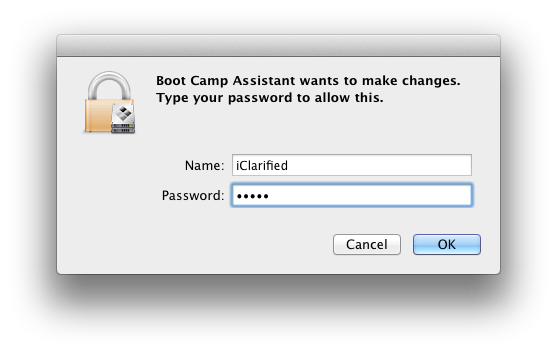
Step Six
You will be asked to login with your Administrative username and password. Enter these and click the OK button.
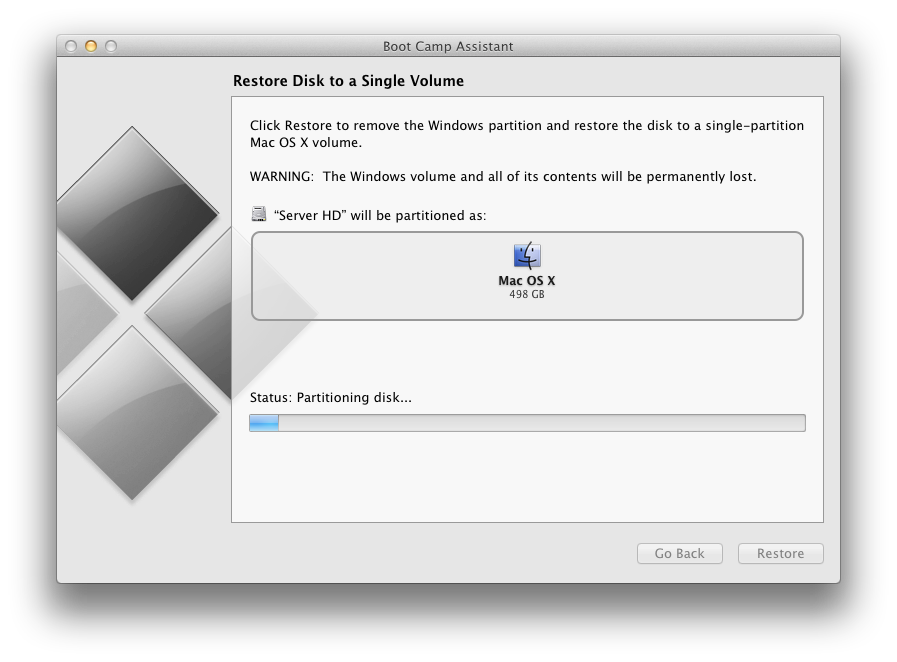
Step Seven
You disk will now be repartitioned to remove the Windows volume.
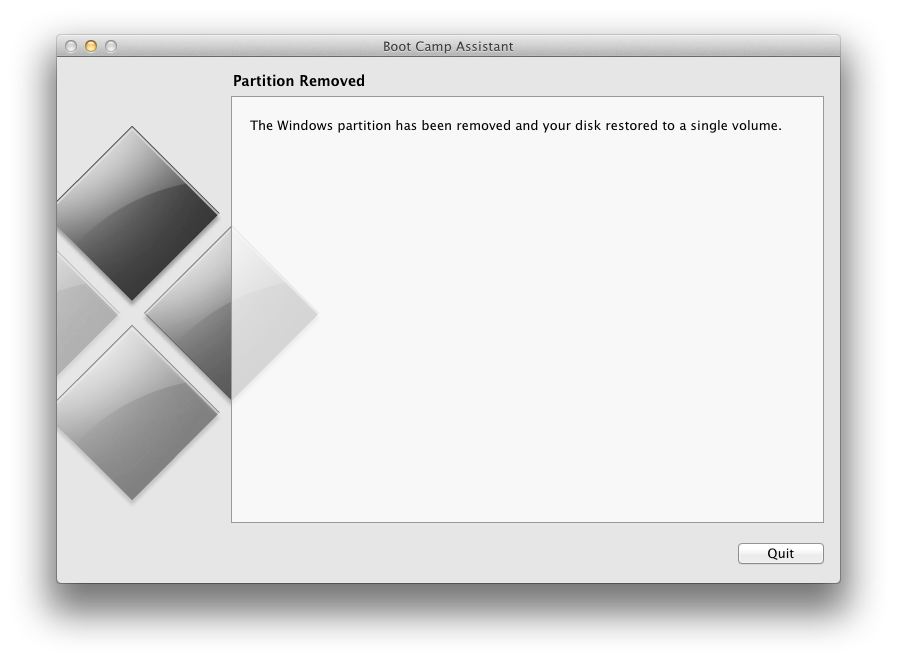
Step Eight
You will be informed that your disk has been restored as a single volume. Click the Quit button.
Saturday, September 14, 2013
Apple to offer unlocked GSM iPhone 4S starting in the US from November
Apple will offer the iPhone 4S in an unlocked flavor starting from November in the United States. This is nothing new for most other countries who can already pre-order an unlocked iPhone 4S today.
The unlocked iPhone works only on supported GSM networks, such as AT&T in the U.S. When you travel internationally, you can also use a micro-SIM card from a local GSM carrier. The unlocked iPhone 4 will not work with CDMA carriers such as Verizon Wireless or Sprint. If you don’t want a multiyear service contract or if you prefer to use a local carrier when traveling abroad, the unlocked iPhone is the best choice. It arrives without a micro-SIM card, so you’ll need an active micro-SIM card from any supported GSM carrier worldwide. To start using it, simply insert the micro-SIM card into the slot on your iPhone and turn it on by pressing and holding the On/Off button for a few seconds. Then follow the onscreen instructions to set up your iPhone.The benefit of buying an unlocked iPhone is mostly to those that travel. The ability to buy a local SIM card and avoid the heavy roaming charges is a huge benefit to some. The downside is the price of the handset. Apple will be selling them for $649 for the 16GB, $749 for the 32GB and finally a whopping $849 for the 64GB. It is GSM only and should work even with T-Mobile but only with Edge; don’t expect any 3G data!
Subscribe to:
Posts (Atom)