Showing posts with label remove. Show all posts
Showing posts with label remove. Show all posts
Wednesday, March 5, 2014
How to Remove Disable Unwanted Startup Program
You might be suffering slow speed startup of your computer. This slow speed startup is due to unwanted applications entry when computer starts, whether you are using it or not. You can improve computer overall performance or booting time disabling these unwanted programs. You have to remove those unwanted programs to speed up computer startup. Here are some steps posted to remove or disable these unwanted startup applications.
1. Click Start, then Run or press win key+R
2. Type msconfig in popup window and hit Enter
3. You will get System Configuration Utility window, Select Startup tab
4. Go through the list appears, disabling the programs you dont need, unticking the box left for them.
5. Restart the computer. The effect would take place after restart your computer.
Youve done!!
Tags: Disable Unwanted startup program, Disable or remove Unwanted startup applications, How to improve boot time of computer, How to increase startup speed of computer
 |
2. Type msconfig in popup window and hit Enter
3. You will get System Configuration Utility window, Select Startup tab
 |
4. Go through the list appears, disabling the programs you dont need, unticking the box left for them.
5. Restart the computer. The effect would take place after restart your computer.
Youve done!!
Tags: Disable Unwanted startup program, Disable or remove Unwanted startup applications, How to improve boot time of computer, How to increase startup speed of computer

Wednesday, September 18, 2013
Remove a Windows Boot Camp Partition From Your Mac
These are instructions on how to remove a Windows Boot Camp partition and expand your Mac OS X partition to regain the newly available hard drive space.
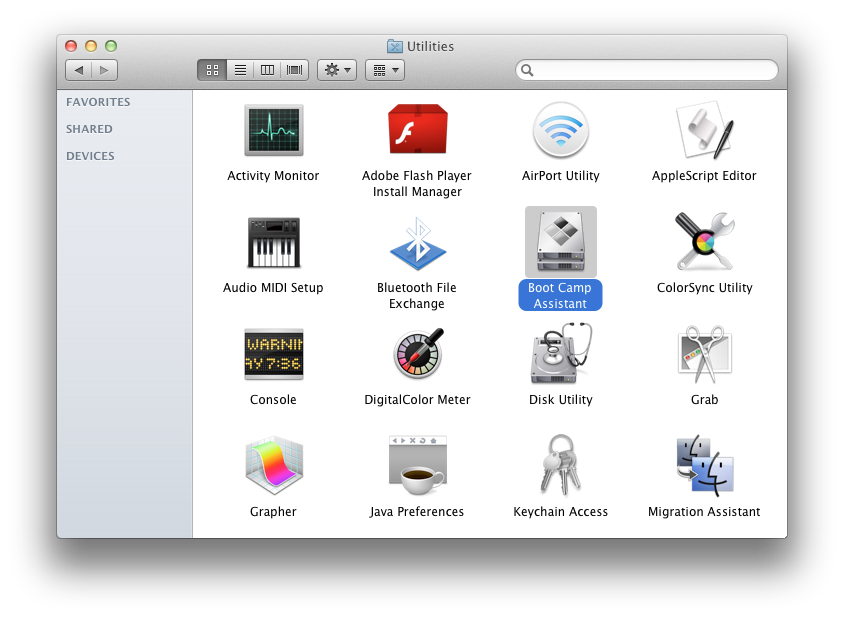
Step One
Launch Boot Camp Assistant from the Applications:Utilities folder.
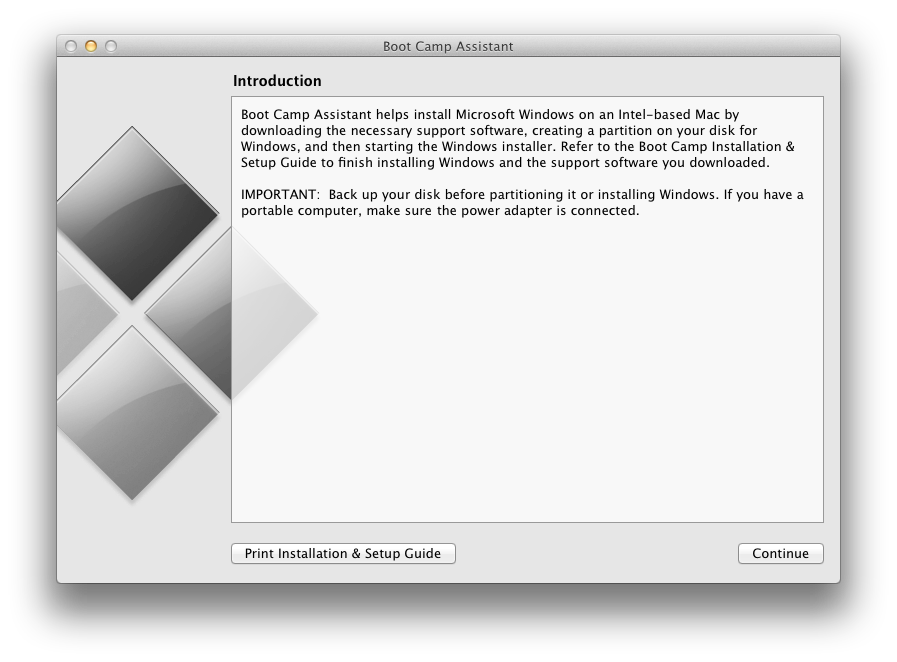
Step Two
Click the Continue button.
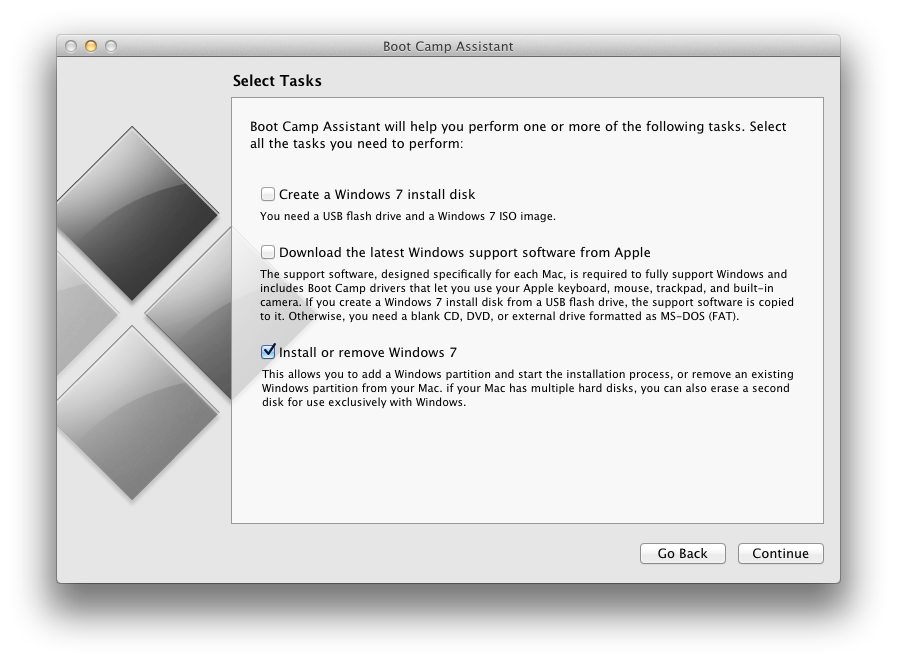
Step Three
Check only the Install or remove Windows 7 option and click Continue.
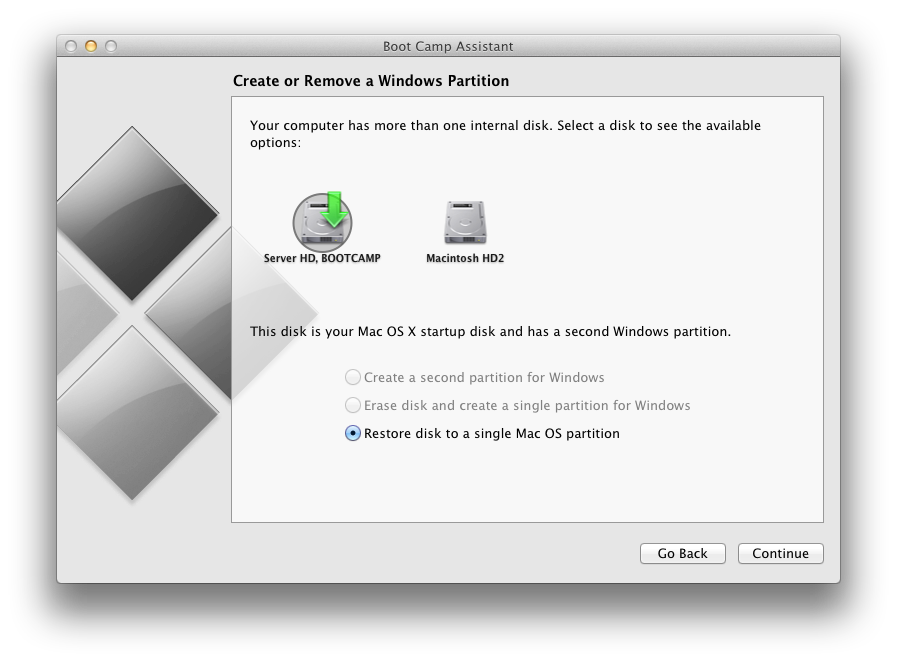
Step Four
Choose Restore disk to a single Mac OS partition and click Continue.
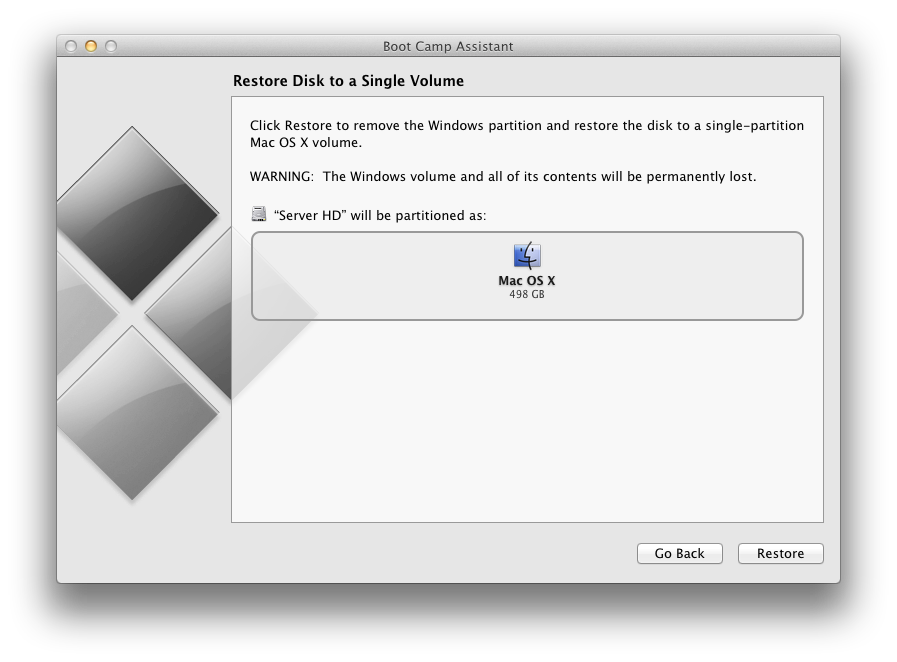
Step Five
Click the Restore button to begin.
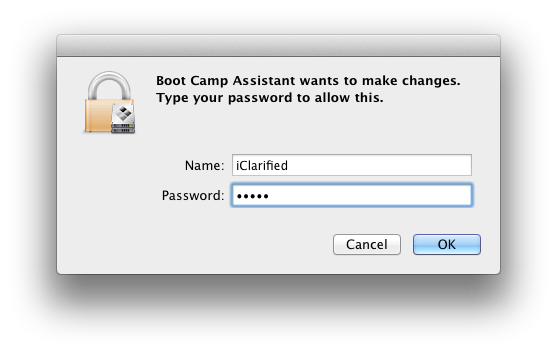
Step Six
You will be asked to login with your Administrative username and password. Enter these and click the OK button.
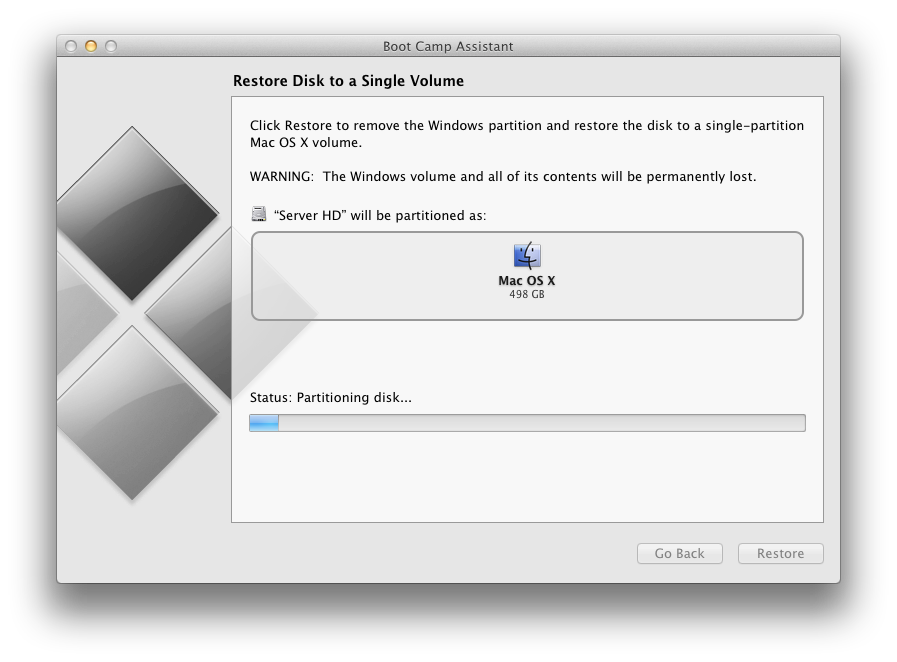
Step Seven
You disk will now be repartitioned to remove the Windows volume.
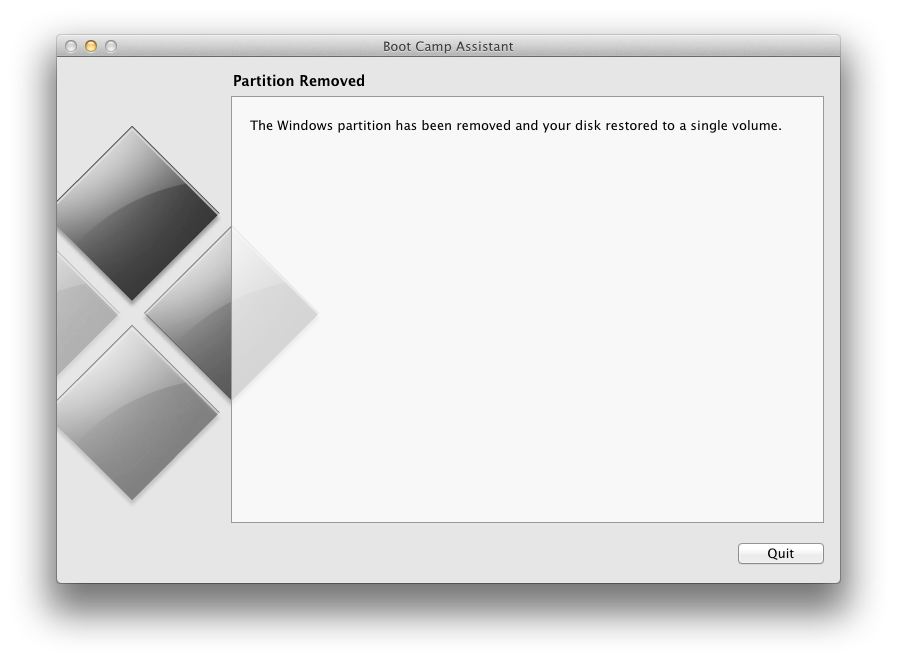
Step Eight
You will be informed that your disk has been restored as a single volume. Click the Quit button.
Subscribe to:
Posts (Atom)